






Chrome’s tab strip fills up fast, and reaching for the mouse every time you want a new tab, a new window, or the fifth tab from the left wastes real time. The chrome new tab shortcut, Ctrl+T on Windows and Linux, Cmd+T on a Mac, is the one most people already know. But Chrome has a full set of tab shortcuts for switching, jumping straight to a numbered tab, searching your open tabs, and even splitting your screen without touching the trackpad.
This guide covers every shortcut for opening and moving between tabs in Chrome on Windows, Mac, Linux, and Chromebook, current as of September 2026 and cross-checked against Chrome’s own keyboard shortcuts help page. It doesn’t cover closing tabs; for that, see our close tabs shortcut guide, linked below. What it does cover: new tabs and windows, switching tabs, jumping to a specific tab number, searching tabs, split view, and what to do once a shortcut alone isn’t enough to keep your tabs safe.
What Is the Chrome New Tab Shortcut?
Press Ctrl + T on Windows and Linux, or Cmd + T on a Mac, to open a new tab instantly, without reaching for the mouse. It’s the shortcut to open a new tab in Chrome that most people learn first, and it works from anywhere in the browser, not just the tab strip.
The new tab opens next to whichever tab is currently active and loads Chrome’s New Tab page, with your most-visited sites and shortcuts. If you’d rather open a whole new window instead of a tab, or start browsing incognito, those have their own shortcuts, covered in the next section.
You’ll also see a small plus button at the end of the tab strip that does the same job as the keyboard shortcut, so the two aren’t competing, they’re just two ways to reach the same result. Most people start with the button and switch to the new chrome tab shortcut once it becomes automatic. If you regularly open several tabs in the same session, that switch tends to happen faster than expected, because reaching for a shrinking target on a crowded strip gets slower the more tabs you have open.
Here’s the full quick-reference table for the shortcuts in this guide, split by operating system:
| Action | Windows / Linux | macOS |
|---|---|---|
| New tab | Ctrl+T | Cmd+T |
| New window | Ctrl+N | Cmd+N |
| New Incognito window | Ctrl+Shift+N | Cmd+Shift+N |
| Reopen closed tab | Ctrl+Shift+T | Cmd+Shift+T |
| Next tab | Ctrl+Tab | Cmd+Option+Right Arrow |
| Previous tab | Ctrl+Shift+Tab | Cmd+Option+Left Arrow |
| Search open tabs | Ctrl+Shift+A | Dropdown arrow in tab strip |
Chromebook shortcuts follow the Windows/Linux column closely, since ChromeOS runs on the same Chrome engine; we cover the handful of differences later in this guide. For every other Chrome shortcut, not just the ones for tabs, our keyboard shortcuts help page rounds them all up in one place.
Open links without leaving the page. Ctrl+click (or Cmd+click on Mac) any link to open it in a new background tab without leaving the page you’re on. Middle-clicking a link does the same thing.
How Do I Open a New Chrome Window or Incognito Window?
Press Ctrl + N (Cmd + N on Mac) to open a new Chrome window, or Ctrl + Shift + N (Cmd + Shift + N on Mac) to open a new Incognito window.
A new window is its own separate box with its own set of tabs, useful when you want to drag it to a second monitor or keep a work project fully apart from your personal browsing. A new tab, by contrast, just adds to the window you’re already in.
Incognito doesn’t save your browsing history, cookies, or site data once you close the window, which makes it handy for checking how a page looks to someone without your login, or for a quick private search. It isn’t a security tool; your employer or internet provider can usually still see that you visited a site. It just keeps that visit out of Chrome’s local history on your device.
A quick way to decide which one you want: if you’re about to test something risky, like logging into a client’s account or checking a paywalled article from a fresh state, Incognito is the faster choice, since it throws everything away when you close it. If you just need a second, ongoing workspace, a regular new window is the better fit, since anything you do in it sticks around the way it would in any other tab.
Here’s the difference at a glance:
- New tab. Ctrl+T / Cmd+T. Adds a tab to the window you’re already in.
- New window. Ctrl+N / Cmd+N. Opens a fresh, separate window with its own tabs.
- Incognito window. Ctrl+Shift+N / Cmd+Shift+N. Browses without saving local history.
All three shortcuts work from any tab, any page, even Chrome’s own settings screens, so you never have to click into a menu first to use them.
How Do I Switch Between Tabs in Chrome With the Keyboard?
Press Ctrl + Tab to move to the next tab, and Ctrl + Shift + Tab to move to the previous one. Chrome cycles through your tabs left to right and wraps back around once you reach the end of the strip.
On Windows and Linux, Ctrl + PageDown and Ctrl + PageUp do the exact same thing; use whichever is more comfortable on your keyboard. On a Mac, the tab-switching shortcut is different: Cmd + Option + Right Arrow for the next tab, and Cmd + Option + Left Arrow for the previous one.
This is the shortcut most people mean when they search for a chrome switch tabs shortcut, and it’s worth building into muscle memory if you regularly work across five or more tabs. It’s faster than clicking, and it doesn’t require you to look at the tab strip at all; you can keep your eyes on what you’re reading and just tap through until you land on the right one. That same combination is also what people mean by a chrome shortcut switch tabs when they’re searching for it by feature rather than by exact key.
One limitation worth knowing: Ctrl+Tab always moves in strip order, not in the order you last used the tabs. If you want to jump to one specific tab rather than step through your whole strip one at a time, the next section covers a faster way to do exactly that.
Combine it with the jump-to-tab shortcuts covered next, and you can go an entire session without ever clicking the tab strip. The two overlap well in practice: use jump-to-tab for the handful of tabs you return to constantly, and Ctrl+Tab for quick, one-off hops to whatever’s sitting next in line.
How Do I Jump Straight to Tab 1 Through 8 (or the Last One)?
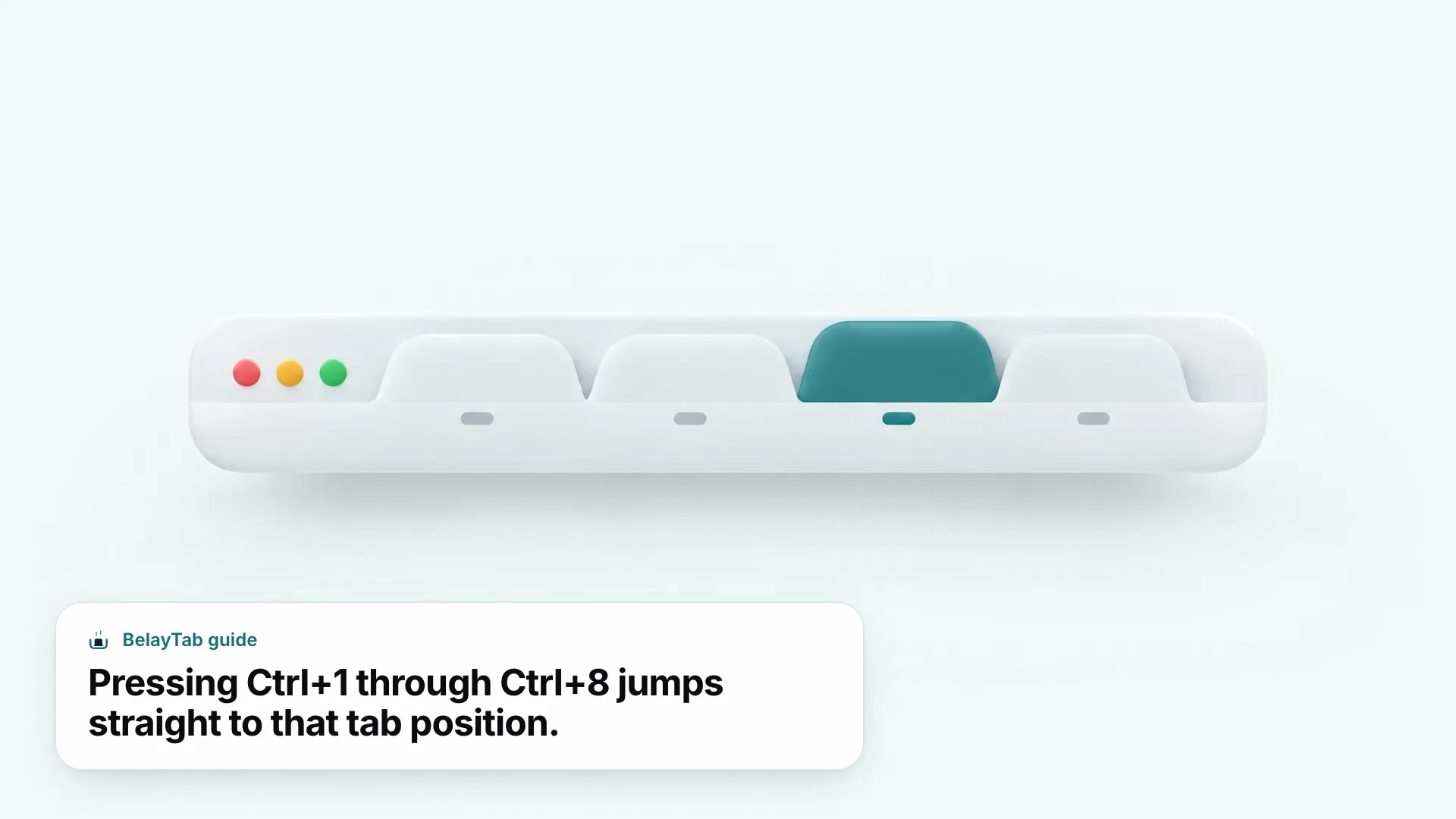
Press Ctrl + 1 through Ctrl + 8 (Cmd + 1 through Cmd + 8 on Mac) to jump straight to the tab sitting in that position, counting from the left. Ctrl + 9 (Cmd + 9) is a special case: it always jumps to your last tab, whether you have nine tabs open or ninety.
This shortcut is fastest when you keep a stable set of tabs open in roughly the same order, your email in position one, a calendar in position two, and so on. Once you’ve memorized the layout, jumping between them takes a single keystroke instead of a scan-and-click across the strip.
Keep in mind that opening or closing tabs shifts everyone’s position, so Ctrl+3 might point at your inbox one moment and a random tab the next if your tab count keeps changing through the day. The shortcut rewards a stable lineup more than a constantly shuffling one, which is why it pairs naturally with a fixed daily set, like email, calendar, and a project tracker, rather than a pile of one-off research tabs that come and go.
There’s no shortcut for tab position 9, 10, or beyond individually; once your tab count passes eight, everything past that point is only reachable with Ctrl+9 (which always means “last,” not “ninth”), a click, or the tab search shortcut covered next. If you regularly run more than eight tabs, that’s usually also a sign that grouping related tabs together would save you more time than any single keyboard shortcut.
How Do I Search Open Tabs Instead of Hunting Through the Tab Strip?
Press Ctrl + Shift + A on Windows and Linux to open Chrome’s tab search box, then type part of a page’s title or URL to filter your open tabs down to the one you want. It searches across every window, not just the one you’re currently in, which makes it the fastest way to find a tab once you’re past a dozen or so open.
On a Mac, the same feature opens from the dropdown arrow at the right end of the tab strip; a dedicated keyboard shortcut for it on macOS isn’t independently confirmed here, so the icon is the reliable route if you’re on a Mac.
Tab search also solves a problem Ctrl+Tab and the jump-to-tab shortcuts can’t: finding a tab that’s sitting in a completely different window. If you’ve got one window for work and another for personal browsing, Ctrl+Tab only cycles through whichever window you’re currently in. Tab search looks across all of them at once, which matters more than you’d expect once you’re regularly working with more than one window open at a time.
- Open tab search. Press Ctrl+Shift+A (Windows/Linux), or click the dropdown arrow at the right end of the tab strip on any platform.
- Type what you remember. A few words from the title or the URL are usually enough to narrow the list.
- Pick the tab. Click the result, or use the arrow keys and Enter, to switch to it instantly.
This beats Ctrl+Tab once you’ve lost track of where a tab physically sits in the strip; you don’t need to know its position, just something about what’s on the page. It’s especially useful during research sessions where you’ve opened a dozen tabs from the same search and can’t remember which one had the number you actually needed.
Can You Change Chrome’s Default Tab Shortcuts?
No. Chrome doesn’t include a settings page for remapping its built-in tab shortcuts like Ctrl+T or Ctrl+W to different key combinations. What you see in this guide is what you get; there’s no chrome change tab shortcut option buried in a menu somewhere.
That’s different from extensions, which can register their own shortcuts that you do get to reassign. If two extensions want the same key combination, or one of Chrome’s shortcuts clashes with something your operating system or another app already uses, your realistic options are limited: pick a different extension shortcut where one is offered, or use a system-level keyboard remapping tool outside Chrome to work around that specific combination.
If a shortcut simply isn’t firing at all, not a conflict, just nothing happening, the usual causes are a focused text field capturing the keystroke, or a webpage itself intercepting it with its own script. Clicking somewhere neutral on the page, like empty space next to a headline, before pressing the shortcut again usually clears it.
It’s also worth ruling out the page itself before assuming a shortcut is broken. Some sites, particularly ones built as full-screen apps or games, intentionally capture keyboard input and can swallow a shortcut before Chrome ever sees it. If a shortcut works everywhere except one specific site, that’s usually the site’s doing, not a setting you’re missing.
Is There a Shortcut for Viewing Two Tabs Side by Side?
Yes. Press Shift + Alt + N on Windows and Linux, Cmd + Option + N on a Mac, or Ctrl + Alt + N on a Chromebook, to open Chrome’s native split view with two tabs side by side in one window. It’s a genuinely built-in Chrome feature, not a third-party extension.
| Operating system | Split view shortcut |
|---|---|
| Windows / Linux | Shift+Alt+N |
| macOS | Cmd+Option+N |
| ChromeOS | Ctrl+Alt+N |
Split view is limited to exactly two sites at a time. The active side gets a thicker border and owns the address bar and back and forward buttons; click into the other pane to make it active instead. You can also start split view without touching the keyboard:
- Use the button. Click “Split view” next to the address bar, then pick the other tab to pair it with.
- Right-click a tab. Choose “New split view with current tab,” or right-click the active tab and choose “Add tab to new split view.”
- Drag to the edge. Drag any tab to the edge of the window until a plus icon appears, then drop it there.
Translate and Print only affect the active side. If you translate a page or print while in split view, it applies to whichever pane is currently active, not both sides at once. Switch panes first if you meant to affect the other one.
Split view isn’t the same as two full Chrome windows placed side by side using your operating system’s own window snapping; that approach still works too. Split view tends to win for quick side-by-side comparisons within a single session, two product pages, or a document and a reference tab. Two full windows arranged with your operating system’s own tools make more sense for a longer stretch of work, since each window keeps its own full toolbar and either one can be resized independently. For more detail on this feature straight from Google, see Chrome’s split view help page, or our guide to split screen in Chrome for a full walkthrough plus alternatives.
How Do You Move or Reorder Tabs Without Using the Mouse?
Chrome doesn’t have a confirmed keyboard shortcut for reordering tabs; dragging a tab to a new spot on the strip is still the standard way to move one. If you’re after keyboard efficiency, the better move is usually to stop reordering individual tabs altogether and group the ones that belong together instead.
Right-click any tab and add it to a new or existing group, give the group a name and a color, then click its label to collapse or expand it. Grouped tabs move as a block when you drag the group header, which is faster than dragging tabs one at a time, and a collapsed group takes up a single slot in the strip instead of eight.
Chrome also supports multi-select: hold Ctrl and click each tab you want to add, or click one tab and Shift-click another to select the whole range between them, then right-click any of the selected tabs for bulk actions like reloading them all at once. It’s documented on Google’s tab groups and multi-select help page, and it’s the closest thing Chrome has to keyboard-adjacent tab management beyond the individual shortcuts already covered here.
None of this changes tab order the way dragging does, but it solves the underlying problem, needing your important tabs in a predictable, findable place, without needing a shortcut that doesn’t exist. Our tab groups feature page covers setting up and naming groups in more detail if you want the full how-to.
Do Chrome’s Tab Shortcuts Work the Same on a Chromebook?
Mostly, yes. ChromeOS runs on the same Chrome engine as Windows and Linux, so shortcuts like Ctrl + T for a new tab, Ctrl + W to close one, and Ctrl + Tab to switch between them carry over the same way. Split view uses Ctrl + Alt + N on a Chromebook, its own dedicated combination rather than matching Windows or Mac exactly.
Where Chromebooks differ more is the rest of the keyboard: many models replace the top function-key row with dedicated buttons for things like brightness, volume, and the overview screen, which shifts a few shortcuts you might expect to find elsewhere on a standard keyboard. If a shortcut in this guide doesn’t respond on your Chromebook, check whether your specific model uses a different physical layout before assuming the shortcut itself is wrong; Chromebook keyboards vary more between manufacturers than Windows or Mac keyboards do.
Check your Chromebook’s own list for anything unusual. This guide focuses on Chrome’s tab shortcuts, which are consistent across operating systems. For a full accounting of ChromeOS-specific keys, including the ones tied to your Chromebook’s unique keyboard row, see Google’s Chromebook keyboard shortcuts page.
If you split time between a Chromebook and a Windows laptop, sticking to the shared shortcuts above means you won’t have to relearn much switching between them. For a broader walkthrough of managing tabs, tab groups, and recovering closed tabs specifically on a Chromebook, our Chromebook tabs guide covers the device-specific details this article doesn’t.
What’s the Shortcut to Reopen a Tab You Closed by Accident?
Press Ctrl + Shift + T (Cmd + Shift + T on Mac) to reopen the last tab you closed. Press it again, and Chrome keeps working backward through your closed-tab history, one tab at a time, in the order you closed them.
It’s the natural counterpart to the shortcuts in this guide: you’re opening and switching between tabs all day, and sooner or later you’ll close the wrong one. This article is focused on opening, switching, and jumping between tabs, so we won’t repeat the full breakdown here. For every closing shortcut across Windows, Mac, and every major browser, see our close tabs shortcut guide, and for what to do when Ctrl+Shift+T isn’t enough, because you closed the whole window rather than a tab, or restarted Chrome entirely, see our guide to reopening closed tabs in any browser.
One thing worth knowing now, though: Ctrl+Shift+T only reaches back through your current browsing session. Once you quit Chrome completely, or your computer restarts, that history resets, and the shortcut alone won’t bring a tab back.
Reopening one tab at a time also means the shortcut isn’t built for undoing a whole afternoon of tab-closing at once. If you closed ten tabs by accident and want them all back, you’ll be pressing Ctrl+Shift+T ten times in a row, in reverse order, rather than getting them back as a group.
What Happens When These Shortcuts Aren’t Enough to Protect Your Tabs?
Keyboard shortcuts move you between tabs and reopen the last few you closed, but none of them survive a crash, a forced update, or a computer restart. Ctrl+Shift+T only looks back through your current session; once Chrome closes for any reason other than you clicking the X, that history is gone, and so are your tabs.
That’s a different problem than the ones this guide solves. If Chrome has crashed or frozen, the fix isn’t a keyboard shortcut at all; see our guides on getting Chrome restarted after a crash and troubleshooting a Chrome freeze. If Chrome closed normally and you just want your last session back, Chrome does offer that too, and our guide to restoring tabs in Chrome walks through exactly how.
For the gap those don’t cover, an update that closes every window, a laptop that dies mid-research, a session you’d have wanted from three days ago and not just the last one, BelayTab takes automatic snapshots of every open window on a five-minute timer and again when a window closes, with no account required and no limit on how many sessions or tabs you keep. Restoring never overwrites what’s already there; it just adds a new version, so you can always step back if you restore the wrong one.
None of that replaces the shortcuts in this guide; you’ll still want Ctrl+T and Ctrl+Tab for day-to-day speed. It just means the day something goes wrong, you’re not relying on a keyboard shortcut that only remembers the last few tabs you closed.