






A proxy server sits between your browser and the internet, and setting one up usually means fewer clicks than people expect — but the exact steps depend on which browser you use. Chrome and Edge do not have their own proxy screens at all; they hand you off to your operating system. Firefox is the odd one out, with a proxy panel of its own. This guide walks through the web browser proxy server settings in Chrome, Edge, and Firefox, explains the difference between a browser web proxy and a full VPN, and covers what a proxy chrome extension actually changes under the hood. Along the way we will flag the one real risk of fiddling with proxy settings: it is one of the more common ways people end up staring at a stuck browser window, wondering where their open tabs went.
What Is a Web Browser Proxy Server?
A web browser proxy server is a middle server that receives your browser’s requests, forwards them to the destination site, and passes the response back to you. To the website you are visiting, the request appears to come from the proxy’s IP address, not your own.
Proxies can do more than hide an IP address. Depending on the type, a proxy can cache pages to speed up repeat visits, block certain sites or categories of content, log traffic for a network administrator, or route requests through a specific region. This is why businesses and schools commonly run a proxy server web browser setup at the network level rather than asking every employee or student to configure one individually.
There is no single standard for how a proxy gets applied. Some are configured at the operating system level, so every app on the device uses them. Some are configured inside one browser only. Others are pushed automatically to a whole network through a script, which is what the auto-detect and PAC-script options described below are built for. Understanding which layer you are configuring is the difference between a five-minute fix and an afternoon of confusion — a wrong guess here is exactly the kind of thing that leads someone to reset settings they didn’t need to touch, which is where checking a resource like a browser security checklist before you start can save real time.
Proxy settings live in different places on purpose. Chrome and Edge intentionally do not duplicate operating system proxy fields inside the browser. Firefox intentionally does. Neither approach is “wrong”. They reflect different philosophies about whether a browser should share network config with the rest of the computer or manage its own.
Quick Answer: Proxy Setup by Browser
Here is the short version before the step-by-step sections below.
| Browser | Own proxy settings? | Where you configure it |
|---|---|---|
| Chrome | No | Settings search “proxy” → opens OS network settings |
| Edge | No | Settings search “proxy” → opens OS network settings |
| Firefox | Yes | Settings > General > Network Settings > Settings |
| Windows (OS level) | — | Settings > Network & internet > Proxy |
The practical takeaway: if you are on Chrome or Edge and you change the proxy, you are changing it for every app on that computer that respects system proxy settings, not just the browser. If you are on Firefox, you can run a different proxy just for that one browser without touching anything else.
How Do I Set Up a Proxy in Chrome?
You set up a proxy in Chrome by opening Chrome’s Settings, searching for “proxy,” and following the link to your operating system’s proxy dialog — Chrome does not have a proxy panel of its own. This is intentional: Chrome is built to defer to whatever the system already has configured, which keeps behavior consistent across every Chromium-based app on the machine.
- Open Chrome’s Settings. Click the three-dot menu and choose Settings, or type chrome://settings into the address bar.
- Search for “proxy.” Use the search box at the top of the Settings page.
- Click “Open your computer’s proxy settings.” This link takes you straight to the operating system dialog rather than a Chrome-hosted page.
- Choose a mode in the OS dialog. On Windows this means Settings > Network & internet > Proxy, with Automatic detection, a setup script, or Manual entry.
- Fill in the details and save. Enter the proxy address and port (Manual) or the script address (setup script), then save and restart Chrome.
If your organization manages Chrome through policy, the proxy may already be locked to a fixed configuration, and the Settings page will show it as managed rather than editable. That is normal on work and school devices, and it is not something you can change from inside the browser.
How Do I Set Up a Proxy in Microsoft Edge?
You set up a proxy in Edge the same way you do in Chrome, because Edge is built on the same Chromium engine and reads the same operating system proxy configuration rather than exposing its own proxy fields. If you have already configured a proxy for Chrome on that computer, Edge should pick up the identical settings automatically, since both browsers are reading from the same place.
To find the link inside Edge, open Settings, search “proxy,” and follow the option that opens your system’s network settings — on Windows that is again Settings > Network & internet > Proxy, with the same three choices: Automatic detection, a setup script address, or Manual entry with an IP address, port, and an optional exception list (something like *.contoso.com to skip an internal domain).
This shared-settings behavior is one reason people troubleshoot proxy issues by browser without realizing the fix is system-wide. If Edge suddenly cannot load a page after a proxy change, check whether Chrome has the same problem on the same device — if it does, the issue is almost certainly the Windows or macOS proxy dialog itself, not either browser individually. That also means you generally do not need separate guidance for Chrome vs Edge proxy behavior; whatever changes one changes the other.
A wrong proxy address can block everything. If you type an incorrect address or port into Manual proxy configuration, every page in every Chromium browser on that device can start failing to load, not just one site. Keep the previous working setting written down before you change anything, so you can revert quickly.
How Do I Set Up a Proxy in Firefox?
You set up a proxy in Firefox through its own Connection Settings dialog, found under Settings > General > Network Settings > Settings — separate from whatever proxy your operating system has configured. This is the one mainstream desktop browser that manages proxy configuration independently rather than deferring to the OS.
- Open Firefox’s Settings. Click the menu button and choose Settings.
- Scroll to Network Settings. It sits near the bottom of the General panel.
- Click “Settings.” This opens the Connection Settings dialog.
- Pick a proxy mode. Options include “No proxy,” “Auto-detect proxy settings for this network,” “Use system proxy settings,” “Manual proxy configuration,” and “Automatic proxy configuration URL” for a PAC file.
- Fill in Manual details if chosen. Enter a hostname and port per protocol, or check “Use this proxy server for all protocols,” then add any addresses to the “No Proxy For” list.
- Save and reload. Click OK, then reload any open tabs to apply the new proxy.
Firefox’s manual configuration is worth knowing about specifically because its “No Proxy For” list supports a special local-only marker that bypasses the proxy for any hostname without a period in it — useful for internal servers referenced by a short name. This level of control is one reason some privacy-focused users prefer Firefox for proxy work even when they use a Chromium browser day to day.
What Do Chrome’s Proxy Modes Actually Mean?
Chrome recognizes five internal proxy modes, and understanding them explains why a proxy chrome extension can override your system settings without you touching Windows or macOS at all. These modes are not buttons in Chrome’s consumer Settings page (they are the options available to Chrome’s extension platform and to enterprise policy) but every proxy chrome extension you install is really just picking one of these five under the hood.
| Mode | What it does |
|---|---|
| direct | No proxy is used; requests go straight to the destination. |
| auto_detect | Chrome looks for a PAC script automatically on the local network. |
| pac_script | Chrome uses a specific PAC script you (or an extension) provide. |
| fixed_servers | A fixed proxy address is used for all traffic, or a different one per protocol (HTTP, HTTPS, FTP), with an optional fallback. |
| system | Chrome uses whatever proxy is set at the operating system level. |
That last mode, system, is worth calling out because it is also Chrome’s default behavior even when no extension is involved. Google’s own documentation on the proxy API is explicit that system mode differs from having no configuration at all: in the absence of any command-line flags or policy, Chrome falls back to whatever the operating system has set. In other words, “no extension touching proxy settings” and “system mode” end up looking identical in practice.
This matters for troubleshooting. If pages behave differently after installing a proxy extension, the extension has likely switched Chrome from system mode to fixed_servers or pac_script — removing or disabling the extension should return Chrome to reading the OS setting again.
Is a Proxy Chrome Extension Worth Using?
A proxy chrome extension is worth using when you want to switch proxies quickly without touching operating system settings, but it is not a substitute for understanding what the proxy does to your traffic. Because Chrome’s extension platform exposes the same five proxy modes described above, an extension can flip your browser between a fixed proxy, a PAC script, or plain direct access with one click — which is genuinely convenient if you regularly switch between, say, a home network and a work VPN-adjacent proxy.
The trade-off is trust. A proxy extension needs permission to control your network requests, which is a meaningfully broader permission than most extensions request. Before installing one, check who publishes it, how recently it was updated, and whether its permissions match what it claims to do.
- Casual browsing. Skip a proxy entirely; there is rarely a reason to add one for everyday use.
- Managed work or school network. Use whatever proxy your IT team has already configured — do not install a separate extension on top of it.
- Developer or tester. A proxy chrome extension for quick region or header switching is reasonable, as long as you remove it when the task is done.
If your goal is really privacy or encrypting your traffic rather than just rerouting it, a proxy extension is the wrong tool — see the next section for why.
Is a Proxy Server the Same as a VPN?
No, a proxy server and a VPN solve different problems, and Microsoft’s own guidance is direct about the gap: a VPN provides a more secure connection compared to a proxy server. A proxy typically reroutes and sometimes filters traffic for one app or browser, and it does not necessarily encrypt anything. A VPN encrypts your device’s entire connection, not just one browser’s, and that encryption is the main reason it is considered the stronger option for privacy.
There is also a configuration detail worth knowing: if your VPN has its own proxy-like feature, that has to be set up separately from your operating system’s proxy dialog. The two are not automatically linked just because both reroute traffic. If you are choosing between the two for privacy reasons rather than for network filtering, a VPN Chrome extension is generally the more appropriate tool, and it is worth checking what it verifies before you install one.
Proxies and VPNs don’t protect your tabs. Neither a proxy nor a VPN backs up your open tabs. Both change how your traffic travels, not what happens to your browser windows if it crashes, updates, or gets closed by accident. That job belongs to a session tool like BelayTab, covered next.
What Happens to Your Tabs When You Change Proxy Settings?
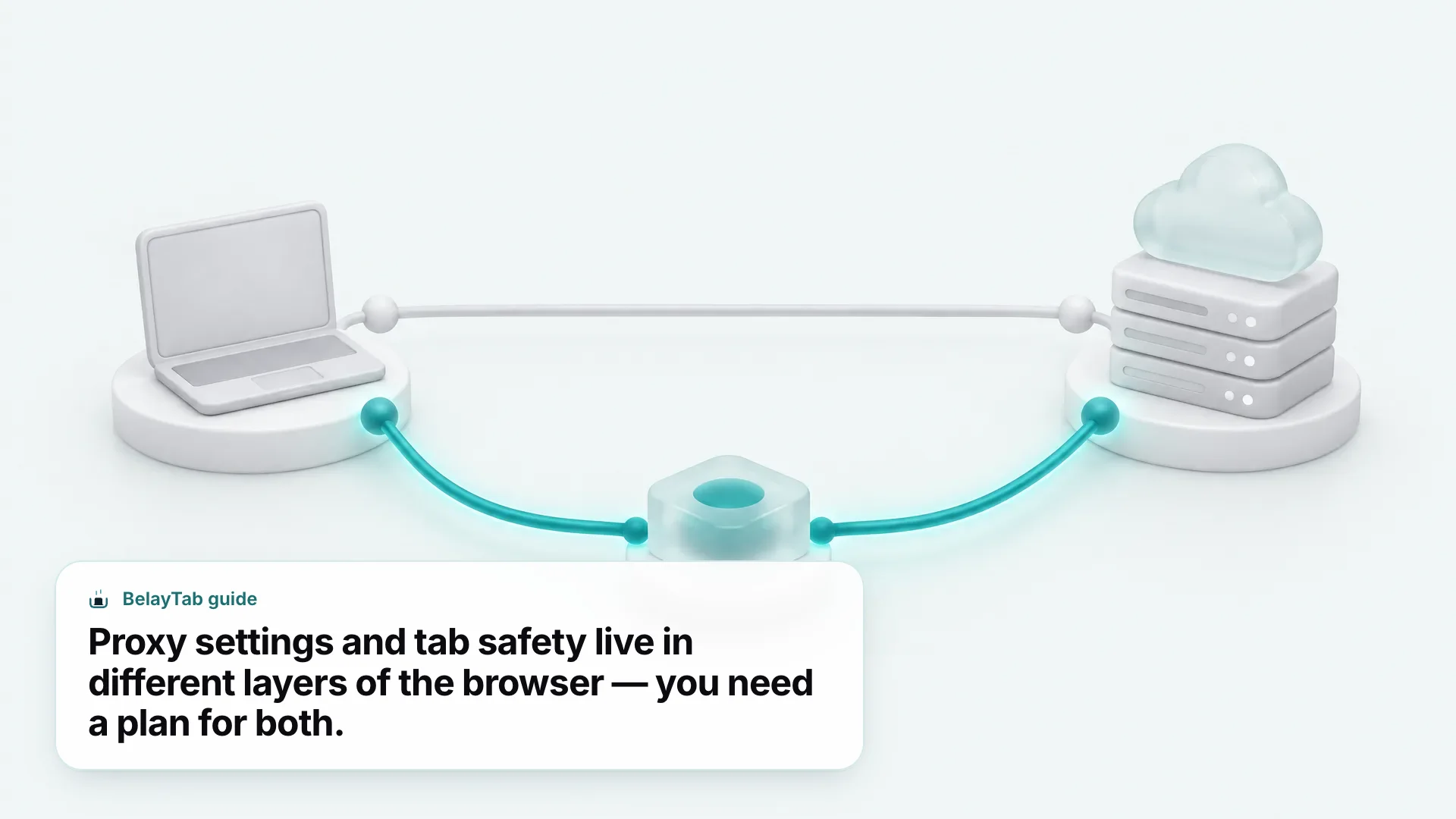
Changing a proxy setting does not directly close your tabs, but the browser restart that often follows a proxy change (and the crash risk from a badly formed proxy address) can put unsaved tabs at risk. This is a narrow but real gap: proxy configuration lives at the network layer, tabs live at the session layer, and nothing connects the two automatically.
Chrome and most Chromium browsers will try to reopen your last session after a restart if you have that setting turned on, but that only covers a normal, clean restart. It does not help if the browser crashes outright, if you close a window by mistake while troubleshooting, or if you need to test a proxy change across several restarts in a row. Each of those is common during proxy debugging, especially on a shared or IT-managed machine where you might not control every setting.
That’s the problem BelayTab was built around. It automatically snapshots every open window every 5 minutes and again whenever a window closes, keeps up to 20 versions of every saved session so a bad restore never overwrites good history, and puts snapshots, deleted sessions, your browser’s own recently closed list, and export files all on one Recovery screen. You can also save a window on purpose before you start changing network settings, with one click or Ctrl + Shift + S (Cmd + Shift + S on Mac), and restore it into a new window once the proxy is sorted — see how saving a session works for the full picture. None of this is limited to proxy troubleshooting, either: the same automatic snapshots protect you from ordinary crashes, accidental window closes, and update-related restarts.
How Do You Troubleshoot Proxy Problems in a Browser?
You troubleshoot browser proxy problems by isolating whether the issue is the proxy itself, the browser’s configuration, or an extension sitting on top of both. Start with the simplest test: switch to “No proxy” or “Direct,” reload the same page, and see if it loads. If it does, the proxy (not your browser or your internet connection) is the cause.
From there, work through the usual suspects in order:
- Wrong address or port. A typo in the manual proxy fields is the single most common cause of pages that hang indefinitely.
- Expired or unreachable PAC script. If the script URL is down or blocked, auto_detect and pac_script modes will fail silently rather than showing a clear error.
- A proxy extension fighting your OS setting. Disable proxy-related extensions one at a time to see which one is overriding system mode.
- Exception list formatting. Windows’ wildcard syntax (like *.contoso.com) and Firefox’s local-only marker are not interchangeable — copying one format into the other’s field will not work.
- Stale cached connections. A hard refresh sometimes clears up a page that looks broken after a proxy change even though the setting itself is correct; see our hard refresh guide if a single page seems stuck.
If none of that resolves it, check whether the browser that seems affected is the odd one out, or whether every Chromium browser on the device shares the same problem. That tells you immediately whether you are debugging an OS-level setting or something specific to one browser.
Write down the working setting first. Before changing anything, note your current proxy mode and any address or script URL shown. If the change breaks something, you can revert in seconds instead of guessing your way back.
What Proxy Mistakes Should You Avoid?
The most common proxy mistake is assuming a proxy set in one browser applies everywhere, when in Chrome and Edge it is really an operating-system setting and in Firefox it is genuinely independent. Mixing that up leads people to “fix” the wrong browser, or to assume a proxy is broken system-wide when it is really a Firefox-only Connection Settings issue.
A second common mistake is treating a proxy as a privacy tool on its own. A proxy can hide your IP address from the destination site, but it does not encrypt your traffic the way a VPN does, and depending on the proxy, the operator can see everything passing through it. If privacy from your own network is the goal, understand what you are getting before you rely on it — see our broader browser security resources for what a proxy does and does not cover.
A third mistake is skipping the exception list entirely and routing internal or local addresses through an external proxy, which can slow down or break access to devices on your own network. And a fourth, specific to the desktop experience, is restarting the browser repeatedly while testing proxy changes without having saved the tabs you had open — a habit that eventually costs someone a research session or a half-written email draft they never meant to close.
| Mistake | Why it causes problems | Better approach |
|---|---|---|
| Assuming Chrome and Firefox share one proxy setting | Chrome/Edge use the OS setting; Firefox does not | Check and set each independently |
| Treating a proxy as encryption | Proxies reroute traffic, not necessarily encrypt it | Use a VPN if encryption is the goal |
| Skipping exception lists | Internal traffic routes through an external proxy unnecessarily | Add local addresses to the exception list |
| Restarting repeatedly without saving tabs | A crash or accidental close during testing loses work | Save a session with BelayTab before changing settings |
Related reading if a proxy change led to a bigger browser problem: how to restore tabs in Chrome after closing or crashing, and if the browser itself seems unresponsive during testing, Chrome freeze fixes covers the general troubleshooting steps beyond proxy settings specifically.