






Chrome startup pages decide what greets you the moment you open the browser: a blank New Tab page, the tabs you had open last time, or a specific set of pages you pick yourself. It sounds like a small setting, but it’s one of the few browser controls that actually saves you time every day, especially if you open Chrome a dozen times before lunch.
The trouble is Chrome’s built-in options only go so far. “Continue where you left off” reopens your last session, but it can’t tell you what a session looked like three days ago, and it doesn’t always survive a crash cleanly. Below, we’ll cover exactly how to set Chrome’s startup pages, how they differ from your homepage, why they sometimes stop working, and what to do when “last session” isn’t enough of a safety net.
What Are Chrome Startup Pages?
Chrome startup pages are the site or sites Chrome loads automatically the moment you open the browser, before you click anything. You control this from a single settings screen, and the choice you make there overrides whatever was on screen when Chrome closed, unless you specifically tell it to remember.
Chrome’s on startup settings give you three built-in options, found at Chrome menu > Settings > On startup: open the New Tab page, continue where you left off, or open a specific page or set of pages. Each one behaves differently enough that picking the right one matters, depending on how you use the browser.
If you keep one or two tools open all day (email, a project board) “specific pages” is predictable and fast. If you’re mid-research across a dozen tabs and don’t want to reopen every window by hand, “continue where you left off” does that automatically. And if you just want a clean slate, the New Tab page on startup is exactly that: nothing to load, nothing to remember.
| If you want… | Choose this startup option |
|---|---|
| A blank slate every time | Open the New Tab page |
| Your last session back automatically | Continue where you left off |
| The same one or two sites every time | Open a specific page or set of pages |
| A page you click into, not one that loads at launch | Set a homepage under Appearance instead |
How Do I Set Chrome’s Startup Pages?
You set Chrome’s startup pages from Settings, under the On startup section, in under a minute.
- Open Chrome’s menu. Click the three dots in the top right corner, then select Settings.
- Click On Startup. It’s in the left sidebar, below Appearance.
- Pick an option. Choose Open the New Tab page, Continue where you left off, or Open a specific page or set of pages.
- Add pages if needed. If you chose specific pages, click Add a new page and type or paste each URL, then click Add.
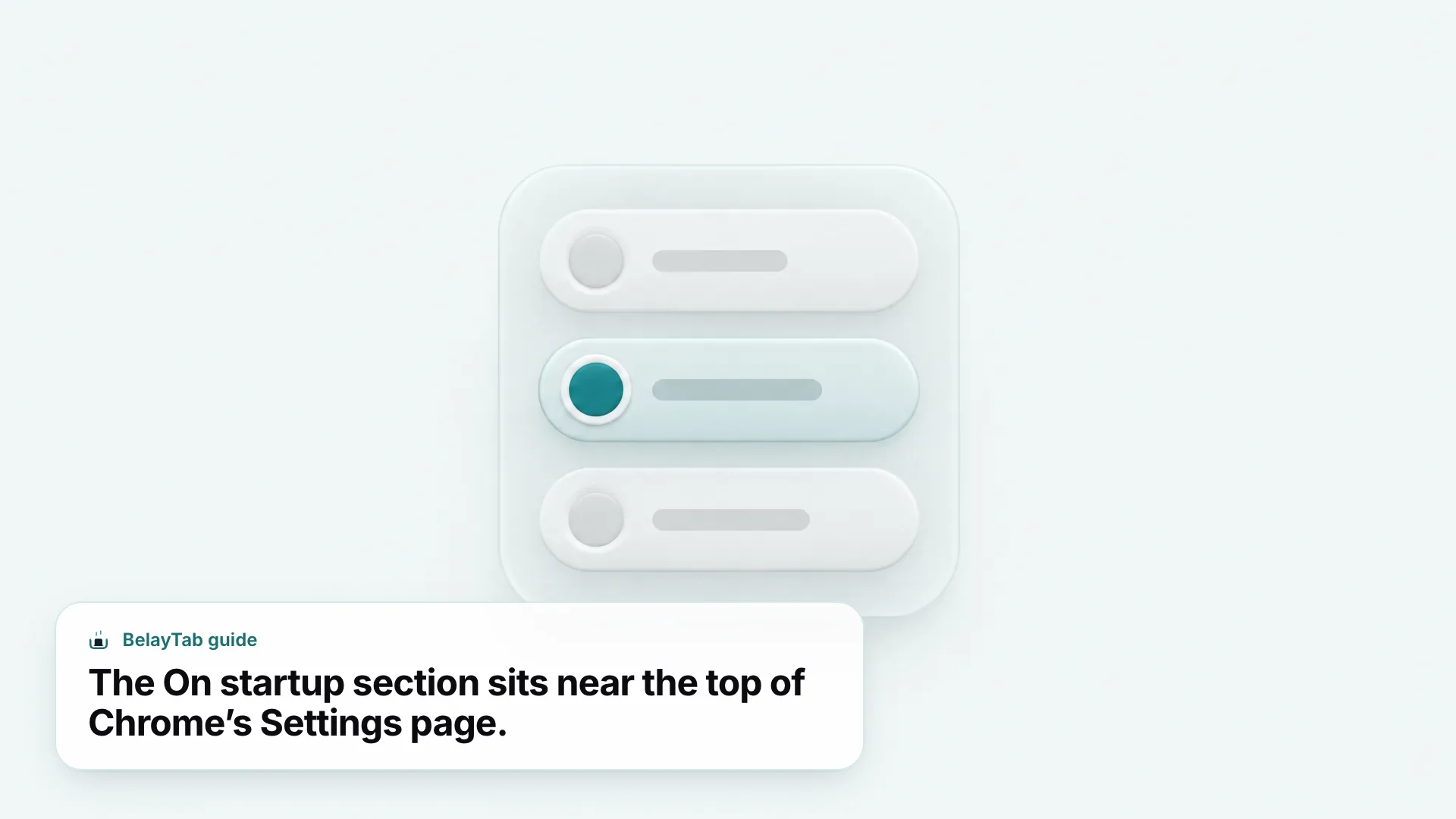
That’s the whole process. If you picked specific pages, add as many as you want, each opening as its own tab when Chrome launches. Use the same screen later to remove a page or switch back to continue where you left off if a fixed list starts feeling rigid.
One thing worth knowing: this setting lives in your Chrome profile, not in a file you can copy between computers. If you use more than one profile, or you’re setting this up on a new machine, you’ll repeat these steps for each one — unless sync is doing the work for you, which we cover further down.
What Does “Continue Where You Left Off” Actually Restore?
Continue where you left off reopens the tabs and windows that were open when you last closed Chrome, including cookies and session state, so a page like a logged-in inbox picks up close to where it was.
That last part matters: it’s a snapshot of one moment, not an ongoing record. Close Chrome with ten tabs open, reopen it, close three of those tabs, then quit again, and the “last session” Chrome remembers is now the seven-tab version, not the original ten. There’s no built-in way to reach back further than the most recent close.
It’s also worth separating this from the Recovery screen idea of restoring a specific closed window, tab by tab, whenever you want it — Chrome’s continue where you left off only fires automatically at launch, and only once, using whatever it saved last. If you closed a window on Tuesday and want it back on Friday, this setting won’t help; you’d need something that keeps more than one checkpoint.
That gap is by design, not a bug: Chrome’s startup setting is meant to be a light continuity feature, not an archive. For most people, most days, that’s enough. It stops being enough the moment you need an older session, which is more common than it sounds — a research tab you closed by mistake, a booking confirmation you didn’t bookmark, a window from before a browser update.
How Do I Make Chrome Open a Specific Set of Pages Every Time?
You make Chrome open specific pages on startup by selecting Open a specific page or set of pages under On startup, then adding each URL by hand.
Once that option is selected, Chrome shows an Add a new page button. Click it, paste in the full address including https://, and it appears in your list. There’s no published cap on how many pages you can add, so if you genuinely open the same six tools every morning, list all six.
Each page becomes its own tab when Chrome starts, in the order you added it. To remove one, hover over the entry and click the X next to it. There’s no drag-to-reorder for this list the way there is for a tab strip, so changing the order means deleting and re-adding entries.
This option beats continue where you left off when your routine is repetitive and predictable: a dashboard, a shared calendar, a team chat app. It’s worse when your day starts with whatever you were doing yesterday, because Chrome ignores your actual last session and loads the fixed list instead, every time, regardless of what you had open.
One workaround people miss: instead of fighting Chrome’s startup list for a routine that shifts slightly day to day, pin your daily tools as pinned tabs inside whatever session continue where you left off restores. Pinned tabs survive restarts reliably and don’t require re-entering a single URL.
Chrome Startup Page vs Homepage: What’s the Difference?
A startup page controls what Chrome loads automatically when you open the browser; a homepage only loads when you click the Home button, and the two are configured in completely different places.
| Startup page | Homepage | |
|---|---|---|
| Where it’s set | Settings > On startup | Settings > Appearance |
| When it loads | Every time you open Chrome | Only when you click the Home button |
| Options | New Tab page, last session, or specific pages | New Tab page or one custom URL |
| Visible by default | One option is always active | Home button hidden until you turn it on |
It’s a common mix-up because both settings live in the same general Settings menu, and both can point at the same page if you want them to. But they solve different problems: startup pages decide what happens at launch, while the homepage is a manual shortcut you click mid-session, similar to how some people use a bookmark.
If you only ever use one of the two, that’s fine. Most people either rely on continue where you left off for startup and never touch the Home button, or they set a homepage they click occasionally and leave startup on the New Tab page. Setting both to the same address is redundant, but it’s not wrong.
Why Isn’t Chrome Restoring My Tabs on Startup?
The most common cause is that On startup somehow got switched to Open the New Tab page instead of Continue where you left off, often after a settings reset you ran for an unrelated reason.
- Check the On startup setting again. Go to Settings > On startup and confirm Continue where you left off is selected.
- Check you’re in the right profile. Startup settings are per profile, so make sure you haven’t switched profiles without noticing.
- Look for a recent settings reset. If you used Settings > Reset settings to fix something else, that action resets On startup to the New Tab page along with other defaults.
- Rule out a crash. If Chrome closed unexpectedly rather than being shut down normally, it may not have finished saving session state to restore.
If Chrome crashed rather than closed normally, see Chrome Crashed? How to Restart It and Get Your Tabs Back for recovery steps specific to that situation, and How to Restore Tabs in Chrome After Closing or Crashing for a broader walkthrough that covers more scenarios than just startup settings.
Can I Set Different Startup Pages for Different Chrome Profiles?
Yes. Each Chrome profile keeps its own On startup setting, along with separate bookmarks, history, passwords, and extensions, so what loads for your work profile can be completely different from what loads for your personal one.
- Personal profile. Set Continue where you left off so your evening tabs are there in the morning.
- Work profile. Set specific pages for your inbox, calendar, and project board so every workday starts the same way.
- Guest mode. Ignores every profile’s startup pages; it opens fresh and discards its activity when you close it, so don’t rely on it for routine sites.
Switching profiles is quick: click the Profile icon in the top right corner, then choose Add to create a new one or click an existing profile to switch into it. Each profile is really a separate Chrome identity, which is why startup pages, sync status, and even installed extensions can differ from one to the next. If you juggle a personal and a work identity, our guide on Chrome profiles covers the setup in more detail.
Guest mode deserves a separate mention because people sometimes expect it to behave like a lightweight profile. It doesn’t: it opens without your saved startup pages or bookmarks, and closing the guest window deletes that session’s history, cookies, and site data. It’s built for someone borrowing your computer for five minutes, not a second identity you switch into daily.
Does Chrome Sync My Startup Page Settings Across Devices?
Yes. When you’re signed in to Chrome with sync turned on, your settings (including the On startup choice) sync to your other signed-in devices by default.
Chrome syncs several data types by default: bookmarks, history, open tabs, passwords, payment info, addresses and phone numbers, and settings and preferences. That last category is where your startup page choice lives, so setting continue where you left off on your laptop should carry the same choice over to a desktop you sign into later. You can customize exactly which of these types sync from Settings > You and Google > sync options, if you’d rather keep some local.
If what you want is tabs that stay in sync with full version history, across browsers and not just within your Google Account, that’s a different job than Chrome’s built-in sync. Our post on Chrome sync walks through what it does and doesn’t cover, and BelayTab’s optional Sync feature is built specifically to fill that gap.
What Happens to Startup Pages After a Chrome Crash or Update?
Your On startup choice itself doesn’t change after a crash or update, because it’s stored in your profile’s settings, not in the session data that gets restored at launch.
What can go wrong is the session data that continue where you left off depends on. Chrome normally saves your open tabs when you close windows the regular way, but an abrupt crash, a forced quit, or a power loss can interrupt that save before it finishes. The startup setting still says continue where you left off, Chrome still tries to honor it. There’s just less, or nothing, saved to restore.
Updates tend to be gentler. Chrome typically closes and reopens its own windows during an update, and that counts as a normal close, so your tabs usually come back along with the new version. It’s abrupt crashes and forced closures that put continue where you left off to the real test, not routine updates.
This is the gap that trips people up: a setting that promises “restore my last session” is only as good as the last save Chrome managed to make. If you want tabs protected on a schedule instead of depending on a clean shutdown every time, that’s a job for something running independently of Chrome’s own close event, which is exactly where automatic snapshots come in.
How Do You Protect Tabs That “Continue Where You Left Off” Can’t Cover?
Continue where you left off only ever remembers your most recent session, so if you want to reach back further, keep named checkpoints, or recover a window you closed on purpose days ago, you need a tool built specifically for that.
Where Chrome’s startup pages give you one snapshot (whatever was open last) BelayTab keeps a running history you can dig back into. It takes an automatic snapshot of every open window every five minutes, plus another whenever a window closes, so instead of one save you have a trail of them, with the last 20 versions of each session kept and nothing overwritten when you restore.
Saving a specific set of tabs on purpose is one click, or press Ctrl + Shift + S (Cmd + Shift + S on Mac), and you can name that window “Q4 project” or “flight research” instead of hunting through an unlabeled list later. Tab groups keep their names and colors, pinned tabs stay pinned, and tab order is preserved — none of which Chrome’s own startup setting promises.
Everything lives on one Recovery screen: your automatic snapshots, anything you deleted (with a 30-day trash before it’s gone for good), the browser’s own recently closed windows, and any export files you’ve made, all in the same place instead of scattered across menus. It’s free, with no account required and no limits on sessions or tabs, and it runs on Chrome, Edge, Brave, Opera, Vivaldi, Arc, and Firefox, plus Safari on Mac. There’s no iPhone, iPad, or Android app.
None of this replaces Chrome’s On startup setting; you’ll still want continue where you left off turned on for the everyday case. BelayTab is the layer underneath it for the days that setting alone can’t cover: the crash before a save finished, the window you closed by accident three days ago, the session you want back exactly as it was.