






Open Chrome right now and count your tabs. If you’re like most people, the number is higher than you’d like to admit — a dozen is normal, forty during a busy week isn’t unusual. Chrome tabs are simple in theory: each one is a page, sitting in a strip at the top of the window, one click away. In practice they multiply fast, get closed by accident, and vanish completely when Chrome crashes or a laptop restarts.
This guide covers the real questions people search when a tab goes missing: how to restore tabs in Chrome after closing one, how to bring everything back after a crash, how to restore tabs on Chromebook, and the shortcuts and settings worth memorizing. It also covers what to do when Chrome’s own tools run out, because eventually they do.
What Are Chrome Tabs, and Why Do People Lose Them?
A Chrome tab is a single page loaded inside Chrome’s window, shown as a small labeled strip along the top; a window can hold dozens of them, and Chrome itself can have several windows open at once. That distinction matters more than it sounds — closing a tab, closing a window, and closing a tab group are three different actions with three different recovery paths, and mixing them up is why people panic when tabs vanish.
Most lost-tab moments come down to a handful of causes. You click the small x on a tab you meant to keep. Chrome crashes mid-task, or the operating system forces a restart for an update. A laptop runs out of battery. Someone else uses your computer and closes windows to “clean up.” Or you simply had forty research tabs open the night before a deadline, and closed the browser without thinking, assuming they’d still be there tomorrow.
None of these are unusual, and Chrome has genuine tools for most of them: a reopen shortcut, a startup setting, a history menu. Where it falls short is time. Its memory of what you closed only stretches back to the last time the browser fully restarted. Everything past that boundary needs a different kind of help, which is where a session manager built for Chrome, like BelayTab, comes in — more on that toward the end.
Quick Answer: How to Restore Chrome Tabs by Situation
The right fix depends on exactly how the tab or window disappeared, and matching the situation to the fix below saves you from digging through menus that won’t help.
| Situation | Fastest fix |
|---|---|
| Closed one tab by mistake | Press Ctrl+Shift+T (Cmd+Shift+T on Mac) |
| Closed a whole window | Same shortcut, or check History, then Recently closed |
| Chrome crashed or force-quit | Reopen Chrome; if “Continue where you left off” is on, tabs return automatically |
| Restarted your computer or Chromebook | Same as above, plus Chrome’s History menu |
| Closed tabs days or weeks ago | Chrome’s own history won’t help; check BelayTab’s Recovery screen if it was running |
| Switched to a new computer | Sign in and turn on Chrome sync, or restore from a BelayTab export |
However you phrase the search (how to restore tabs on Chrome, how to restore tabs chrome, how to restore chrome tabs) the six situations above cover the real-world cases people run into. The first four point to tools built into Chrome itself. The last two point past Chrome entirely, and that’s the group worth remembering: once a tab is old enough that Chrome’s session memory has moved on, no setting inside Chrome brings it back.
If you want the step-by-step version of any single row, the sections below cover Chrome’s shortcut, its startup setting, and Chromebook specifics one at a time. Our deep dive on restoring tabs in Chrome after closing or crashing covers the same ground with extra troubleshooting.
How Do I Restore Tabs in Chrome After Closing One by Accident?
Press Ctrl + Shift + T (Cmd + Shift + T on Mac) immediately after closing the tab, and Chrome reopens it in the same spot, scroll position included in most cases. This is the single most useful shortcut in Chrome, and it’s worth building into muscle memory instead of hunting through menus every time.
The shortcut isn’t a one-shot deal. Press it again and Chrome reopens the tab you closed before that one, then the one before that, walking backward through your closing history within the current session. Close an entire window by mistake, and the same shortcut brings the whole thing back, tabs and all, rather than one page at a time.
- Press the shortcut. Ctrl+Shift+T on Windows and Linux, Cmd+Shift+T on Mac, right after the tab closes.
- Repeat it for older closures. Each press goes one step further back, most recent first.
- Check the History menu if it’s been a while. Chrome menu (the three dots), then History, then Recently closed lists tabs and windows from the current session, even ones the shortcut skipped past.
- Ctrl+click links going forward. Opening a link in a new tab means an accidental close costs you one page, not your place in a longer article.
One limit worth knowing up front: both the shortcut and the History list only remember what happened since Chrome last fully restarted. Quit Chrome, restart your computer, or let it crash and relaunch, and that memory resets. For anything closed before that point, skip ahead to the section on tabs gone for good.
How Do You Restore Tabs in Chrome After a Crash or Restart?
Turn on “Continue where you left off,” and Chrome reopens every tab from your last session automatically the next time it launches. That single setting solves most crash-and-restart cases without you doing anything else. Find it at Chrome menu, then Settings, then On startup, and choose “Continue where you left off” instead of “Open the New Tab page.”
Turn it on before you need it. This setting only helps if it’s already on when Chrome crashes. Check it now, not after you’ve lost a session. It takes ten seconds and it’s the single highest-value setting on this page.
If the setting was off, or the crash happened mid-update, your first stop is still the History menu: Chrome menu, then History, then look under Recently closed for the window or tabs from your last session. It’s not guaranteed to catch everything, especially if the crash was severe enough to stop Chrome from writing its session data cleanly, but it’s worth checking before assuming everything is gone.
A forced browser update behaves the same way as a crash from Chrome’s perspective: if you had “Continue where you left off” enabled, your tabs come back; if you didn’t, you’re relying on History. If you’re dealing with a browser that keeps freezing or crashing outright rather than a one-time restart, our guide on Chrome crashing walks through the underlying causes, not just the tab recovery.
How Do You Restore Tabs on a Chromebook?
The same two tools apply on a Chromebook as on Chrome for Windows or Mac: the History menu’s Recently closed list, and the “Continue where you left off” startup setting, since ChromeOS runs the same Chrome browser underneath. Open the three-dot menu, go to History, and check Recently closed first if a tab or window just disappeared.
If you’re signed into your Google account with sync turned on, there’s a second layer. Tabs and tab groups you had open on one signed-in device can show up in Chrome’s tab list or menu on another, which matters if you regularly switch between a Chromebook and a phone or laptop. That’s Chrome’s account sync doing the work, not anything Chromebook-specific.
Chromebook keyboards can remap keys. Some Chromebook keyboards handle modifier keys differently from a standard Windows layout. If Ctrl+Shift+T doesn’t reopen a tab on your specific keyboard, use the History menu instead. It works regardless of layout.
Powerwashing a Chromebook, updating ChromeOS, or a full restart is a bigger event than closing a browser window, and it resets far more than tab history. For everyday Chromebook tab habits, including groups and shortcuts, see our full Chromebook tabs guide, and if a crash or freeze is the real problem, our Chrome crashed guide covers the fixes rather than just the recovery.
What Are the Best Chrome Keyboard Shortcuts for Tabs?
A handful of shortcuts cover almost everything you’ll do with tabs day to day, and they’re worth learning even if you only pick three. Here are the ones that matter most, for Windows/Linux and Mac.
| Action | Windows / Linux | Mac |
|---|---|---|
| New tab | Ctrl+T | Cmd+T |
| Reopen closed tab | Ctrl+Shift+T | Cmd+Shift+T |
| Close tab | Ctrl+W | Cmd+W |
| Close window | Ctrl+Shift+W | Cmd+Shift+W |
| Next / previous tab | Ctrl+Tab / Ctrl+Shift+Tab | Cmd+Option+Right / Cmd+Option+Left |
| Jump to tab 1–8 | Ctrl+1 … Ctrl+8 | Cmd+1 … Cmd+8 |
| Search open tabs | Ctrl+Shift+A | — |
| Hard reload (bypass cache) | Ctrl+Shift+R | Cmd+Shift+R |
| Bookmark all open tabs | Ctrl+Shift+D | Cmd+Shift+D |
| Task Manager | Shift+Esc | menu, then More Tools, then Task Manager |
Two are worth calling out beyond the table. Jumping to “tab nine” isn’t really tab nine — Ctrl+9 (Cmd+9 on Mac) always jumps to the last tab in the window, whatever position it’s in. And search open tabs is the fastest way to find one tab in a sea of thirty when you can’t remember which window it’s in, faster than scanning the strip by eye. For the complete list, including window and page shortcuts beyond tabs, see our Chrome shortcuts guide, our own keyboard shortcuts reference, or Google’s official shortcuts list.
How Do You Organize Chrome Tabs into Groups?
Right-click any tab, choose “Add tab to group,” and pick a new group or an existing one. That’s the entire setup for Chrome’s tab groups, which cluster related tabs under a single colored, named label you can collapse to one pill in the tab strip. It’s the fastest way to tame a browser window that’s spread across a dozen open pages on the same project.
- Right-click a tab. Choose “Add tab to group,” then “New group.”
- Name and color it. Click the group’s circle or name to open the rename and color picker.
- Add more tabs. Right-click any other tab and add it to the same existing group, or drag tabs into it directly.
- Collapse it. Click the group’s label to fold every tab inside down to one pill, and click again to expand.
Closing a tab group doesn’t delete it the way closing a lone tab does. Chrome saves the group to the bookmarks bar or menu instead, so you can reopen the whole set later, a behavior described on Google’s tab groups help page. And if you have Chrome’s history-and-tabs sync turned on, groups carry over to your other signed-in devices automatically, not just the device where you created them.
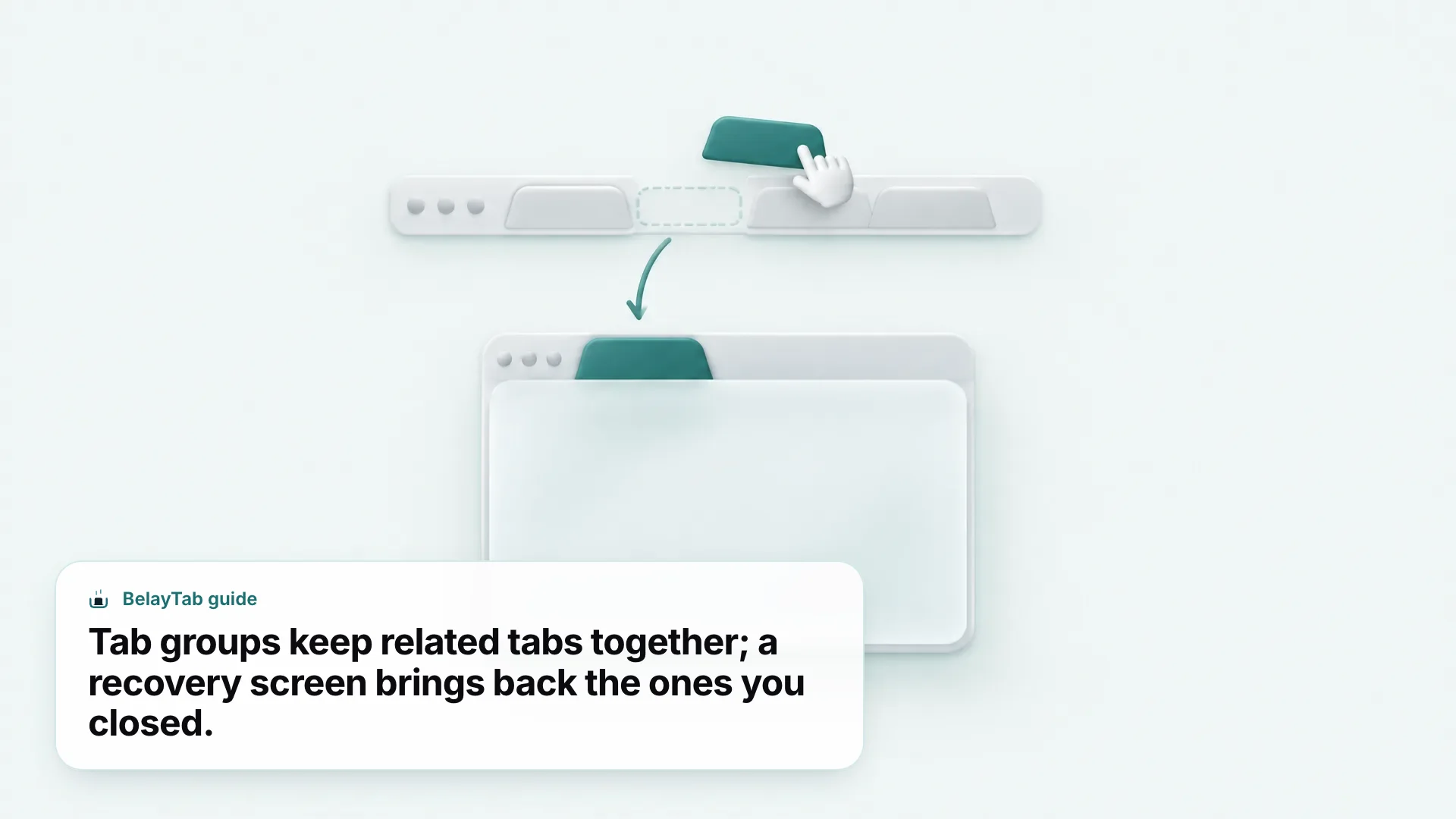
Groups are great for organizing tabs you’re actively using, but they’re not a backup. If your computer crashes or you close Chrome without meaning to, a saved group reopens fine; an unsaved one is gone like any other tab. BelayTab keeps tab groups intact, names, colors and all, inside every saved session, which is a different guarantee than Chrome’s own group-saving.
How Do You View Two Chrome Tabs Side by Side?
Click “Split view” next to the address bar and choose the other tab, and Chrome shows both sites in one window, side by side, each with its own scrolling. It’s a native feature as of September 2026, described in full on Google’s split view help page, and it solves the specific problem of comparing two pages (a spreadsheet and an email, the window with your flight booking and your calendar) without juggling separate windows.
There are a few ways to start one. Right-click an inactive tab and choose “New split view with current tab,” or right-click the active tab and choose “Add tab to new split view.” Dragging a tab to the edge of the window until a plus icon appears works too, and so does right-clicking a link and choosing “Open link in split view.” The keyboard shortcut is Shift + Alt + N on Windows and Linux, Cmd + Option + N on Mac, and Ctrl + Alt + N on ChromeOS.
Split view isn’t the only way to see two tabs at once. Windows’ Snap layouts and macOS’s own window tiling can place two full Chrome windows next to each other on screen, a coarser but sometimes more flexible option if you want each window at full size rather than sharing one. For a full comparison of both approaches, see our split screen Chrome guide.
How Do You Stop Chrome Tabs from Slowing Down Your Computer?
Turn on Memory Saver at Chrome menu, then Settings, then Performance, and Chrome automatically deactivates tabs you’re not using, freeing up memory without closing them. Click back to a deactivated tab and it reloads on its own. It’s Chrome’s built-in answer to the classic problem of forty tabs turning a fast computer into a slow one.
Memory Saver has three levels, and picking the right one is a real trade-off between speed and memory savings:
- Moderate. Waits longer before deactivating tabs, so switching back feels instant more often, but frees the least memory.
- Balanced. Google’s recommended default, and a reasonable one for most people who aren’t sure which to pick.
- Maximum. Deactivates tabs fastest and frees the most memory, at the cost of more tabs needing to reload when you return to them.
Energy Saver is a separate setting in the same Performance menu, aimed at battery life rather than memory: it limits CPU-heavy background activity when your battery is running low, and it leaves tabs playing audio or video calls alone. Chrome’s Task Manager, opened with Shift+Esc on Windows and Linux, shows exactly which tab or extension is eating memory right now, which beats guessing. On Google’s own numbers, a discarded tab can use up to 80% less memory than an active one.
For a deeper look at memory troubleshooting and which extensions are actually worth it now, see our guides on too many tabs and what BelayTab does differently below.
What Do You Do When Chrome Tabs Are Gone for Good?
If Chrome’s shortcut, History menu, and startup setting have all come up empty, the tab is past what Chrome itself can recover, and that’s the exact gap BelayTab is built to close. Chrome only remembers what happened since it last fully restarted; BelayTab snapshots every open window automatically, every five minutes and again whenever a window closes, so the tabs you had open last week are still there next week.
It’s a free browser extension, no account needed, no limit on sessions or tabs. Beyond the automatic snapshots, it keeps the last 20 versions of every saved session, so restoring never overwrites, it just adds a new version, plus a 30-day trash for anything you deleted on purpose, and one Recovery screen that pulls together snapshots, deleted sessions, Chrome’s own recently closed windows, and any export files in one place.
- Install BelayTab from the download page. It works alongside Chrome, adding no visible change to how you browse day to day.
- Save a session with one click, or Ctrl+Shift+S. Name a window, selected tabs, or every window at once, and choose whether to close the tabs or leave them open.
- Check the Recovery screen whenever something’s missing. Automatic snapshots run in the background, so there’s usually one from before whatever went wrong.
- Restore into a new window or the current one. Large sessions open in batches of 20, so Chrome doesn’t choke trying to load everything at once.
Tab groups, pinned tabs, and tab order all come back exactly as you left them, and BelayTab works the same way on Edge, Brave, Opera, Vivaldi, Arc, Firefox, and Safari on Mac, so switching browsers doesn’t mean starting your tab habits over. Signed out, nothing leaves your computer; turning on the optional Sync plan adds syncing across every signed-in browser and 90 days of cloud version history for $4 a month, with a 30-day refund if it’s not for you.