






Chrome feels sluggish, your fan’s spinning, and you have no idea which of your forty open tabs is the culprit. That’s exactly what the Chrome task manager is for. It’s a built-in window, separate from Windows Task Manager or Activity Monitor, that lists every tab, extension and background process running inside Chrome, along with how much memory, CPU and network bandwidth each one is using. You open it in seconds, sort by whatever’s acting up, and close just that one item without touching anything else.
This guide covers how to open the task manager on every platform, how to read what it’s showing you, and what to do once you’ve found the problem tab, including Memory Saver, chrome://discards, and what actually happened to third-party tab suspenders like The Great Suspender. It also covers the one thing the task manager can’t do for you: protect the tabs you’re about to close.
What Is the Chrome Task Manager, and When Should You Use It?
The Chrome task manager is a built-in window that lists every tab, extension and background process running inside Chrome, along with the memory, CPU and network bandwidth each one is using right now. It’s a diagnostic tool, not a cleanup tool. It tells you exactly where a problem is coming from, but it’s up to you to decide what to do about that tab or extension once you’ve found it.
You’ll reach for it in a handful of specific moments: your laptop fan suddenly spins up for no obvious reason, Chrome feels sluggish even though you only have a few tabs open, or one particular tab has stopped responding while everything else in the browser works fine. In each case, the task manager narrows a vague “Chrome is slow” complaint down to one row you can act on. That’s a very different job from Chrome’s tab strip, which shows you what’s open but tells you nothing about what each tab is costing your computer.
It’s worth knowing what it isn’t. The task manager doesn’t fix anything by itself, doesn’t free memory automatically, and doesn’t know or care whether the tab you’re about to end has unsaved work in it. Think of it as a diagnostic panel you check before reaching for a real fix, whether that’s reloading a stuck page, turning on Memory Saver, or simply closing tabs you have too many of in the first place.
| Situation | What to try first | Where to find it |
|---|---|---|
| Fan spinning, no clear cause | Open the task manager, sort by CPU | Shift+Esc |
| One tab frozen, rest fine | End that tab’s process, then reload it | Task manager |
| Whole browser feels heavy with many tabs | Turn on Memory Saver | Settings > Performance |
| Curious which tabs Chrome would deactivate | Check the discard list | chrome://discards |
| Need tabs back after closing or crashing | Recovery screen | BelayTab |
How Do You Open the Chrome Task Manager?
You open the Chrome task manager with a keyboard shortcut on most platforms, or through a menu on Mac. On Windows, Linux and ChromeOS, the shortcut opens it directly from anywhere inside Chrome. On Mac, there’s no dedicated key combo confirmed, so you’ll use the Window menu instead.
- Windows, Linux or ChromeOS: press the shortcut. Press Shift + Esc while Chrome is the active window. The task manager opens as its own small window on top of your browser.
- Mac: use the Window menu. Click Window in the menu bar at the top of the screen, then choose Task Manager from the list.
- Alternative on any platform: use the menu. Click the three-dot menu (⋮) in the top right of Chrome, go to More Tools, then Task Manager.
- Right-click the tab strip. On some setups you can also right-click an empty area of the tab strip itself and pick Task Manager from the context menu.
Keep the window open while you work. It refreshes live, so you can watch numbers change in real time as you close tabs, pause a video, or let a page finish loading. For every other Chrome shortcut you might want, from reopening a closed tab to jumping between windows, the full reference lives on the keyboard shortcuts help page.
How Do You Read What the Task Manager Is Telling You?
Each row in the task manager is one tab, one extension or one of Chrome’s own background processes, and the columns next to it show memory, CPU and network use for that row alone. Nothing here is shared or averaged; a heavy tab shows a heavy number, and a quiet one barely moves.
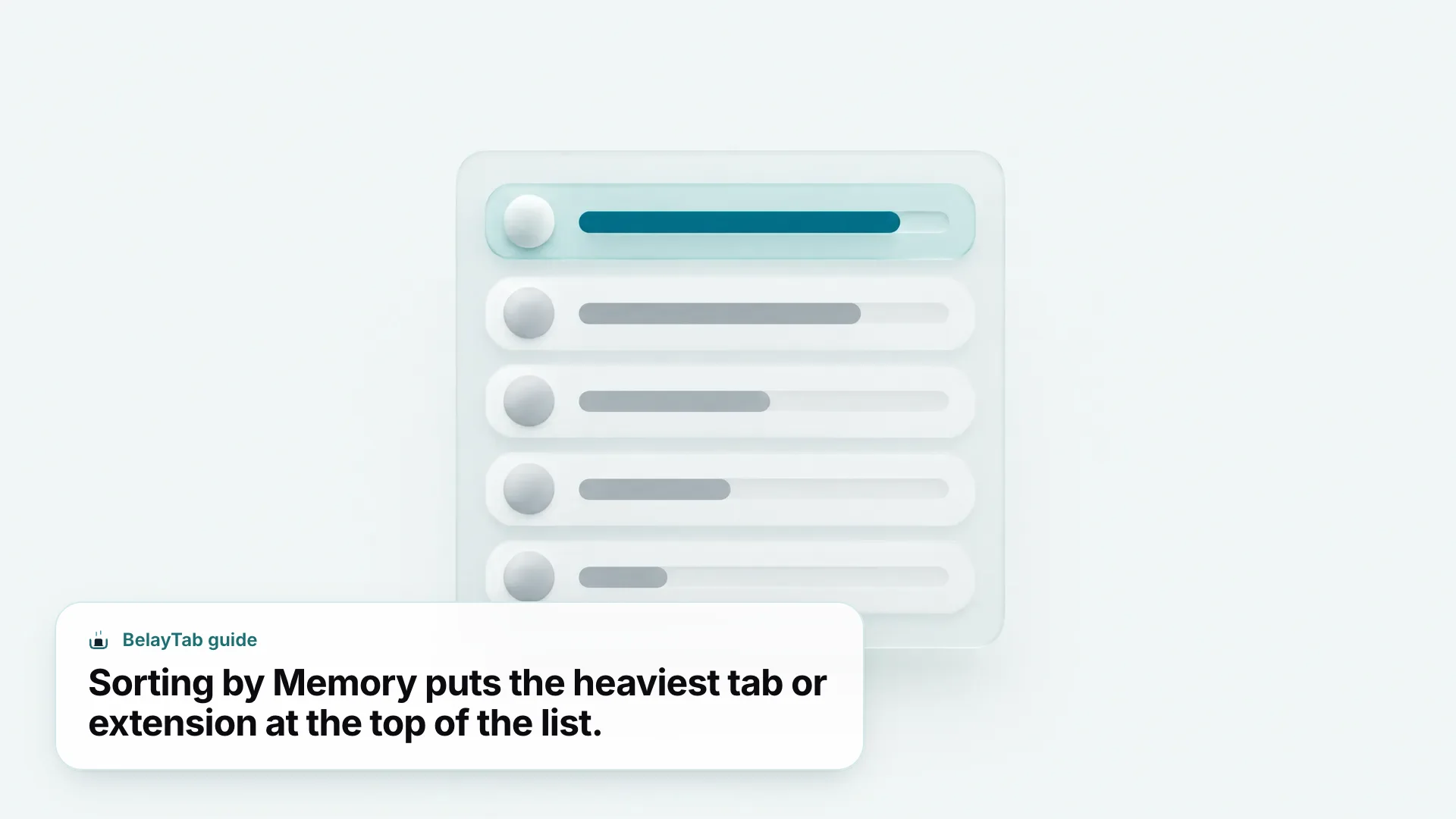
Memory tells you how much of your computer’s RAM that row is currently holding onto. CPU tells you how much processing power it’s using at this exact moment, which is why the number jumps around while a page is doing something (loading, playing video, running a script) and settles down once it’s idle. Network shows live data transfer, useful for spotting a tab that’s still downloading or streaming something in the background long after you stopped looking at it.
If a name in the list looks unfamiliar, don’t assume the worst. Some rows represent Chrome’s own internal work rather than anything you opened, and a single page can sometimes be backed by more than one process. The label next to each row is usually enough to match it to a tab you recognize by its page title, or an extension by name.
How Do You End a Process Without Breaking Chrome?
You end a process by selecting its row in the task manager and clicking End process, which closes only that tab or extension. The rest of your browser, and every other open tab, stays exactly as it was.
- Find the row. Sort by Memory or CPU and locate the tab or extension causing the problem.
- Click the row to select it. A single click highlights it without doing anything else yet.
- Click “End process.” The button sits at the bottom right of the task manager window.
- Confirm the tab closed. Check your tab strip; that specific tab (or the extension’s icon) should be gone, while everything else stays open.
Ending the wrong row can close the whole browser. Most rows are safe to end on their own. But if you select the process that represents Chrome’s main browser window rather than an individual tab, ending it can close the entire window, tabs and all. When in doubt, close the specific tab itself instead of using End process.
Ending a process is a blunt instrument. It stops whatever that tab was doing, but it doesn’t fix the underlying cause, so if you reopen the same page it can start eating memory again within minutes. Treat it as a quick way to get your browser breathing again, not a permanent solution for a site that’s genuinely badly built.
Chrome Task Manager vs. Your Computer’s Task Manager: What’s the Difference?
Chrome’s task manager only shows you what’s happening inside Chrome, while your operating system’s task manager shows every application running on the whole computer. They answer different questions, and you’ll want both depending on what you’re troubleshooting.
If Chrome itself feels slow but the rest of your computer is fine, Chrome’s own task manager is the right tool because it breaks Chrome down by individual tab and extension, something your OS-level tool can’t do. If your whole computer feels slow and you’re not sure Chrome is even the cause, the operating system’s task manager is the better starting point, since it compares Chrome against every other running app.
| Chrome’s task manager | Your computer’s task manager | |
|---|---|---|
| What it shows | Only what’s running inside Chrome | Every application on the computer |
| Level of detail | Each tab, extension and background process | Chrome as one app (or several “Google Chrome” entries) |
| Best for | Chrome feels slow, the rest of the computer is fine | The whole computer feels slow |
| How to open | Shift + Esc, or the Window menu on Mac | Taskbar or Start menu on Windows, Activity Monitor on Mac |
- Windows. Windows Task Manager often shows several “Google Chrome” entries at once, since Chrome splits tabs, extensions and background tasks into separate processes. Open it from the taskbar or the Start menu search.
- Mac. Activity Monitor plays the same role, listing Chrome (and its helper processes) alongside every other Mac app. It’s a separate application from Chrome’s own Task Manager under the Window menu.
- ChromeOS. Chromebooks rely on Chrome’s built-in task manager for browser-level detail, since Chrome effectively is the operating system’s main interface.
The two tools aren’t in conflict, they’re complementary. A quick pattern: check your OS task manager first if you suspect something other than Chrome, then drop into Chrome’s own task manager once you’ve confirmed the browser is the source, so you can pin down exactly which tab or extension is responsible.
Why Is One Tab Using So Much Memory?
A single tab usually spikes in memory because the page itself is doing a lot of active work: playing video, running animations, holding a large image gallery in memory, or running a web app that keeps processing data even while you’re on a different tab. None of that is unusual, but some pages are simply heavier than others by design.
Extensions are the other common culprit. A well-built extension barely registers in the task manager, but a poorly optimized one can run its own background process that quietly climbs in memory the longer your browser session runs. If you spot an extension’s name near the top of a sorted list, that’s worth investigating before you blame the tab sitting next to it.
Before ending anything, it’s worth trying a hard refresh on a tab that seems stuck at a high number. Press Ctrl + Shift + R on Windows or Linux, or Cmd + Shift + R on Mac, to reload the page and clear out whatever built up in memory without losing the tab itself. If that doesn’t help and you regularly deal with dozens of tabs at once, our guide to reloading every tab at once covers the bulk version of the same fix.
How Do You Actually Lower Chrome’s Memory Use?
You lower Chrome’s memory use by turning on Memory Saver, a built-in setting that deactivates tabs you’re not currently using so they stop consuming resources in the background. It lives under Settings > Performance, and reopening a deactivated tab reloads it automatically, right where you left it.
Memory Saver has three levels: Moderate, which waits longer before deactivating tabs and saves the least memory; Balanced, the recommended default; and Maximum, which deactivates tabs fastest and frees the most memory. If you’re the type who leaves thirty tabs open for days, Balanced is a reasonable starting point, and you can step up to Maximum if your machine still struggles. There’s also Energy Saver, a related setting on the same Performance page that limits CPU-intensive background activity to save battery; it’s available on Windows, Mac and battery-equipped Chromebooks, and it leaves tabs with audio or an active video call untouched. Full details on both are on Google’s own Memory Saver page.
If Memory Saver alone isn’t enough, the underlying issue is usually just tab volume rather than any one setting. Grouping related tabs with tab groups makes it easier to spot and close whole clusters you’re done with, which does more for memory than any single toggle.
What Is chrome://discards, and Should You Use It?
chrome://discards is an internal Chrome page that lists your open tabs along with a manual option to discard, or unload, any of them on demand. It’s a more hands-on view than Memory Saver’s automatic behavior, built for people who want to see and control exactly what gets deactivated rather than trusting Chrome’s own timing.
Type chrome://discards directly into the address bar to open it. You’ll see a table of your open tabs, and each row has an “Urgent Discard” action you can trigger manually to test how a tab behaves once it’s unloaded. According to Google’s own engineering blog, a discarded tab can use up to 80% less memory than the same tab active, which explains why Memory Saver’s automatic deactivation is worth leaving on rather than disabling out of caution. You can read the full technical breakdown on Chrome’s developer blog post about tab discarding.
A discarded tab isn’t gone. Its title and favicon stay visible in the tab strip exactly as before, and clicking back into it reloads the page automatically, the same behavior you’d see from Memory Saver kicking in naturally. The practical use case for chrome://discards is testing and curiosity more than daily management. If you’re just trying to free up memory, Memory Saver already does the same job automatically in the background, without you needing to visit a dedicated page at all.
Whatever Happened to The Great Suspender?
The Great Suspender was a popular third-party tab suspender that Google removed from the Chrome Web Store and force-disabled in February 2021, after a change of ownership added code that was flagged as malware. If you remember using it, this is why it quietly stopped working, or vanished from your extensions list, without warning.
According to a widely corroborated report from 9to5Google, the malicious code included tracking and ad-fraud exploit behavior added around version 7.1.8, well after the extension had built up a large, trusting user base. It’s a good reminder that a third-party tool doing something Chrome doesn’t do natively is worth extra scrutiny, especially once ownership changes hands.
If you still have suspended tabs from it. There’s no official recovery path from Google. Some users have reported finding the original URLs by searching chrome://history for the extension’s ID, but that’s a community workaround, not a documented fix, and it won’t work for everyone. Our Great Suspender recovery guide walks through what’s possible.
The good news is that you don’t need a third-party suspender anymore. Memory Saver, covered above, is Chrome’s own supported replacement, built into the browser rather than bolted on as an extension. If you’re comparing today’s suspender options more broadly, including which ones are still trustworthy, our tab suspender roundup covers the current landscape in more depth.
What Happens to Your Tabs When You End a Process or Chrome Crashes?
Ending a single tab’s process is harmless. Ending the wrong one, or having Chrome freeze or crash outright while you’re troubleshooting, can take an entire window down along with every tab in it. The task manager can help you diagnose the problem, but it has no way to protect what you’re about to lose.
That’s the gap BelayTab is built for. It saves your open windows as named sessions automatically, on a timer and whenever a window closes, so a crash mid-diagnosis doesn’t mean losing the forty tabs you were trying to save memory on in the first place. Restoring never overwrites an existing session either; it just adds a new version, so you can always step back to an earlier state through the recovery screen.
- Install BelayTab. Get it from the download page; It’s free, with no account and no limit on sessions or tabs.
- Let automatic snapshots run. BelayTab captures every open window on a schedule and whenever a window closes, detailed on the automatic snapshots help page.
- Open the Recovery screen anytime. It combines snapshots, deleted sessions, your browser’s recently closed windows, and any export files in one place, so a crash or an accidental process kill is never the end of your tabs.
None of this changes how much memory Chrome uses; that’s still Memory Saver’s job, and the task manager’s job is still pointing you at the tab responsible. BelayTab’s job is simpler and narrower: make sure that whatever you do next, whether it’s ending a process, closing a window, or Chrome crashing on its own, the tabs themselves survive. You can save any session in one click before you start troubleshooting, if you’d rather not leave it to the automatic snapshot timer.