






Forty tabs open, and half of them show a stale price, an old headline, or a spinner that never finished loading. The fastest fix isn’t closing Chrome and starting over. It’s learning how to reload all tabs in Chrome at once. Chrome doesn’t ship a single “reload all” button in its main menu, but the browser gives you two real ways to get there: a built-in multi-select trick most people never find, and a shortcut for hard-reloading the page you’re on. This guide walks through both, explains why some tabs seem to reload themselves without you touching anything, and covers when a dedicated extension actually helps versus when it’s one more thing asking for permissions it doesn’t need. It also covers the part most reload guides skip: what to do before you refresh, restart, or close forty tabs, so a flight booking or half-written email doesn’t vanish along with the stale cache.
What’s the Fastest Way to Reload All Tabs in Chrome?
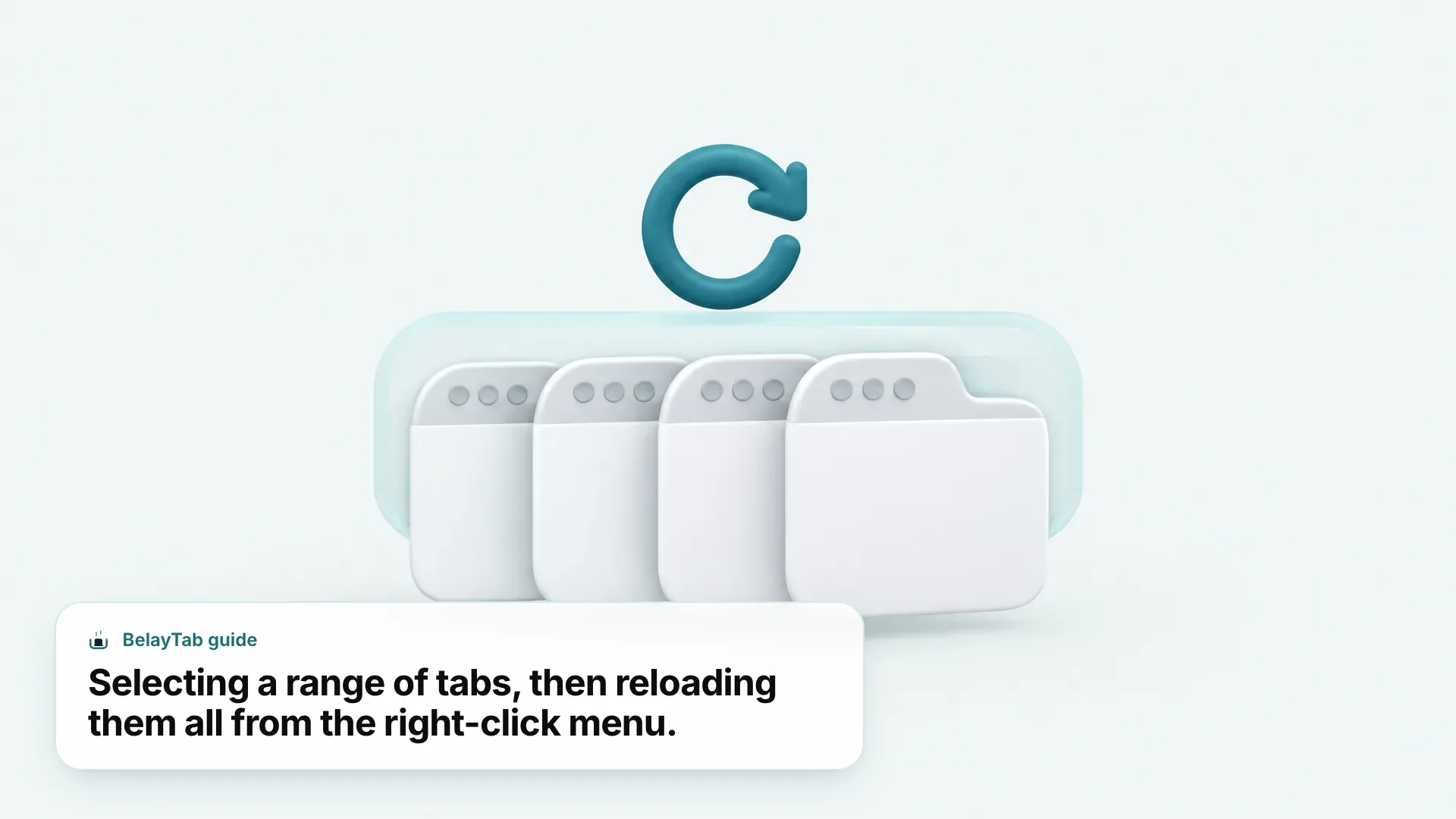
The fastest way to reload all tabs in Chrome is to select every tab first, then right-click one of them and choose Reload. Chrome doesn’t have a menu item labeled “reload all tabs,” so grouping the tabs together before you act on them is what makes a bulk refresh possible in the first place.
Once you’ve selected more than one tab, Chrome shades them a light gray-blue so you can see exactly which ones are included. Any bulk action you choose from the right-click menu, not just Reload, applies to every tab in that shaded group instead of the single tab you clicked into.
The same right-click menu that reloads selected tabs also lets you close, mute, pin or move them together. Reload just happens to be the option most people go looking for after a crashed extension, a stale dashboard, or a browser restart leaves pages looking wrong.
This works the same in a regular window, an Incognito window, or a window you’ve reopened from history. Chrome doesn’t treat multi-select differently based on how the window was created, so the trick you learn here travels with you.
Here’s the short version for the most common situations, with the exact keys for Windows, Linux and Mac.
| Situation | What to do | Result |
|---|---|---|
| Reload every open tab in a window | Click the first tab, hold Shift, click the last tab, then right-click → Reload | All selected tabs refresh |
| Reload a handful of scattered tabs | Hold Ctrl (Cmd on Mac) and click each tab, then right-click → Reload | Only the tabs you picked refresh |
| Reload just the tab you’re on | Press Ctrl + R or F5 (Cmd + R on Mac) | Active tab refreshes |
| Force a full refresh, ignoring cache | Press Ctrl + Shift + R (Cmd + Shift + R on Mac) | Active tab reloads with a clean cache |
| Reload every tab in one group only | Click the first tab in the group, Shift-click the last, then right-click → Reload | Only that group’s tabs refresh |
Every method below builds on the same idea: select first, act second. Once that clicks, reloading five tabs or fifty takes the same two moves, and it works whether the tabs are scattered across a research project or sitting neatly inside one tab group. The rest of this guide breaks each row of that table down in more detail, starting with how selection works.
How Do You Select Multiple Tabs in Chrome?
You select multiple tabs in Chrome by clicking one tab, then holding a modifier key while you click the others. Hold Shift to grab a whole range at once, or hold Ctrl (Cmd on Mac) to add individual tabs one at a time, even if they’re not next to each other.
Shift-click is the faster option when you want every tab reloaded, since clicking the first tab and Shift-clicking the last one selects everything in between automatically. That’s the version worth memorizing if “reload everything in this window” is what you’re usually after.
Ctrl-click (or Cmd-click on a Mac) is better when you want a handful of specific tabs, say three unrelated pages that all show the same login error, without touching the twenty other tabs open around them.
- Click the first tab. This sets your starting point and becomes part of the selection.
- Hold Shift and click the last tab. Chrome highlights every tab in between, or hold Ctrl (Cmd on Mac) and click tabs individually to build a custom set.
- Right-click any highlighted tab. The context menu now applies to the whole selection, not just the one you clicked.
- Choose Reload. Every selected tab refreshes at the same time.
This works in the current window only. Tabs in a different Chrome window aren’t part of the same tab strip, so you’ll need to repeat the selection there separately, or move tabs into one window first if you want a single reload to cover all of them. See our keyboard shortcuts reference for the rest of Chrome’s tab and window shortcuts while you’re at it.
How Do You Reload All Selected Tabs at Once?
You reload all selected tabs by right-clicking any tab in the highlighted group and choosing Reload from the context menu. There’s no keyboard shortcut for this step, only the mouse; Ctrl + R and F5 only ever touch the one tab you’re actively viewing, never a whole selection.
Chrome refreshes every highlighted tab in place. You’ll see the familiar loading spinner appear in each tab at roughly the same moment, and the tabs stay in their original order and position in the strip once they finish.
This works the same way on Mac. Right-click (or two-finger tap on a trackpad) any tab in your selection and Reload appears in the same context menu as on Windows and Linux, since the underlying tab strip behaves identically across platforms.
A very large selection, dozens of tabs at once, can make Chrome briefly feel sluggish while every page requests data at the same time. That’s normal; give it a few seconds and the tab strip settles back down.
If a reload doesn’t clear up what you’re seeing, a handful of stubborn tabs might need a full cache bypass instead of a normal refresh. The hard refresh guide covers that per-tab process for every major browser, including the exact Chrome shortcut below. Speaking of which, here’s what a hard reload changes compared to a normal one.
What’s the Difference Between Reload and Hard Reload?
A normal reload refreshes the page but can still pull some files, like images or scripts, from Chrome’s local cache, while a hard reload forces Chrome to download everything fresh and ignore the cache entirely. Press Ctrl + R or F5 for a normal reload, and Ctrl + Shift + R or Shift + F5 for a hard one, on Windows and Linux.
On a Mac, the same two actions are Cmd + R for a normal reload and Cmd + Shift + R for a hard reload. Both only ever apply to the tab you’re currently looking at, which is the main limitation worth knowing before you go hunting for a way to hard-reload a whole selection.
There’s no confirmed way to hard-reload more than one tab at once in Chrome. The multi-select trick from earlier applies a normal Reload to your whole selection, but bypassing the cache is a per-tab action, so a batch of tabs all showing outdated styling or broken scripts still needs a hard reload one at a time. Our hard refresh guide walks through that per-tab process and when it’s worth the extra step.
| Action | Windows / Linux | Mac | What it does |
|---|---|---|---|
| Normal reload | Ctrl + R or F5 | Cmd + R | Refreshes the page, may reuse cached files |
| Hard reload | Ctrl + Shift + R or Shift + F5 | Cmd + Shift + R | Ignores the cache, downloads everything fresh |
| Reload selected tabs | Right-click selection → Reload | Right-click selection → Reload | Normal reload applied to every selected tab |
Reach for a normal reload first; it’s faster and fixes most stuck pages, expired sessions, or feeds that just need a nudge. Save the hard reload for when a page looks visibly broken, like missing styling or an old version of a script, right after a site pushes an update.
Hard reload doesn’t clear cookies, saved passwords or your browsing history. It only throws out the temporary cached copies of the page itself, so signing back in afterward is the exception, not the rule. Keep the difference straight and you’ll stop reaching for a hard reload out of habit when a normal one would have done the job in half the time.
Is There a Chrome Extension That Reloads All Tabs Automatically?
Yes, the Chrome Web Store has extensions built specifically to reload tabs automatically, either on a schedule or with a single click, and they’ve been around for years because the built-in multi-select trick isn’t obvious to everyone. Whether you need one depends on how often you’re doing this and whether a mouse-driven workaround is good enough.
Type reload all tabs Chrome extension into the Web Store search bar, or try chrome reload all tabs extension, or chrome extension reload all tabs, and you’ll get a long list of toolbar buttons and auto-refresh timers. Most do one of two things: reload every open tab with a single click, or reload specific tabs on a repeating timer, which is handy for a dashboard or a stock ticker you want to stay current without touching it.
If you’re only reloading tabs occasionally, after a crashed extension or a slow morning where half your pages timed out, the built-in trick from earlier does the same job for free and doesn’t sit running in the background. A dedicated extension earns its place when you need reloads on autopilot, not as a one-off fix.
Check permissions before you install one. Any extension that can reload every open tab can technically read what’s on them too, unless it’s built not to. Google pulled The Great Suspender from the Chrome Web Store and disabled it for everyone in 2021, after a change of ownership added code flagged for tracking and ad-fraud exploits, as 9to5Google reported at the time. A popular tab extension going bad isn’t hypothetical, so check who maintains it and what it’s asking for before you grant access.
If you’re one of the people who lost track of tabs when that extension went dark, we’ve written up how to recover URLs a discontinued suspender swallowed, including the unofficial workaround people have used since.
None of this means every reload extension is risky. It just means the same rule applies here as anywhere else: fewer permissions for the same result is usually the better trade.
Why Do Chrome Tabs Reload Themselves on Their Own?
Chrome tabs reload themselves because of Memory Saver, a built-in setting that deactivates tabs you haven’t touched in a while to free up your computer’s memory. Clicking back into one of those tabs reloads it automatically, and if you weren’t expecting it, that can look exactly like a random, unwanted refresh.
A deactivated tab, sometimes called a discarded tab, keeps its title and favicon sitting right where you left them in the tab strip. Only the page content itself unloads from memory. Chrome reloads that content automatically the moment you click back into the tab, the same way it would after restarting the browser.
Google says a discarded tab can use up to 80% less memory than an active one, which is the whole point of the feature on a computer juggling dozens of tabs at once, according to Chrome’s developer blog. A related setting, Energy Saver, stops CPU-intensive background tabs to save battery life, though it leaves anything playing audio or a video call untouched.
Chrome also has an internal page, chrome://discards, that lists which tabs are currently deactivated and includes an “Urgent Discard” button for testing the behavior yourself. It’s aimed at developers, but it’s a fast way to confirm whether a tab reloaded itself because of Memory Saver or for some other reason.
If self-reloading tabs are a symptom of a bigger problem, dozens of tabs open across several windows, our guide to fixing tab overload covers the wider cleanup, not just the reload behavior. Either way, the reload itself is harmless. It’s Chrome doing exactly what Memory Saver is designed to do.
How Do You Stop Chrome From Reloading Tabs You Want to Keep Open?
You can’t turn tab discarding off completely, but you can make Chrome far less aggressive about it. Open the Chrome menu, go to Settings, then Performance, and adjust the Memory Saver level; the least aggressive setting gives every tab the longest possible runway before Chrome deactivates it.
- Moderate. Takes the longest to deactivate tabs and saves the least memory, best if reloads bother you more than RAM usage does.
- Balanced. Google’s recommended middle ground between memory savings and how often tabs get deactivated.
- Maximum. Deactivates tabs the fastest and frees up the most memory, best for older or lower-memory machines.
Energy Saver lives on the same Performance settings page but controls something different: it throttles CPU-heavy background tabs to extend battery life rather than freeing memory. Turning one down doesn’t affect the other, so adjust them independently based on whether reloads or battery life bother you more.
If you want to confirm Memory Saver is the cause before changing anything, visit chrome://discards to see which tabs are currently deactivated. It’s not a setting you’ll use daily, but it settles the question quickly when a tab’s self-reload feels random.
None of these settings stop Chrome from reloading a tab you click into after it’s been deactivated. What they change is how quickly Chrome decides to deactivate a tab in the first place, which is the actual lever you have here.
How Do You Reload All Tabs in a Tab Group Without Affecting Others?
You reload just the tabs in one group by selecting only that range: click the first tab in the group, hold Shift, click the last tab in the same group, then right-click and choose Reload. Because tabs in a group always sit next to each other in the strip, a Shift-click range naturally lines up with the group’s boundaries.
If you haven’t set up groups yet, right-click any tab and choose “Add tab to group,” either a new one or an existing one. Right-click the group’s colored label to rename it or change its color, and click that same label to collapse or expand the group without closing any tabs inside it.
Tab groups sync across your signed-in devices when Chrome’s history-and-tabs sync is turned on, and closing a group doesn’t delete it. Chrome saves a closed group to your bookmarks bar or menu instead, so it’s recoverable later even if you didn’t mean to close it. Our tab groups guide covers the full rename, color and sync behavior in more depth.
If you rely on groups heavily, whether that’s separating work from research or keeping a project’s tabs together across a busy week, our tab groups feature page covers how BelayTab preserves group names, colors and order when it saves and restores a session, not just the individual tabs inside it.
A collapsed group reloads the same way as an expanded one. You don’t need to expand it first, since collapsing only hides the tabs visually; they’re still selectable and still respond to the same right-click Reload action.
This is the cleanest way to refresh one project’s tabs, a client’s dashboard tabs, for example, without touching the unrelated tabs sitting in the rest of the window.
What Should You Do Before Mass-Reloading Dozens of Tabs?
Before you reload, restart, or close a big batch of tabs, save what’s in them first, since a reload clears anything typed into a form that hasn’t been submitted and a restart risks losing track of exactly which forty tabs you had open in the first place. A quick save takes seconds and removes the guesswork.
The reload itself won’t log you out of most sites or lose your browsing history. What it does clear is unsaved form input on the page you’re refreshing, a half-written email in a webmail tab, a draft comment, a form you were halfway through filling out. Multiply that by dozens of tabs and it’s worth a second look before you commit.
This is exactly the gap a tab manager like BelayTab is built for. It saves your open window, tab groups, pinned tabs and tab order as a named session you can get back to later, separate from whatever a reload or a restart does to the tabs themselves.
- Press Ctrl + Shift + S (Cmd + Shift + S on Mac). Or click the BelayTab icon in your toolbar.
- Name the session. Something like “Client research, Tuesday” beats guessing later which window was which.
- Choose whether to keep tabs open. BelayTab can save the session and leave your tabs exactly as they are, so saving first never interrupts what you were about to do.
BelayTab is free with no account and no limit on how many sessions or tabs you save; the save tabs feature page covers the details, and you can install it in about a minute.
Does This Work the Same in Edge, Brave and Other Chromium Browsers?
Yes, largely. Edge, Brave, Vivaldi and Opera are all built on the same Chromium engine as Chrome, so selecting multiple tabs and right-clicking to reload them works the same way in each one, even though a menu label or icon here and there might look slightly different.
The core mechanic, click, Shift-click or Ctrl-click to select, then right-click to reload the group, is a feature of the shared tab strip these browsers all use, not something Chrome alone implements. Exact wording in each browser’s right-click menu can vary slightly, so it’s worth a quick look the first time.
- Chrome. The browser this guide is built around; see the full Chrome tab management guide for shortcuts and settings beyond reloading.
- Edge. Shares Chrome’s tab strip and multi-select behavior; our Edge browser guide covers what’s different, like built-in vertical tabs.
- Brave. Also Chromium-based, with the same selection and reload steps; check the Brave browser guide for its own privacy-focused settings.
Firefox and Safari don’t share this tab strip, so the exact clicks differ even though the general idea, select tabs, then reload them together, tends to carry over. If you split time between browsers, our guides to restoring your last session in Firefox and managing tabs in Safari on iPhone cover their own quirks.
If you use more than one of these day to day, that’s a separate problem reloading can’t solve: your sessions don’t follow you between browsers unless you set that up yourself. BelayTab works across Chrome, Edge, Brave, Opera, Vivaldi, Arc and Firefox, plus Safari on Mac, and its optional Sync feature carries saved sessions between whichever of them you’re signed into.
How Do You Recover Tabs If Something Goes Wrong During a Reload?
Reloading a tab shouldn’t close it, but if a crash, an accidental click on the wrong menu item, or a window closing happens around the same time, press Ctrl + Shift + T (Cmd + Shift + T on Mac) to reopen the most recently closed tab. That covers the common accidents, one tab or one window closed by mistake.
That shortcut only goes back one step at a time and only within the current browsing session. If Chrome itself crashes or you restart your computer before reopening what you lost, our guide to getting your tabs back after Chrome crashes covers what Chrome’s own history can and can’t recover.
BelayTab takes a snapshot of every open window automatically, every five minutes and again whenever a window closes, and keeps the last 20 versions of every session you save, so restoring never overwrites what you already had. Its Recovery screen brings snapshots, deleted sessions, recently closed windows and any export files into one place, so you’re not hunting across several menus to find the right version.
The recovery screen and automatic snapshots help pages cover exactly what gets captured and when, and the restore tabs feature page walks through getting a whole window back. For Chrome’s own built-in recovery options first, our guide on restoring tabs in Chrome is the place to start.
None of this replaces the multi-select-and-reload trick from earlier; it just means a reload gone wrong, or a restart you didn’t plan for, doesn’t cost you the tabs you were trying to fix in the first place.