






Restarting a Chromebook is usually the fastest fix you’ll ever try, and it’s also the one most people skip because they assume the browser will lose everything. A Chromebook restart doesn’t erase files, doesn’t sign you out of your Google Account, and rarely takes more than a few seconds. What it does do is close every open window, which is where the worry about tabs comes from.
This guide covers the normal restart, what to do when the screen won’t respond, and the harder options (hard reset, Powerwash, Recovery) that Google reserves for when a restart isn’t enough. It also covers what actually happens to your open tabs, because ChromeOS doesn’t always bring them back the way you’d expect. If you’ve got forty tabs open across two windows and you’re about to reboot, read the tabs section before you click anything.
How Do I Restart a Chromebook?
Click the time in the bottom-right corner of the screen, select the power icon, then choose Restart. That’s the whole process, and it takes about five seconds. ChromeOS closes every app and browser window, reloads, and drops you back at the sign-in screen. Sign back in and you’re running fresh.
If you’d rather use the physical Power button, press and hold it for a couple of seconds until a menu appears on screen with Power off and other options, then pick the one you want. Either route works the same way, so use whichever is faster for you.
Restarting takes so little time that it’s worth trying before you assume something’s seriously wrong. A Chromebook that’s acting sluggish, an app that’s stopped responding, or a Wi-Fi connection that won’t reconnect will often clear up with nothing more than this. It’s also completely safe to do on a whim. There’s no confirmation dialog warning you about lost work, because ChromeOS knows a restart doesn’t touch your files. If you’ve got open tabs you care about, though, it’s worth a quick look at what happens to them, covered further down in this guide, before you make restarting a daily habit.
Here’s the short version for whatever situation brought you here:
| Situation | What to do |
|---|---|
| Chromebook is working fine, you just want a reboot | Restart from the power icon in quick settings |
| Screen is frozen, nothing responds | Hard reset — hold Refresh and tap Power |
| A single tab or app is stuck | Try Task Manager (Shift + Esc) before restarting |
| Update notification is waiting | Restart to apply it |
| You want to erase local data and start over | Powerwash |
| ChromeOS won’t boot at all | Recovery via the Chromebook Recovery Utility |
- Open quick settings. Click the time in the bottom-right corner of the screen.
- Click the power icon. It sits next to the battery indicator in the panel that opens.
- Select Restart. ChromeOS closes everything and reboots in a few seconds.
A normal restart or shut-down erases no data — Google’s own troubleshooting guidance lists it as the first step for a stuck app or a Chromebook that’s running slow, before you try anything more drastic.
How Is a Chromebook Restart Different From a Hard Reset, Powerwash, or Recovery?
A restart just reboots ChromeOS, a hard reset forces that same reboot when the screen’s frozen, Powerwash wipes local data back to factory settings, and Recovery reinstalls ChromeOS and erases the entire drive — each one is more destructive than the last.
Restart is the gentlest of the four and the one you should try first for almost any problem. It closes your session cleanly and doesn’t touch a single file.
Hard reset is really just a restart triggered a different way (by holding a key combination instead of clicking through the menu) for when the screen has stopped responding to clicks entirely. It doesn’t erase anything either.
Powerwash is where things change. It’s a full factory reset: your Downloads folder, installed apps, and local settings are all wiped. Your Google Account data isn’t stored on the device in the first place, so it survives, and anything saved to Google Drive or an external drive is untouched too.
Recovery is the option of last resort, used when ChromeOS itself is corrupted or won’t boot. It reinstalls the operating system and erases the entire hard drive — more thorough, and more destructive, than a Powerwash. Our guide to Chromebook reset options walks through choosing between the three when you’re not sure which one you need.
| Action | Erases | Use it when |
|---|---|---|
| Restart | Nothing | Stuck app, slow performance, applying an update |
| Hard reset | Nothing | Screen frozen, restart menu won’t open |
| Powerwash | Downloads, installed apps, local settings | Selling the device, persistent software problems |
| Recovery | Entire hard drive | ChromeOS is corrupted or won’t boot |
None of these four options fix a hardware problem — a failing battery or a cracked screen needs a technician, not a reset. For software issues, though, this is the full ladder from least to most drastic, and full details on the difference between them are in Google’s help center. Skipping straight to Powerwash when a restart would have worked just costs you time reinstalling everything afterward.
How Do You Force a Hard Reset When Your Chromebook Won’t Respond?
Hold the Refresh key and tap Power, then let go of Refresh once the screen starts to reload. That’s a hard reset, and it works even when nothing else on the screen responds.
Every Chromebook keyboard has a Refresh key up in the row where a regular keyboard would have F3. It looks like a circular arrow. Hold it down, tap the Power button once, and keep holding Refresh until you see the screen start to come back to life. Then let go.
This combination exists for exactly one situation: the screen is frozen, the cursor won’t move, and the normal restart menu won’t open because nothing is responding to clicks or key presses. It’s not a shortcut for a faster reboot. Google is specific about that — try a hard reset only after other troubleshooting has failed, not as your first move.
If you’re on a tablet or detachable Chromebook without a physical Refresh key in reach, the combination changes slightly: hold Back + Refresh + Power together for at least ten seconds. Both versions do the same thing. They don’t touch your files, installed apps, or settings. They just force the reboot that a normal restart couldn’t trigger.
- Locate the Refresh key. It’s the circular-arrow key in the top row of your keyboard.
- Hold Refresh and tap Power. Keep Refresh held down the whole time.
- Release Refresh once the screen restarts. ChromeOS reboots normally from there.
Try a Plain Restart First. A hard reset is for when the screen truly won’t respond. If you can still click anything at all, the power icon in quick settings gets you there with less fuss.
If this keeps happening on the same device, our guide to a Chromebook that keeps freezing covers the causes worth ruling out before you assume a hard reset is just part of your routine now.
How Do You Restart an HP Chromebook (or Any Other Brand)?
An HP Chromebook restarts exactly the same way as a Dell, Acer, Lenovo, or Samsung one, because they all run the same ChromeOS software regardless of who built the hardware.
The power icon in quick settings, the hard-reset key combination, Powerwash, Recovery — none of it changes based on brand. What does change slightly is where the physical Power and Refresh keys sit on the keyboard, since manufacturers arrange their top rows a little differently from model to model.
If you’re searching specifically for how to restart an HP Chromebook, the answer is the same three clicks as any other model: the time in the corner, the power icon, then Restart. The only brand-specific thing worth checking is your keyboard layout, since a handful of convertible and detachable models put the physical Power button on an edge of the device instead of the keyboard deck.
None of this affects what a restart does to your data. It’s the ChromeOS software, not the hardware maker, that decides that. A restart on an HP Chromebook erases nothing, same as on any other brand, and the steps in this guide apply exactly as written no matter what logo is on the lid.
- HP, Dell, Acer, Lenovo, Samsung. Same quick-settings restart and same hard-reset key combo — only the physical keyboard layout differs between them.
- Convertible and detachable models. The Power button sometimes sits on an edge instead of the keyboard deck; the tablet-mode hard-reset combo covers these devices.
- Chromebox and Chromebase. The same ChromeOS restart menu applies — click the power icon in quick settings just like you would on a laptop.
How Do You Restart a Chromebook in Tablet Mode or Without a Keyboard?
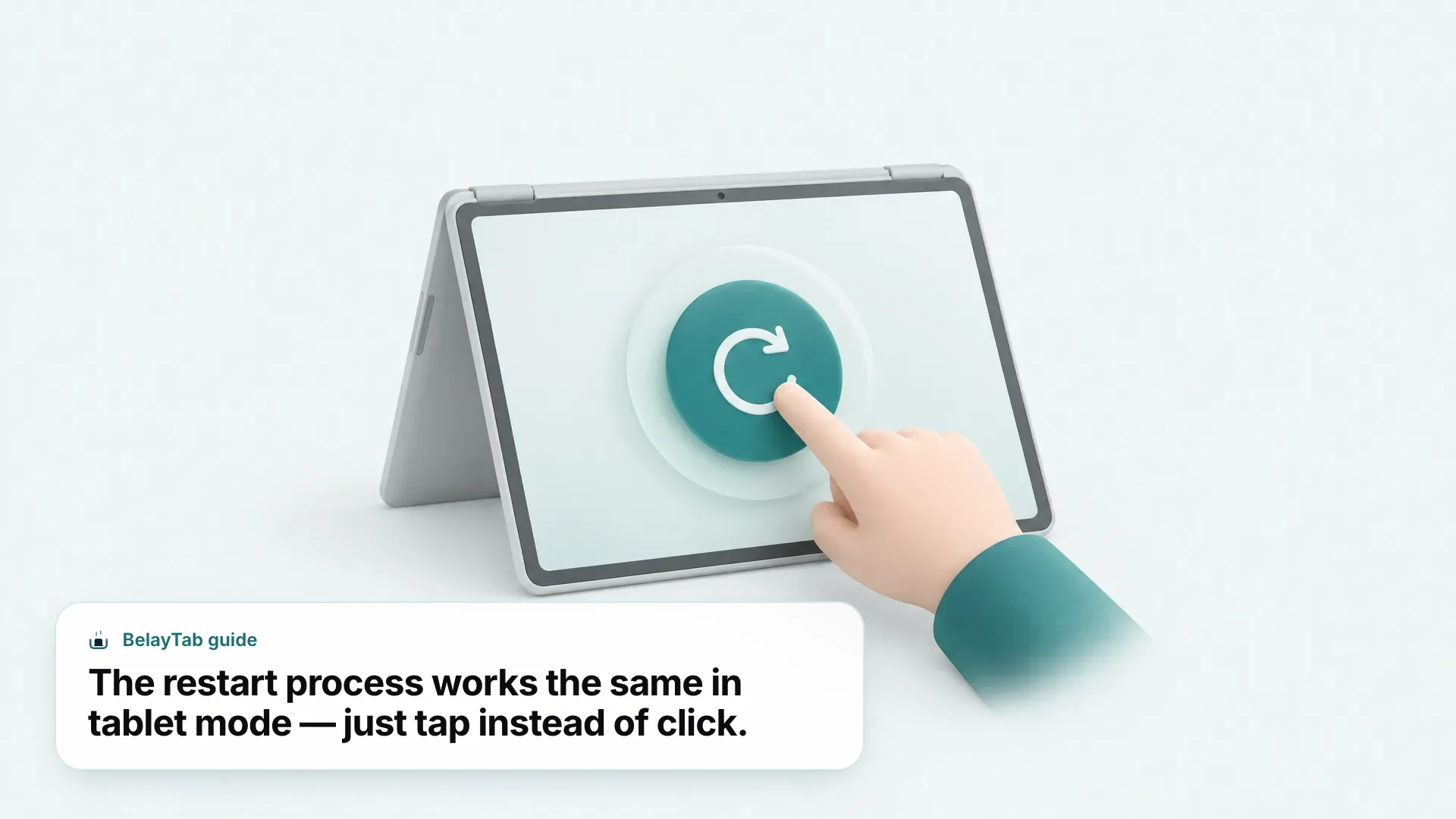
Fold a convertible Chromebook into tablet mode and the restart menu still opens the same way (tap the time, tap the power icon, tap Restart) you just use touch instead of a mouse click.
If the touchscreen isn’t responding either, the hard-reset combination changes for tablets and detachables: hold Back + Refresh + Power together for at least ten seconds. That’s different from the laptop combo of Refresh plus Power, because a tablet in this state usually doesn’t have a keyboard attached at all — the Back and Refresh controls live on the device’s edge or bezel instead.
Ten seconds is longer than it feels when you’re staring at a frozen screen, so hold through it rather than letting go early and trying again. Once the screen goes dark and comes back, the device is rebooting normally.
For everyday restarts (not frozen-screen emergencies) tablet mode doesn’t change anything else about the process. Updates still install on restart, Powerwash still works the same way from the sign-in screen, and none of the touch-based navigation changes what happens to your data.
What Happens to Your Tabs When You Restart a Chromebook?
A restart closes every open window and tab, and ChromeOS doesn’t guarantee it’ll reopen them all when you sign back in.
That’s the part that catches people off guard. You’d expect a browser to remember forty research tabs or the half-finished order you had open, but a restart is a clean reboot, not a save. Depending on your settings, Chrome may reopen your last session, or it may open fresh to your homepage — and even when it does bring tabs back, tab groups, pinned order, and window arrangement don’t always survive the round trip. Our post on Chrome startup pages covers exactly what does and doesn’t come back automatically.
The safer habit is to stop treating “restart” and “my tabs are fine” as the same guarantee. Before you reboot for an update, or before a hard reset you weren’t planning on, it’s worth knowing your open windows are saved somewhere durable rather than hoping the browser remembers on its own.
This is the exact gap BelayTab’s automatic snapshots are built for. They save every open window in the background (on a five-minute timer and again when a window closes) so a restart, a crash, or an accidental Powerwash doesn’t put your tabs at risk. You don’t have to remember to save anything first.
Should You Restart Before Updating ChromeOS?
Yes — ChromeOS downloads updates in the background, but they don’t install until you restart, so a pending update sits there doing nothing until you reboot.
You’ll see this as a small colored icon near the power icon in quick settings: blue means an update is available and recommended, orange means it’s required. You can also check manually by selecting the time in the bottom-right corner, then Settings, then About ChromeOS, then Check for updates — Google’s guide to Chromebook updates covers what each notification color means. Either way, the update finishes installing the moment you restart.
There’s no reason to put this off. Applying an update is one of the few restarts that changes something other than just freeing up memory. You’re getting security fixes and new features, and ChromeOS doesn’t apply them any other way. Skipping the notification doesn’t save you anything either, since the pending update just keeps waiting and ChromeOS will nudge you again at the next restart regardless.
Every Chromebook gets automatic updates for up to ten years from the platform’s original release date, which is longer than most laptops get any support at all. You can check your own device’s cutoff under Settings > About ChromeOS > Additional details > Update schedule. It’ll tell you the exact date. Our guide to updating a Chromebook covers what changes in an update and whether you’ll lose anything in the process.
Will Restarting Fix a Slow or Frozen Chromebook?
Often, yes — Google lists turning the Chromebook off and back on as the first troubleshooting step for both a frozen screen and a Chromebook that’s running slow.
It clears out whatever process or memory buildup accumulated during your session, and it’s worth trying before anything more involved. If it’s really just one tab that’s stuck rather than the whole system, a hard refresh with Ctrl + Shift + R often solves it without a full restart. And if you can see one runaway app or tab hogging memory, open Task Manager with Shift + Esc and close it directly. That’s usually faster than rebooting the whole device. Our Chrome Task Manager guide covers reading those memory numbers.
If a restart doesn’t fix it, or the slowness keeps coming back, ChromeOS has a built-in Diagnostics app (search for it in the launcher, or find it under Settings > About ChromeOS) that checks battery health, CPU usage, memory, and connectivity, which is useful for telling a software problem from a hardware one. It needs ChromeOS 90 or later, which almost every Chromebook in use today has.
Restarting isn’t a fix for everything, though. If your Chromebook is consistently slow rather than occasionally sluggish, that’s usually a sign of too many open tabs, too many extensions, or a device that’s simply aging out, and a restart will only mask it temporarily. Our post on why a Chromebook runs slow covers those causes directly.
Does Powerwash or Recovery Delete Your Tabs and Downloads?
Yes — Powerwash erases your entire Downloads folder along with installed apps and local settings, and Recovery is even more thorough, wiping the whole hard drive.
Neither one touches your Google Account data, since that’s never stored on the device itself, and neither touches files saved to Google Drive or an external USB drive. But anything sitting locally in Downloads (including any tab or session export you’ve saved there) is gone the moment you confirm the wipe. On managed school or work devices, Powerwash also performs a cryptographic erase that clears the device’s encryption keys, though Google notes it doesn’t guarantee every trace is removed, and admins can disable Powerwash entirely — if the option is grayed out, you’ll need to contact IT or your school instead.
That last part matters if you use BelayTab’s export feature to keep a rolling backup file in Downloads. A Powerwash or Recovery wipes that file along with everything else in the folder, which defeats the point of having a backup at all. Before you reset your Chromebook, move a copy of that export to Google Drive, or turn on BelayTab Sync so your sessions live in the cloud instead of a folder the reset is about to erase.
If you’re planning a Powerwash, sign out first, then at the sign-in screen hold Ctrl + Alt + Shift + R, select Restart, then choose Powerwash and Continue — Google’s Powerwash instructions cover the full flow. If ChromeOS itself is broken and you need Recovery instead, our Chromebook Recovery Utility guide walks through building the USB media.
Back Up Downloads Before You Reset. Powerwash and Recovery both erase your Downloads folder completely. If you keep a BelayTab export file there, copy it to Google Drive (or switch on Sync) before you start the reset.
How Do You Get Your Tabs Back After Restarting a Chromebook?
Press Ctrl + Shift + T to reopen your last closed tab, or check the recently closed section under Chrome’s History menu. That recovers what a normal restart didn’t automatically bring back.
Pressing Ctrl + Shift + T reopens tabs one at a time, most recently closed first, which works fine for two or three tabs but gets tedious fast for a whole window’s worth. Our guide to reopening closed tabs covers every method, including the History page shortcut and what to do when the closed-tabs list only goes back so far.
If a restart cost you more than a couple of tabs (a whole window, a tab group, or a session you’d been building for days) the built-in options run out fast. That’s what BelayTab’s Recovery screen is for: it shows your automatic snapshots, anything you deleted in the last thirty days, and your browser’s own recently closed windows in one place, so you’re not hunting across three different menus to find one window.
Getting into this habit now, before you need it, is the actual fix. Automatic snapshots run in the background regardless of whether you restart normally, hard reset, or hit an unexpected Powerwash — the tabs are already saved somewhere a factory reset can’t touch, as long as Sync is on or you’ve exported a copy off the device beforehand.