






You open a new tab expecting Google, or your usual homepage, and instead you land on a search site you’ve never seen, or a page full of shopping deals and pop-ups. That’s a new tab redirect, and it’s one of the more annoying browser problems because it happens dozens of times a day, every time you hit a new tab. The good news: it’s almost never Chrome itself misbehaving. It’s an extension, and extensions can be found and removed.
This guide covers why Chrome’s new tab page gets hijacked, how to trace it back to the extension responsible, and how to reset or customize the page once it’s clean. It also covers the one thing most redirect guides skip: what happens to the tabs you already had open while you’re removing extensions and resetting settings. That’s where a tab-saving habit, and a tool like BelayTab, earns its place.
What Is a New Tab Redirect in Chrome?
A new tab redirect happens when opening a new tab loads a different page than the one you expect (a search engine you didn’t choose, a shopping or coupon site, or a page cluttered with ads) instead of Chrome’s default new tab layout or your own homepage.
Under the hood, this isn’t a glitch in Chrome. Extensions can request permission to replace specific built-in pages, including the New Tab page, through a setting in their manifest file. Chrome’s own developer documentation confirms this directly: an extension can override the New Tab page (as well as the History or Bookmark Manager pages) using that manifest key, and it explicitly states that “each extension can only override one page” at a time. So one extension can’t hijack your new tab, your history, and your bookmarks simultaneously — but it only takes one to change your new tab.
Some extensions do this openly and usefully. A session manager or a focus-timer new tab replaces the page as its entire purpose, and you installed it knowing that. A hijacker does the same technical thing quietly, usually bundled inside a free download you installed for a different reason, and it doesn’t make it obvious it changed anything. The mechanism is identical; the disclosure and your consent are what separates a feature from a hijack.
It’s rarely Chrome’s fault. If your new tab looks wrong, the fix lives in your extensions list, not in a Chrome bug report. Chrome doesn’t change its own New Tab page on its own.
Quick Answer: New Tab Redirect Fixes by Cause and Situation
Start with the row below that matches what you’re seeing, then jump to the matching section for full steps. Most redirects trace back to one specific extension, and the fastest fix is almost always removing it rather than reinstalling Chrome or wiping your profile.
| Situation | What’s Likely Happening | What to Try First |
|---|---|---|
| Every new tab shows a random search or shopping site | An extension is overriding the New Tab page | Open chrome://extensions and remove anything unfamiliar |
| Redirect started right after installing free software | A bundled adware extension came along with it | Check the extensions list for anything added around that date |
| It happens in Edge or Brave too, not just Chrome | The same extension is installed in more than one Chromium browser | Check each browser’s extensions page separately |
| Only one Chrome profile is affected | The extension is enabled on that profile only | Switch profiles and compare each one’s extensions list |
| You deliberately installed a new tab extension and it’s working as expected | Nothing is wrong — this is intended behavior | No fix needed; skip to customization below if you want changes |
Not every changed new tab page is a problem. If you installed something specifically to change your new tab (a minimal dashboard, a focus timer, a bookmark grid) and it’s doing what you expected, that’s not a redirect in the problem sense. The table above is really about unwanted, unexplained change. If you can’t remember installing anything that would explain the new page, treat it as a hijack and work through the removal steps next.
How Do I Stop My New Tab Page From Redirecting?
Remove the extension causing it, which fixes the vast majority of new tab redirects without touching any other Chrome setting. This is a five-minute job, and it’s worth doing carefully rather than disabling extensions at random.
- Save your open tabs. Before you start removing anything, save your current window as a session so a stray click during cleanup can’t cost you the tabs you’re working with.
- Open the extensions list. Type
chrome://extensionsinto the address bar and press Enter. - Scan for anything unfamiliar. Look for extensions you don’t remember installing, generic-sounding names, or ones added around the time the redirect started.
- Remove the suspicious one. Click Remove, confirm, and then open a fresh new tab to check.
- Repeat if needed. If more than one extension looks off, remove them one at a time and recheck a new tab after each removal so you know which one was responsible.
This same approach works for Edge, Brave, Vivaldi, and Opera, since they all use Chrome’s extensions page and the same underlying override mechanism. The only real variable is patience: if you have a long list of extensions, go through them methodically instead of removing everything at once, so you actually learn which one was the culprit and don’t end up reinstalling something you needed.
Skip the scary popups. If a popup tells you Chrome is infected and gives you a phone number to call or a “fix now” button, close the tab and ignore it. That’s a separate scam pattern, unrelated to a genuine new tab override, and it wants you to install more software or hand over access, not less.
How Do I Find the Extension Causing the Redirect?
Disable extensions one at a time and check a new tab after each toggle until the redirect stops — the last one you disabled is the one responsible. This is more reliable than guessing from names alone, because plenty of hijackers use generic, harmless-sounding titles.
On the chrome://extensions page, each entry has a toggle switch and a Details link. Turning an extension off doesn’t remove it, which makes this a safe way to test without losing anything if you’re wrong about which one is causing the problem. Click Details on any extension you’re unsure about to see what permissions it asked for; one that requests broad access to “read and change all your data on websites you visit” combined with an unclear description is worth removing outright rather than just disabling.
It also helps to think about what you were doing right before the new tab changed. Did you install a PDF converter, a video downloader, or a “free VPN” from outside the Chrome Web Store around that time? Those categories are common carriers for bundled extensions, since they’re often distributed through third-party download sites rather than reviewed listings. If you only ever install extensions through the Chrome Web Store, you narrow your risk considerably going forward, because listings there are reviewed and each one shows its permissions before you install. For a broader cleanup pass beyond just this one issue, our guide on how to manage your Chrome extensions walks through pruning a bloated extensions list safely.
Is a New Tab Redirect a Virus or Malware?
Usually not in the sense of stealing data, but it’s still unwanted software you didn’t fully consent to, and it’s worth treating seriously rather than dismissing as cosmetic. Most new tab hijackers fall into the adware category: they exist to redirect your searches and new tabs to pages that earn the developer money, not to steal passwords directly.
That distinction matters for how urgently you act, but it doesn’t mean you should ignore it. An extension willing to quietly override your new tab without clear disclosure is also capable of collecting your browsing patterns, and you have no way to verify what it does beyond what it discloses. Use the table below as a rough gut-check, not a diagnosis — when in doubt, remove it.
| Sign | Likely Legitimate | Likely a Hijacker |
|---|---|---|
| You remember installing it and why | Yes | No |
| Description clearly says it changes your new tab | Yes | Rarely, or buried in fine print |
| Came bundled with an unrelated download | No | Common |
| Easy to find and remove from chrome://extensions | Either | Either — removal difficulty isn’t a reliable signal |
| Asks for broad permissions with a vague description | Uncommon | Common |
If you want a general safety pass on your setup beyond this one issue, our Chrome security checklist covers extension permissions, sync settings, and a few other spots worth a periodic look. And our security overview explains, in plain terms, what kinds of access an extension has versus what people assume it has.
How Do I Reset Chrome’s New Tab Page to Default?
Reset Chrome’s settings to their original defaults, which restores the default New Tab page, homepage, and search engine, and turns off your extensions without deleting them outright. This is the right move when removing the obvious suspect extension didn’t fully fix things, or when you’re not confident you found the right one.
- Save your tabs first. A settings reset can close or rearrange your current window, so capture what you have open as a named session before you start.
- Open Chrome’s settings. Go to the Settings page from Chrome’s menu.
- Find the reset option. Look under the section that handles resetting settings to their original defaults.
- Confirm the reset. Chrome will restore default new tab, homepage, and search settings and turn off extensions, without touching bookmarks, saved passwords, or history.
- Re-enable what you want. Turn extensions back on individually, skipping the ones you removed for a reason.
A reset is a broader tool than removing a single extension. It’s the right call if you’ve tried removal and the redirect is still happening, or if your search engine, homepage, and new tab all changed together, which suggests more than one setting was altered at once. It’s a much smaller step than reinstalling Chrome from scratch, and it preserves your saved data. The only real cost is time spent turning extensions back on, and re-signing into any of them that need it.
How Do I Customize Chrome’s New Tab Page the Normal Way?
Chrome’s built-in New Tab page already has its own customization option, and you don’t need an extension to change its shortcuts or background. Most current versions show a small customize control on the page itself, which opens a panel for picking a background photo or color and editing which shortcut tiles show up.
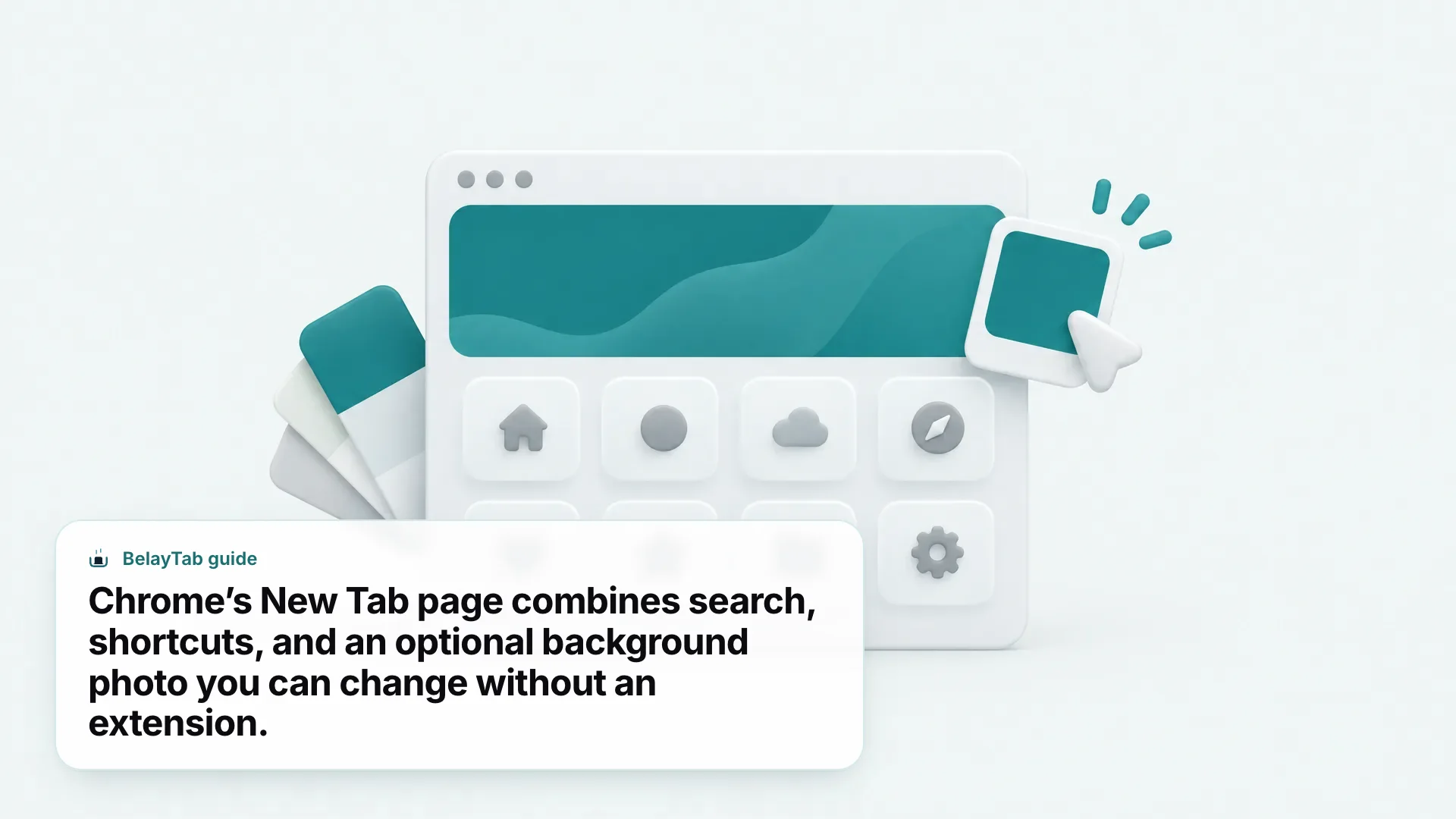
The shortcuts on the page are usually your most-visited sites automatically, but you can typically add, edit, or remove individual tiles by hand if you want a fixed set instead of whatever Chrome guesses. The background option lets you pick from a set of photos or a solid color, and some versions let you upload your own image. None of this touches your search engine or homepage settings (those live in separate parts of Chrome’s Settings page) so changing your new tab’s look is a purely cosmetic, low-risk change compared to installing an extension for the same effect.
If you’re also trying to control what loads when Chrome itself opens (as opposed to what a fresh tab shows), that’s a different setting covered in our guide on Chrome startup pages. New tab and startup behavior get confused often, but they’re configured separately and solve different problems: one is about every new tab, the other is about the tabs Chrome reopens when it first launches.
Try the built-in option before installing anything. If all you want is a nicer background or a cleaner set of shortcuts, Chrome’s own customize panel does that without adding another extension to your list — one less thing to audit later if something else goes wrong.
Can I Replace Chrome’s New Tab Page With a Different One?
Yes, plenty of extensions exist specifically to replace the New Tab page with something more useful than shortcuts and a search box, and installing one deliberately is very different from being hijacked by one. The key difference is that you’re choosing it, reading what it does first, and installing it from a source you trust.
Chrome’s developer documentation is clear that this override mechanism is a normal, supported extension capability, not a workaround or exploit. It’s the same manifest setting a hijacker abuses, used with your knowledge instead of without it. What you get out of a deliberately chosen new tab extension depends entirely on what problem you’re trying to solve.
- Focus-oriented new tab. A calm background, a clock, and maybe a daily quote or to-do list, aimed at reducing the temptation to immediately open ten more tabs. Our Momentum for Chrome piece covers one popular option in this category.
- Session-and-tab-focused new tab. Some tools replace the new tab with a view of your saved sessions or recently closed windows, which is handy if losing track of tabs is your actual problem rather than the page’s looks. See our session manager roundup for how these compare.
- Minimalist bookmark dashboard. A grid of your own curated links instead of Chrome’s auto-picked shortcuts, useful if you visit the same handful of tools daily and don’t want Chrome guessing.
Before installing any new tab extension, read its permissions and description the same way you’d vet one that was hijacking your browser, because the request is technically identical either way. A well-made new tab replacement should tell you plainly what it changes and shouldn’t need permission to read data on every website you visit just to show you a background image and a clock.
Do Other Browsers Get New Tab Redirects Too?
Yes, any Chromium-based browser can be affected the same way, because Edge, Brave, Vivaldi, and Opera all share Chrome’s extension platform and the same page-override mechanism under the hood. If you use more than one Chromium browser and install the same extension in each, a hijacker will follow you into every one of them independently.
Firefox runs its own separate extension system rather than Chrome’s, so a Chrome extension won’t install there directly, but Firefox add-ons can override its start page in a comparable way if you grant them permission to do so. If you’re troubleshooting a redirect in a non-Chrome browser, the extensions list is still the first place to look — see our guides on Edge extensions and Firefox extensions for browser-specific detail on managing what’s installed.
Mobile is a different story entirely. Chrome for Android and iPhone doesn’t support the same extension platform as desktop Chrome, so a true extension-based redirect isn’t something that happens there. What you will see on mobile are suggested shortcut tiles on the new tab screen, and if one keeps showing a site you don’t want, Google’s own mobile help documentation describes removing it by opening a new tab, touching and holding the shortcut image, and tapping Remove — the same basic gesture on both Android and iPhone. That’s a much smaller, cosmetic annoyance compared to a desktop extension quietly rewriting your new tab page, and it doesn’t indicate anything installed itself without your knowledge.
How Do I Protect My Open Tabs While Cleaning Up Extensions?
Save your open windows as a named session before you touch a single extension or setting, so a crash, an accidental Remove click, or a settings reset can’t cost you the tabs you were in the middle of using. This is the step every redirect-fixing guide skips, and it’s the one that causes people pain when cleanup goes slightly wrong.
Removing extensions is generally safe, but it’s not risk-free. Extensions occasionally close tabs they had open as part of their own interface, a settings reset can rearrange your current window, and it’s easy to fat-finger Remove on the wrong item when you’re going through a long list quickly. None of that should mean losing a dozen research tabs or the half-finished form you had open before you started troubleshooting.
BelayTab exists for exactly this moment. It’s a free browser extension that saves your open tabs as a named session with one click or Ctrl + Shift + S (Cmd + Shift + S on Mac), keeping tab groups, pinned tabs, and order intact. It also automatically snapshots each open window on its own, every five minutes and whenever a window closes, so even if you forget to save manually before diving into your extensions list, there’s still a recent snapshot sitting in the Recovery screen. It doesn’t read page content and doesn’t need permission to touch any website. It only manages tabs, tab groups, and sessions, which is a much narrower footprint than most of the extensions you’re auditing.
For the full picture of how saving works — including tab groups, pinned tabs, and importing from other tab managers if you’re switching tools during this cleanup — see how BelayTab saves tabs and how automatic snapshots work in the background. It’s free, doesn’t require an account, and you can download it before you open your extensions list, which takes less time than reading the rest of this guide.
What Should I Do If the Redirect Comes Back?
If a new tab redirect returns after you thought you’d fixed it, the extension likely reinstalled itself, a second extension is doing the same thing, or the original bundled software is still on your computer and reinstalling its browser component. Check your list of installed programs on the computer itself, not just Chrome’s extensions page, since some adware reinstalls its browser piece from a background app.
Also double-check that you removed the extension rather than just disabling it — a disabled extension stays on the list and, in rare cases, software installed alongside it can flip it back on. If you’ve already removed every suspicious extension and reset Chrome’s settings once, and the redirect still comes back within a day or two, it’s worth running a dedicated malware scan on the computer itself, since at that point the issue may not be contained to Chrome anymore. Chrome’s own extensions page will keep showing you exactly what’s active, so it’s always your fastest way to confirm whether the fix held or whether something slipped back in.
One more thing worth checking: if the redirect only shows up on one specific device or one Chrome profile signed into the same account, sync could be carrying a synced extension setting between them. Signing out of that profile, checking the extensions list fresh, and only re-enabling what you recognize will confirm whether sync is part of the problem or just a coincidence.