






If you’re here because a folder of bookmarks just vanished, the honest answer is worth hearing early: Chrome doesn’t give you a way to restore Chrome bookmarks after they’re deleted, not natively. No undo, no recently-deleted list, nothing waiting in a trash bin. That’s different from how a lot of people assume modern software works, and it catches people off guard right when they need the opposite.
The good news is there are still real options, they just depend on what you set up before the deletion happened. This guide walks through every legitimate way to get bookmarks back (from an exported file, from sync, from a Chromebook, after a reset) and is honest about the ones that don’t reliably work, including the Bookmarks.bak file people mention in forums. By the end you’ll also know what to set up so this is a non-issue next time.
How Do I Restore Chrome Bookmarks?
You restore Chrome bookmarks by importing a bookmarks HTML file you exported before they were deleted. That’s the one method Google documents and supports. Open the Bookmark Manager, click More, choose Import Bookmarks, and point it at your saved file.
If you never exported one, your remaining options are much thinner: check whether another signed-in device still has the old bookmarks and hasn’t synced the deletion yet, or accept that the bookmarks are gone. There’s no official Google recovery tool, no support ticket that gets them back, and no hidden setting that reveals a deleted-items view.
Here’s the reality laid out by situation, since “restore bookmarks in Chrome” means something different depending on what you have to work with.
| Situation | What to try |
|---|---|
| Just deleted, no backup exists | Nothing to restore from inside Chrome — check a second device before it syncs |
| You have an HTML export | Bookmark Manager > More > Import Bookmarks from HTML file |
| Signed in, multiple devices | A device that hasn’t opened Chrome recently may still show the old bookmarks briefly |
| On a Chromebook | Same import method works, since Chrome OS runs the same bookmark system |
| No backup, no second device, already synced everywhere | No official recovery path exists |
Set expectations early. If none of the rows above apply to your situation, there isn’t a workaround worth chasing. Skip to the backup section below so this doesn’t happen again, rather than searching for a fix that doesn’t exist.
Is There an Undo Button for Deleted Bookmarks?
No, Chrome doesn’t have one. Deleting a bookmark is immediate and final from the moment you click, with no confirmation dialog first and no way to reverse it from within the browser afterward.
This is a deliberate contrast with how Chrome handles some other data. Closed tabs, for instance, can often be reopened through recently closed tabs. Bookmarks get no equivalent treatment. Once it’s gone from the Bookmarks data, Chrome doesn’t retain a copy anywhere you can access through the interface.
The practical takeaway is to stop looking for an undo feature and start looking at what backups you actually have. If you exported an HTML file at any point, even months ago, that file is your real undo button. It just requires you to have made it in advance. If you didn’t, the next few sections cover what’s realistically still possible.
Can I Restore Bookmarks From Chrome Sync?
Sometimes, but only in a narrow and unreliable window. If you’re signed in to Chrome with sync turned on, bookmarks are stored in your Google Account and shared across every device you’re signed into — which means a deletion on one device eventually applies everywhere, not selectively.
The narrow exception: if you have a second device that hasn’t opened Chrome or connected to sync since the deletion happened, it may still be showing the old, un-deleted version of your bookmarks for a little while. The moment that device syncs, though, the deletion propagates and the bookmark disappears there too. This isn’t a recovery feature Google built on purpose. It’s a timing gap, and it closes fast.
- Open Chrome on a second signed-in device. A phone, tablet, or another computer you use with the same Google Account.
- Check the bookmark before doing anything else. If it’s still there, don’t let that device sync yet.
- Export immediately. Open its Bookmark Manager and export an HTML file right away, before connecting to sync.
- Import that file on your main device. Use Import Bookmarks from HTML file to bring the missing bookmark back.
If sync has already caught up everywhere, this path is closed, and it’s worth knowing that turning sync off after the fact doesn’t reverse anything already synced. It only stops future changes from propagating.
What Is the Bookmarks.bak File, and Can I Use It?
The Bookmarks.bak file is a backup copy some people find inside their Chrome profile folder, but it isn’t something Google documents on an official support page, so it shouldn’t be treated as a guaranteed recovery method. Community forums and third-party sites mention it; Google’s own bookmark help pages don’t.
In practice, even where this file exists, it tends to reflect Chrome’s state from very recently, not from whenever your bookmark went missing. Chrome updates its own backup copy as you use the browser, which means by the time you notice a bookmark is gone, the backup file may already reflect the same missing bookmark. There’s also no official, supported process for manually restoring from it, so any steps you find online for doing so come from users reverse-engineering Chrome’s behavior rather than from Google.
Don’t build your recovery plan around this. Because there’s no official guidance on locating or restoring from a Bookmarks.bak file, and because it may already reflect the deletion by the time you look for it, don’t treat it as a dependable fix. Use it as a last-resort curiosity, not a plan.
If you’re technical enough to be considering this route, you likely already know your way around your Chrome profile folder — Google’s own documented way to find that folder is through the internal chrome://version page, which shows your exact Profile Path. But the more dependable move, every time, is having an actual export made on purpose rather than hunting for an undocumented internal file after something’s already gone wrong.
How Do I Restore Bookmarks From an Exported HTML File?
You restore them by opening the Bookmark Manager, clicking More, choosing Import Bookmarks, and selecting the HTML file you saved earlier. This is the one officially supported restore path, and it works reliably every time, as long as you have the file.
Imported bookmarks don’t silently merge into your existing structure or overwrite anything. If Chrome already has bookmarks, the imported set lands in its own folder — often labeled something like “Imported.” If your bookmarks bar was empty beforehand, they populate it directly. Either way, you can review what came back before deciding where it belongs long-term.
- Open the Bookmark Manager. Press Ctrl + Shift + O on Windows or Linux, or find it through the Chrome menu on Mac.
- Click More. The three-dot icon sits near the top right of the window.
- Choose Import Bookmarks. Select “Import Bookmarks from HTML file” from the list.
- Pick your saved file. Browse to wherever you stored the export and open it.
- Review the new folder. Restored bookmarks appear in their own folder, ready to sort or merge as you like.
This same import process works whether the HTML file came from Chrome’s own export, from another browser’s export, or from a bookmark manager tool that produces HTML-format output — Chrome’s importer isn’t picky about the origin, just the file format. For a deeper look at exporting and moving bookmarks between machines, see the full Chrome bookmarks guide.
How Do I Restore Lost Bookmarks on a Chromebook?
The process is identical to any other Chrome install, because Chrome OS runs the same browser and the same Bookmark Manager as Windows, Mac, and Linux. Open the Bookmark Manager, click More, and choose Import Bookmarks from HTML file. There’s no separate Chromebook-specific tool.
Where Chromebooks differ slightly is in how people tend to lose bookmarks in the first place. A Powerwash (Chrome OS’s factory reset) wipes local data, but if you’re signed in with sync on, your bookmarks come back automatically once you sign in again after the reset, pulled from your Google Account rather than from anything stored locally on the device. That’s a meaningfully different recovery path than on a desktop where sync might be off.
- Signed in with sync. Bookmarks return automatically after signing back in, no manual import needed.
- Signed in without sync. You’ll need an HTML export made before the reset, since nothing carries over automatically.
- Guest browsing sessions. Chrome OS’s Guest browsing toggle doesn’t save bookmarks to begin with, so there’s nothing to restore from a guest session.
If your Chromebook bookmarks disappeared without a reset, treat it the same as any Chrome desktop loss: check whether you have an export, check a second signed-in device, and if neither applies, there’s no built-in fallback. For more on managing bookmarks specifically on Chrome OS, see the Chromebook bookmarks guide.
Can I Restore Bookmarks I Lost After Resetting Chrome or My Computer?
It depends entirely on whether they existed somewhere outside the reset. If you were signed in with sync on before the reset, your bookmarks come back once you sign in again afterward, since they’re stored in your Google Account rather than only on the local machine. If you weren’t syncing, the only way back is an HTML file you exported beforehand.
This distinction trips people up because “reset” can mean several different things with different consequences. Resetting Chrome’s settings (Settings > Reset settings) is documented as a way to restore browser settings to their defaults, aimed at fixing issues like unwanted redirects. It doesn’t specifically target bookmarks, but a full device reset or a fresh Chrome profile absolutely can leave you without them if sync wasn’t on.
Check sign-in status first. Before assuming bookmarks are gone after any kind of reset, sign back into Chrome with the same Google Account and give it a moment to sync. If sync was on before the reset, this alone often solves the problem without needing a manual import.
If you’re rebuilding a computer from scratch and want bookmarks to survive the process cleanly regardless of sync settings, exporting an HTML file immediately before wiping anything is the move that removes the guesswork. It’s a two-minute step that avoids depending on account sign-in timing working out in your favor.
How Do I Prevent Losing Bookmarks Again?
Export a bookmarks HTML file on a regular basis, and definitely right before any bulk cleanup, reset, or migration. This is the single habit that turns “gone forever” into “a two-minute import,” and it’s the same advice for every situation covered in this guide.
Signing in with Chrome sync turned on is a reasonable second layer, since it means your bookmarks live in your Google Account and not just on one machine — but sync isn’t a backup in the traditional sense. It’s a mirror. If you delete a bookmark while signed in, sync faithfully deletes it everywhere too; it won’t protect you from your own mistakes, only from losing a single device.
| Method | Protects against | Limitation |
|---|---|---|
| HTML export | Deletion, reset, reinstall | You have to remember to do it |
| Chrome Sync | Losing one device | Deletions sync everywhere too — not a safety net for mistakes |
| Bookmarks.bak | Nothing reliable | Unofficial, undocumented, may already reflect the loss |
What’s the Difference Between Restoring Bookmarks and Restoring Tabs?
A bookmark is a saved link you created on purpose; an open tab is a page you currently have loaded in the browser, gone the moment the window closes unless something else preserved it. Chrome treats them as entirely separate systems, with separate storage and separate (or in the case of tabs, largely absent) recovery tools.
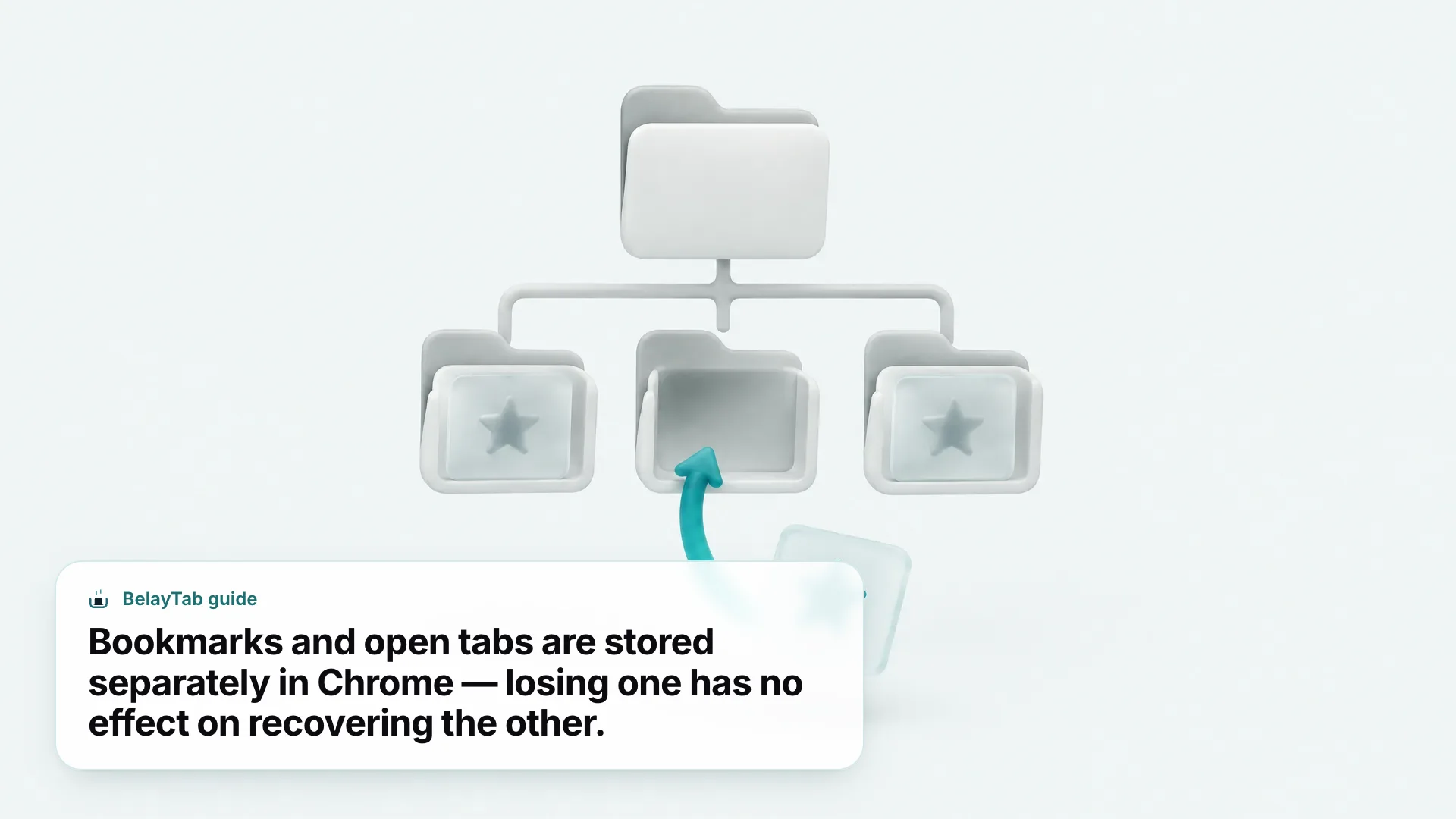
This matters because a lot of people searching for how to restore Chrome bookmarks are trying to get back an open research window, not a saved link. Chrome does offer some native tab recovery (reopening recently closed tabs, or “Continue where you left off” on relaunch) but neither is designed as a durable backup, and a crash or an accidental “close all windows” can still wipe out tabs with no saved bookmark trail at all.
If it’s your open tabs you’re worried about protecting, that’s a different tool from anything covered so far in this guide. How to restore tabs in Chrome covers Chrome’s native options in depth, and for something more durable, BelayTab saves whole windows as named sessions automatically every 5 minutes and whenever a window closes, keeps the last 20 versions of each one, and holds deleted sessions in a 30-day trash you can pull from through one Recovery screen. It won’t bring back a deleted bookmark, but it solves the far more common version of this problem: the window full of tabs you never got around to bookmarking in the first place.
Where Can I Get More Help If Nothing Works?
If you’ve checked every option in this guide and the bookmarks are still gone, the honest answer is that Chrome doesn’t have a support path for individually recovering deleted bookmarks, and there isn’t a hidden setting or paid feature that changes that. At that point, the best use of your time is rebuilding the important ones manually and setting up a backup so this doesn’t happen a second time.
Start by checking your Chrome History for any pages you remember bookmarking recently — the URLs may still be there even though the bookmark entry itself is gone, letting you re-save the ones that matter most. If you use more than one Chrome profile, double check you’re looking in the right one, since each keeps a fully separate bookmarks list.
Going forward, pick one backup method and stick to it: a recurring reminder to export an HTML file, sync turned on with a Google Account you trust, or a tool that automates the export for you on a schedule. Any of these beats searching for an undocumented recovery trick after the fact. And if what really burned you wasn’t a bookmark but a browser window full of tabs you hadn’t gotten around to saving, downloading BelayTab closes that gap for free, with no account required to start.