






If you have ever picked up a laptop at a school, library, or office and found it strangely fast, oddly cheap, and missing your favorite desktop program, there is a decent chance it was a Chromebook. People search “what is chromebook computer” a lot because the marketing rarely explains the trade-off in plain terms. A Chromebook is a laptop (or tablet) that runs Google’s ChromeOS instead of Windows or macOS, built around the Chrome browser and cloud storage rather than installed desktop software. That single design choice explains almost everything else about how one behaves, what it costs, and where it falls short.
This guide covers what a Chromebook actually is, how it differs from a regular computer, what you can and can’t do on one, and (because it matters the moment your browser is your whole workspace) what happens to your open tabs when the device restarts, updates, or gets reset.
What Is a Chromebook Computer?
A Chromebook is a real, standalone computer that runs ChromeOS, Google’s operating system built around the Chrome browser. Google’s own description calls Chromebooks “a new type of computer designed to help you get things done faster and easier,” bundling cloud storage, built-in Google services, and multiple layers of security into ChromeOS (support.google.com/chromebook/answer/3265094). It has a processor, memory, and local storage just like any other laptop — the difference is what runs on top of that hardware.
Instead of installing desktop programs the way you would on Windows or macOS, a Chromebook leans on web apps, Android apps (on supported models), and thousands of free apps from the Chrome Web Store. Google frames part of the lower price point around not needing separate paid software licenses for that setup. If you have used Chrome on any other computer, the interface will feel immediately familiar, because ChromeOS essentially is Chrome, wrapped in a full operating system.
| At a glance | Chromebook |
|---|---|
| Operating system | ChromeOS |
| Core app | Chrome browser |
| Local software | Mostly none — web apps, Chrome Web Store apps, some Android/Linux apps |
| Offline features | Gmail, Keep, Drive apps, Calendar, photo editing, media playback |
| Typical price | Generally lower than comparable Windows or Mac laptops |
| Update lifespan | Up to 10 years from platform release (Auto Update Expiration) |
| Storage model | Small local drive plus cloud storage (Google Drive) |
What Is the Difference Between a Chromebook and a Computer?
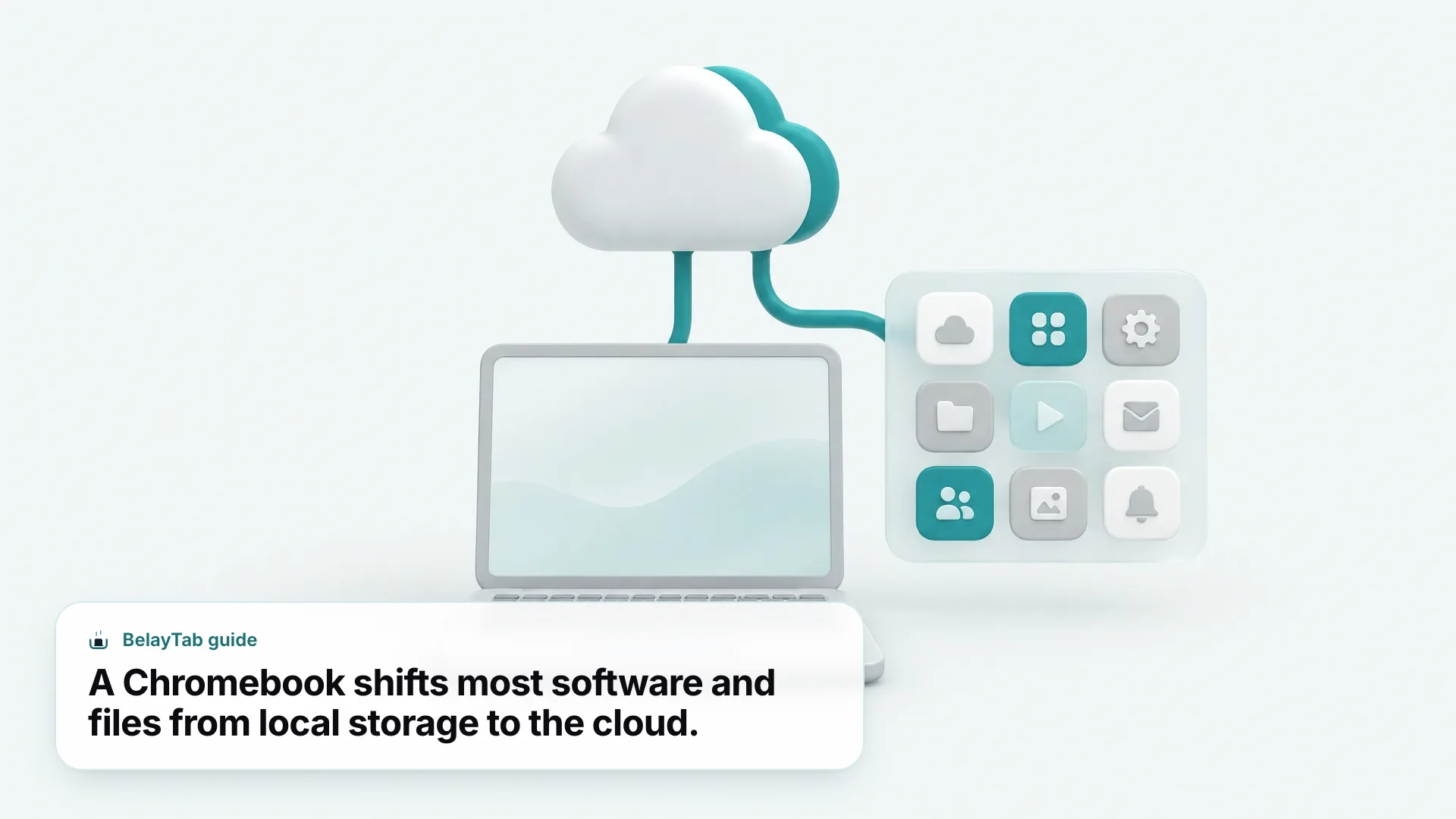
The core difference between a Chromebook and a traditional computer is the operating system and where your software and files live. A Windows or Mac computer runs full desktop applications installed locally, with large local storage expected to hold them. A Chromebook runs ChromeOS, keeps most files in Google Drive, and gets its apps from the Chrome Web Store or, on supported models, the Play Store and a Linux environment.
That single design choice cascades into everything else people notice: Chromebooks boot faster because there’s less system software to load, they cost less because manufacturers can use lighter hardware and skip Windows licensing, and they need less antivirus fuss because ChromeOS doesn’t run typical Windows-style executables. The trade-off is real, though — professional creative software, many PC games, and industry-specific desktop tools simply don’t have a Chromebook version.
Here’s the comparison in table form, which is usually the fastest way to see where a Chromebook fits your actual workflow.
| Factor | Chromebook | Traditional computer (Windows/Mac) |
|---|---|---|
| Operating system | ChromeOS | Windows or macOS |
| Software installs | Web apps, Chrome Web Store, limited Android/Linux apps | Any compatible desktop program |
| File storage | Small local drive, primarily Google Drive | Larger local drive plus optional cloud |
| iTunes / CD-DVD drives | Not supported | Supported (with a drive, where present) |
| Typical price | Lower | Wide range, often higher for comparable specs |
| Boot and update speed | Generally fast, background updates | Varies, updates can be slower and larger |
If you want the exact “chromebook vs computer” breakdown for your own daily tasks (spreadsheets, browser tabs, occasional video calls) the table above usually answers it in one read: if your work already lives in a browser, the gap narrows fast.
What Is ChromeOS, and What Does It Run On?
ChromeOS is Google’s operating system, built on the Chrome browser, that powers every Chromebook. It’s the software layer, not the hardware — think of ChromeOS as what Windows is to a Dell laptop or macOS is to a MacBook. Google’s official page describes ChromeOS as bundling cloud storage, built-in Google services, and multiple layers of security by design (support.google.com/chromebook/answer/3265094).
Because ChromeOS is so tightly built around the browser, most of what you do on a Chromebook happens in tabs, and it’s worth learning the keyboard shortcuts early. Open a new tab with Ctrl + T, close one with Ctrl + W, and bring back the last tab you closed with Ctrl + Shift + T. Task Manager, which is handy when a tab is eating memory, opens with Shift + Esc. The full official shortcut list covers a lot more ground than most people expect.
A few things distinguish ChromeOS from Chrome-the-browser specifically. ChromeOS manages hardware, storage, user accounts, Android app compatibility (on supported models), and a Linux development environment, none of which the standalone Chrome browser touches on Windows or Mac. It also updates itself in the background far more often than a typical desktop OS, applying security patches without the multi-gigabyte installer experience Windows users know well.
Chrome the browser vs ChromeOS the platform. Chrome runs on Windows, macOS, Linux, Android, and iOS as one app among many. ChromeOS is the entire operating system a Chromebook boots into. You can’t install ChromeOS on a random laptop the way you install the Chrome browser.
For a deeper dive into the shortcuts specifically, see our full guide to Chromebook keyboard shortcuts.
What Can You Actually Do on a Chromebook?
You can browse, write, email, video call, edit photos, watch media, and (on supported models) run Android and Linux apps on a Chromebook, but you can’t install most traditional Windows or Mac desktop software. Google specifically lists offline Gmail, Google Keep, Google Drive apps, Google Calendar, photo editing, and media playback as features that work without an internet connection, which covers more daily use than people expect from a “cloud” device.
Microsoft Office files are also fully supported: they can be opened, edited, downloaded, and converted directly on any Chromebook, and on Android-app-compatible models, Office can run as an actual Android app. That closes one of the more common objections people have before buying one.
Where it gets more restrictive:
- The Google Play Store, for Android apps, is available on only some Chromebooks — check your specific model’s compatibility before assuming support.
- Android apps and their data are tied to whichever account first signed into the device; other accounts on the same Chromebook can’t use them.
- Linux, where supported, runs in a Debian-based terminal environment but has no camera access, no GPU hardware acceleration, and can’t run Android emulators.
- iTunes and CD/DVD drives are not supported at all, though USB and SD-card media playback works through the built-in media player.
Check compatibility before you plan around it. Both the Play Store and the Linux environment are model-dependent, not universal. If Android or Linux apps are the reason you’re buying a Chromebook, confirm the exact model supports them before you commit.
Managing files also works differently than on Windows. Downloads land in a temporary Downloads folder that ChromeOS can auto-clear when storage runs low, so it’s worth knowing how Chromebook downloads and file storage work. Extensions, meanwhile, come from the Chrome Web Store the same way they do on any Chrome install — our guide to managing Chromebook extensions covers adding, removing, and troubleshooting them.
What Is a Chromebook Plus?
Chromebook Plus is Google’s category for higher-spec Chromebooks that meet a defined hardware bar for productivity and creativity. Google describes it as “a new category of Chromebook that offers powerful specs and advanced apps for productivity and creativity” (support.google.com/chromebook/answer/14128000). It’s not a separate operating system (a Chromebook Plus still runs ChromeOS) it’s a hardware and eligibility tier layered on top.
To qualify, a device needs to meet specific minimums, and those same minimums also determine eligibility for the Chromebook Plus OS update:
| Requirement | Minimum spec |
|---|---|
| Processor | Intel Core i3 12th Gen+ or AMD Ryzen 3 5000 series+ |
| RAM | 8 GB |
| Storage | 128 GB |
| Webcam | 1080p or higher, with Temporal Noise Reduction |
| Display | Full HD IPS or better |
The category includes both newly launched models and select existing Chromebooks (from manufacturers including Acer, ASUS, Dell, Framework, HP, and Lenovo) that already meet those specs and become eligible for the Chromebook Plus update. If you’re shopping and specifically searching “google chromebook” or “chromebook google” listings, the Plus badge is the fastest way to filter out the lowest-spec, budget-tier hardware without reading every spec sheet. For anyone who plans to keep a lot of tabs, video calls, and Android apps running at once, the extra RAM in a Plus model is the single upgrade most likely to matter day to day.
Who Is a Chromebook Actually Good For?
A Chromebook is a strong fit for people whose work already happens mostly in a browser, and a poor fit for anyone tied to specific desktop software. Students writing papers, checking email, and joining video calls are a classic match. So are people who mainly browse, stream, and use web-based tools for work, since the lighter OS and lower price make a Chromebook cheap to replace if it’s lost, damaged, or handed down.
- Students and note-takers. Docs, Slides, Classroom, and offline Gmail cover most schoolwork, and the lower price tolerates the wear a school bag gives a laptop.
- Secondary or travel device. A lightweight, inexpensive Chromebook is easy to justify as a second machine you don’t mind losing at airport security.
- Browser-first workers. If your whole job already happens in Gmail, a CRM, and a handful of web apps, a Chromebook does that job for less money.
- Family or shared household laptop. Multiple Google Account sign-ins, Family Link content controls, and a low price make it a sensible shared device.
Where a Chromebook is the wrong call: anyone who needs specific paid desktop software (professional video or audio editing suites, many engineering or design tools), PC gaming beyond lightweight or cloud-streamed titles, or heavy offline file work with large local libraries. If your job depends on one specific Windows-only application, no amount of Chromebook convenience fixes that gap — check the software’s requirements before the hardware’s specs.
What Are the Downsides of a Chromebook?
The main downsides of a Chromebook are limited software compatibility, model-dependent Android and Linux support, and a hard dependency on being online for most tasks. If your workflow needs a specific piece of desktop software (video editing suites, CAD tools, many accounting programs) there’s usually no Chromebook equivalent, only a web-based approximation at best.
Storage is another real constraint. Local drives on Chromebooks tend to be small, downloaded files sit in a Downloads folder that ChromeOS can auto-clear when space runs low, and heavy offline file libraries just don’t fit the design. If you rely on local storage for large media files, plan to route them to Google Drive or an external drive instead.
Performance can also lag on the cheapest models. If a Chromebook feels sluggish, the fixes are largely the same as any computer: close unused tabs and extensions, check why your Chromebook is running slow, and use Diagnostics (via the launcher or Settings, About ChromeOS, Diagnostics) to rule out a hardware issue with memory, CPU, or battery health. Freezing and crashing have their own troubleshooting path too — see our guide on why a Chromebook keeps freezing if restarts alone aren’t fixing it.
Guest mode isn’t a privacy cure-all. Guest browsing on a Chromebook deletes your files, cookies, and browsing activity when the session ends, but your ISP, network operator, or the sites you visit can still see that traffic. It hides activity from the next person on the device, not from the network. See our Chromebook guest mode guide for the full picture.
How Long Do Chromebooks Get Software Updates?
Chromebooks receive automatic updates for up to 10 years from their platform’s release date under Google’s Auto Update Expiration (AUE) policy (support.google.com/chromebook/answer/9367166). That’s a meaningfully long window compared to how quickly some laptops feel outdated, but the countdown starts from the platform’s release, not your purchase date — an older model you buy new might already be several years into its support window.
You can check any device’s specific cutoff at Settings, About ChromeOS, Additional details, Update schedule, which shows the exact date automatic updates stop. Devices released before 2021 may need to opt into Extended Updates during their final support years to reach the full 10-year total. Past the AUE date, Google’s own guidance is blunt: existing or future device policies may not work as intended, and technical support is no longer provided.
To check for a pending update at any point, go to Settings, About ChromeOS, Check for updates. Updates download automatically when you’re connected to the internet — a blue notification means the update is recommended, an orange one means it’s required, and selecting Restart applies it. If you’re curious about what happens to your open work during that restart, that’s exactly what the next section covers.
What Happens to Your Tabs When You Restart, Reset, or Update a Chromebook?
A normal restart or update doesn’t erase data, but the level of “reset” you choose determines exactly what survives on a Chromebook. Google defines three distinct levels, and they are not interchangeable: Restart reboots the device without erasing anything, Powerwash wipes local data back to factory state, and Recovery reinstalls ChromeOS and erases the entire drive, used only when the OS itself is corrupted or won’t boot.
| Action | What it erases | What survives |
|---|---|---|
| Restart | Nothing | Everything, including local files and (if enabled) reopened tabs |
| Powerwash | Downloads folder, installed apps, local settings | Google Drive files, external/USB storage, your Google Account data |
| Recovery | The entire drive, including downloads | Only what was already backed up to Drive or synced accounts |
- Before a Powerwash or Recovery, move anything local. Copy files out of Downloads into Google Drive or a USB drive using the Files app, since Powerwash erases the Downloads folder and Recovery erases the whole drive.
- Export or save your open sessions. If your browser tabs represent active work, save them as a named session in BelayTab (or at minimum, bookmark the tabs) before you trigger either reset.
- Trigger Powerwash if needed. From the sign-in screen, hold Ctrl + Alt + Shift + R, select Restart, then Powerwash, Continue.
- Sign back in and restore. Your Google Account data (bookmarks, saved passwords) returns automatically; restore your saved BelayTab session to get your exact tabs back, in order.
Powerwash is more destructive than a restart, Recovery is worse. Powerwash erases your Downloads folder, installed apps, and local settings. It does not delete Drive files or external storage. Recovery is a step further and permanently erases the entire hard drive, including downloaded files, so use it only when ChromeOS itself won’t start.
This is also where Chrome’s own tab-recovery tools show their limits. “Continue where you left off” in Chrome’s startup settings can reopen your last session, but it only tracks one state. There’s no history, no way to recover an earlier version, and it offers nothing once you’ve already Powerwashed. Our guide to Chromebook tabs, shortcuts, and recovery walks through Chrome’s native options in detail; BelayTab’s recovery screen adds automatic snapshots on a five-minute timer and again when a window closes, plus 20 versions of history per session, so a Powerwash or Recovery doesn’t mean starting your research from zero. See how the snapshots work on the automatic snapshots help page.
How Do You Set Up and Protect a New Chromebook?
You set up a new Chromebook by signing in with your Google Account, connecting to Wi-Fi, checking for updates, and then deciding whether you need Android apps, Linux, or a dedicated tab-backup tool before you start filling the browser with work. The order matters more than it seems — checking for updates early avoids running an outdated ChromeOS build for weeks, and deciding on Android/Play Store support before you rely on it avoids finding out mid-project that your specific model doesn’t support it.
- Sign in and connect. Enter Wi-Fi credentials, then sign in with the Google Account you want managing this device’s Drive storage and bookmarks.
- Check for updates immediately. Go to Settings, About ChromeOS, Check for updates, so you’re not troubleshooting on a stale build.
- Turn on Play Store or Linux only if your model supports them. Confirm compatibility first, then enable via Settings, Apps for Android apps or Settings, About ChromeOS, Developers for Linux.
- Set Chrome’s startup behavior. In Chrome’s Settings, On startup, pick “Continue where you left off” if you want tabs to reopen after every restart.
- Install BelayTab before your tab count climbs. Add it from the Chrome Web Store so automatic snapshots and named sessions are running from day one, not after the first lost tab.
Bookmarks are worth organizing early too, since a browser-centric device like a Chromebook leans on them more than a typical desktop setup — see our guide to Chromebook bookmarks for how to add, sync, and back them up. And if you ever need to check what sites were open recently rather than restore a full session, Chromebook browsing history covers finding, searching, and clearing it.