






Eight gigabytes used to be the safe, boring default for a new laptop. In 2026 it’s still what a lot of budget and mid-range machines ship with, and Chrome has a reputation (earned, not exaggerated) for eating through it fast. Maybe you just watched your fan spin up with only a dozen tabs open, or you’re shopping for a new laptop and wondering whether to pay extra for more memory. Either way, the question you’re actually asking is narrower than “is 8GB enough”: it’s “how many tabs, with what else running, before Chrome starts fighting my computer for memory.”
The honest answer is that 8GB works fine for normal browsing and starts to strain once you stack tabs, extensions, and other apps on top. Below, you’ll find a quick answer by situation, the settings that help, and where those settings run out.
Is 8GB of RAM Enough for Chrome in 2026?
Yes, for most people — as long as you aren’t stacking dozens of tabs and several other memory-hungry apps at the same time. Chrome itself isn’t the problem; it’s what you ask it to hold open simultaneously.
Here’s a rough guide by situation. These aren’t lab numbers, just a practical read on where 8GB tends to hold up and where it starts to buckle:
| Situation | Realistic Tab Count on 8GB | Verdict |
|---|---|---|
| Browsing, email, docs, one video call | 15–25 tabs | Comfortable |
| Chrome plus Slack, Zoom, and Spotify open too | 10–15 tabs | Workable with Memory Saver on |
| Docker, a code editor, or a dozen extensions running | 5–10 tabs | Tight, expect slowdowns |
| 40+ tabs, “I’ll read this later” hoarding | Any number | 8GB will fight you |
What “enough” means in practice is whether your computer starts swapping memory to disk. When Chrome and everything else you’re running ask for more RAM than you physically have, the operating system starts paging data out to your drive, and that’s when things feel sluggish — typing lags, switching tabs stutters, other apps stop responding for a second. That’s the moment 8GB stops being enough, and it’s a tab-count problem as much as a hardware one. If Chrome regularly grinds to a halt for you, our guide on Chrome lagging or slow covers more fixes beyond memory.
Check your own baseline first. Before changing anything, open Chrome’s Task Manager (covered below) once with your normal tab count. It tells you exactly how much of your 8GB Chrome alone is claiming right now.
How Many Tabs Can You Realistically Keep Open on 8GB of RAM?
There’s no single number, because a tab is not a tab is not a tab. A static news article costs Chrome very little. A Gmail inbox, a Google Doc, a Figma file, or anything auto-playing video costs a lot more, because those pages run continuous JavaScript and keep updating in the background.
That’s the real reason two people with the same 8GB laptop report wildly different experiences. One keeps 30 mostly-idle tabs open and never notices. The other keeps 12 tabs open, three of them Gmail, Docs, and a live dashboard, and Chrome feels heavy well before tab 12.
Picture the night before a deadline: forty research tabs stacked across two windows, half of them PDFs, a couple of Google Docs open for notes, and a video call running in a third window. That’s not a tab-count problem anymore, it’s a workload problem, and no amount of tab-hygiene advice changes the fact that all of it is competing for the same 8GB at once. In that moment, the honest fix isn’t fewer tabs. It’s getting the ones you’re not actively reading out of memory without losing them.
- Light tab habit. Mostly articles, search results, and static pages you skim and close. 8GB handles a large number of these without much strain.
- Medium tab habit. A mix of email, docs, and a few app-like sites (calendar, project board, a chat app in the browser). This is where Memory Saver earns its keep.
- Heavy tab hoarder. Dozens of tabs kept open “just in case,” many of them app-like or forgotten entirely. This is the profile 8GB struggles with most, and where saving tabs as sessions instead of hoarding them pays off.
If you recognize yourself in that last category, you’re not alone, and it’s less a discipline problem than a tooling one — see our full breakdown of fixing tab overload without losing anything for the deeper version of this.
Why Does Chrome Use So Much Memory?
Chrome runs each tab, extension, and plugin as its own separate process rather than lumping everything into one. That design is deliberate: if one tab crashes or a website’s script goes rogue, it takes down only that tab, not your entire browser window. The trade-off is that all those separate processes each carry their own memory overhead, and it adds up as you open more of them.
Extensions compound this. Every extension you have installed and enabled runs its own background process, using a small, constant slice of RAM whether you’re actively using it or not. A handful of well-behaved extensions rarely moves the needle. Two dozen ad blockers, note-takers, and productivity add-ons, all running at once, absolutely can.
None of this is a bug you can turn off. It’s the architecture that makes Chrome resilient to the one bad tab crashing everything else. Chrome also splits out a separate GPU process to handle rendering and animation, plus its own network and utility processes running behind the scenes, on top of one renderer process per tab or per site. It’s a deliberate security boundary as much as a stability one: keeping each site’s code isolated from every other site’s makes it much harder for one compromised page to read data from another. What you can control is how many processes you’re asking Chrome to juggle at once, which is really a tab-count and extension-count question more than a “Chrome is broken” one.
How Do You Check What’s Using Chrome’s RAM Right Now?
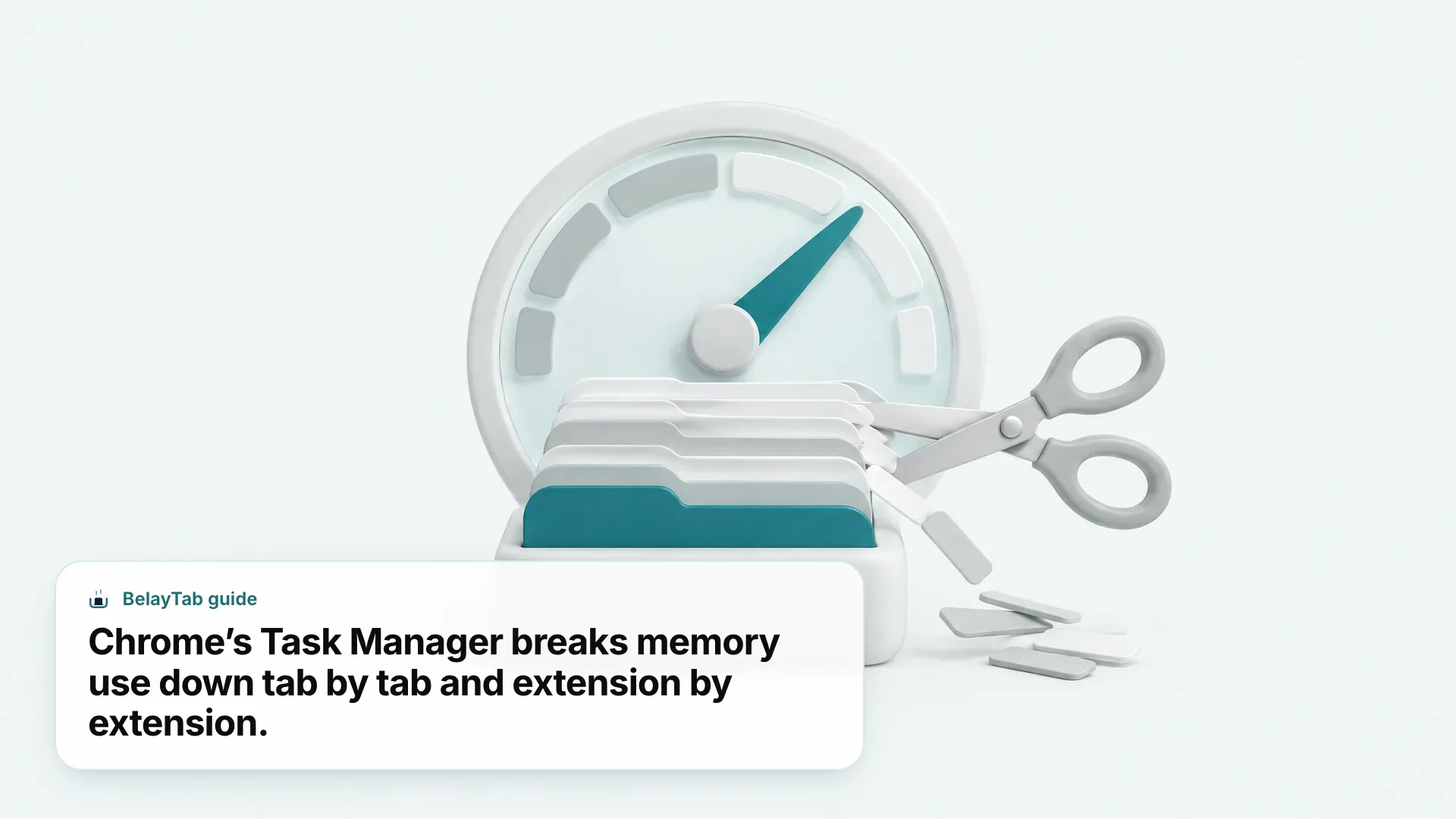
Open Chrome’s Task Manager, which lists every tab and extension next to its memory usage so you can see the actual culprit instead of guessing. It’s a separate window from your operating system’s task manager, and its shortcut is listed on Google’s Chrome keyboard shortcuts page.
- Open Task Manager. Press Shift + Esc on Windows or Linux. On Mac, open the menu (⋮) and choose More Tools, then Task Manager.
- Sort by memory. Click the Memory column header to sort tabs and extensions from heaviest to lightest.
- End the worst offenders. Select a process and click End Process to close just that tab or extension without closing the whole window.
- Check chrome://discards for more detail. This internal Chrome page lists your open tabs and includes an “Urgent Discard” action you can use to manually test how a tab behaves when Chrome frees its memory.
Discarding, by the way, is more effective than people expect. Chrome’s own engineering blog post on tab discarding says a discarded tab can use up to 80% less memory than an active one, since the page content unloads while the tab keeps its title and favicon in the strip. Revisiting it just reloads the page automatically. For a deeper walkthrough of this window, see our guide to finding the tab eating your memory.
How Do You Turn On Chrome’s Memory Saver?
Turn it on in Settings, under Performance, and Chrome will start deactivating tabs you aren’t using to free up memory automatically. It’s built into Chrome already, described on Google’s own Memory Saver support page; there’s nothing to install.
- Open the menu. Click the three dots (⋮) in the top right corner of Chrome.
- Go to Settings, then Performance. You’ll see Memory Saver near the top of the page.
- Switch Memory Saver on. Then pick a level: Moderate (longest before deactivating, smallest savings), Balanced (Google’s recommended default), or Maximum (fastest deactivation, largest savings).
- Leave the rest alone. Tabs you’re actively using, playing audio, or on a video call stay active regardless of the level you pick.
When you click back into a deactivated tab, Chrome reloads it automatically, so nothing is lost. The only downside is a brief reload delay and, occasionally, losing your exact scroll position or an unsaved form field on a page that doesn’t auto-save. For most tabs that’s a fair trade for the memory back. Our full Chrome Memory Saver guide covers what to expect at each level in more detail.
Does Chrome’s Energy Saver Help With RAM Too?
Not directly — Energy Saver is aimed at your battery, not your memory. It works alongside Memory Saver but solves a different problem, so it’s worth understanding the difference before you assume one setting does both jobs.
Two settings, two jobs. Memory Saver frees RAM by deactivating tabs you aren’t using. Energy Saver reduces power draw by limiting CPU-intensive background activity, and it exempts tabs playing audio or a video call. Both live in the same Settings > Performance page, and turning both on is generally the right move on a laptop.
Energy Saver is available on Windows, Mac, and battery-equipped Chromebooks. On a desktop plugged into the wall, it matters less, since there’s no battery to protect. On a laptop juggling 8GB of RAM, though, it’s worth leaving on anyway — less CPU churn in the background tends to mean a slightly calmer system overall, even if the memory savings themselves come from Memory Saver.
What Other Browsers Handle Low RAM Better Than Chrome?
Every major browser now ships something aimed at the same problem, so “switch browsers” is a legitimate option if Chrome specifically is the pain point rather than tab count itself. None of them are magic. They’re all variations on the same idea of freeing resources from tabs you aren’t looking at.
| Browser | Native Tool | What It Does |
|---|---|---|
| Chrome | Memory Saver | Deactivates unused tabs; reloads automatically when reopened |
| Edge | Sleeping tabs | Puts background tabs to sleep after a period of inactivity (default two hours) |
| Firefox | Unload tabs | Unloads inactive tabs to cut memory and CPU use, and does it automatically under memory pressure |
| Vivaldi | Memory Saver / Hibernate | Automatically hibernates tabs unused for a while, or hibernate manually from the tab’s right-click menu |
Microsoft’s own Edge team has published a figure worth knowing: in a 2020 post on the Microsoft Edge developer blog, it reported that using Sleeping tabs typically reduces memory usage by 32% on average, and a sleeping tab uses 37% less CPU on average than one that’s awake. That’s a meaningfully similar mechanism to Chrome’s Memory Saver, just under a different name.
Opera takes a slightly different angle: instead of just deactivating tabs, its Workspaces and Tab Islands features are meant to stop tab sprawl from happening in the first place, by letting you move tabs into separate labeled workspaces or grouping tabs that spawned from the same page into a collapsible island. It won’t shrink memory usage directly the way Memory Saver or Sleeping tabs do, but fewer tabs left open loose in the strip tends to mean fewer of them idling in memory too. Since BelayTab runs on Chrome, Edge, Brave, Opera, Vivaldi, Arc, Firefox, and Safari on Mac, whichever of these you land on, saving tabs as sessions works the same way.
If your machine is genuinely underpowered rather than just tab-crowded, it’s worth reading our comparison of Chrome vs Edge or our roundup of the lightest browsers for low-RAM computers before assuming you need new hardware.
Should You Just Upgrade to 16GB of RAM?
If your workload regularly involves 30-plus tabs, a handful of Electron apps, and a browser video call running at the same time, yes — 16GB gives you real breathing room and it’s a one-time fix rather than an ongoing habit. If you’re closer to 10 to 20 tabs and occasional slowdowns, software changes will get you further before hardware does.
The honest trade-off: RAM upgrades are permanent and simple but cost money and, on plenty of laptops now, aren’t even possible since the memory is soldered to the board. Tab management costs nothing and works immediately, but it does ask you to change a habit. My advice is to try the software route first (Memory Saver, closing what you don’t need, and saving the rest) for a week before spending on hardware. If you’re still hitting the ceiling after that, upgrade with confidence, because you’ll know it’s the RAM and not just tab sprawl.
Before you decide either way, run the numbers with Chrome’s own Task Manager open for a day. If the total memory column keeps climbing even after you’ve closed the tabs you don’t need, that’s a genuine hardware ceiling. If it climbs mainly because of tabs you forgot were open, that’s a workflow problem no amount of extra RAM permanently fixes, since a bigger number just means it takes longer to hit the same wall.
It’s also worth comparing what different tab and session tools do before picking one — our tab manager comparison lines up the main options side by side.
Is Closing Tabs Actually the Answer, or Does It Just Delay the Problem?
Closing tabs does free RAM, and it’s the fastest fix available right now — but if you’re closing tabs you’ll want again next week, you’re trading memory for lost work, not solving anything. The real fix is separating “tabs I’m using today” from “tabs I want to keep but don’t need open.”
Third-party suspender extensions used to be the popular answer to this, before one of the most widely used ones burned a lot of trust.
If you already lost tabs to that extension’s shutdown, our guide on tab suspenders for Chrome covers what’s trustworthy now and how recovery from an old suspender tends to work. Tab groups are a decent middle ground too: right-click a tab, add it to a group, name and color it, and collapse the group when you’re done for the day. It won’t free memory on its own, but it keeps related tabs together so you’re less tempted to leave forty loose ones scattered across the strip.
What’s the Best Way to Run Dozens of Tabs on 8GB Without Losing Your Work?
Save the tabs you don’t need open right now as a session, close the window, and restore that exact session later. That’s the move that frees RAM without the anxiety of losing a tab you might need. Memory Saver deactivates tabs but keeps them technically open and counted; a saved session removes them from memory entirely until you bring them back.
That’s the problem BelayTab was built around. It’s a free browser extension that saves an open window, selected tabs, or all your windows as a named session with one click or Ctrl + Shift + S, keeping tab groups, names, colors, and order intact. It also takes automatic snapshots of every open window on a five-minute timer and again when a window closes, so even tabs you forgot to save on purpose aren’t gone if Chrome crashes or you close the wrong window by accident. Recovery, including those automatic snapshots and the browser’s own recently closed windows, lives on one screen rather than scattered across menus.
None of that fixes a browser freeze by itself, and BelayTab can’t pull back tabs that were open before you installed it. It’s not a memory tool, it’s an insurance policy for the tabs you do decide to close. But paired with Memory Saver and a Task Manager check now and then, it turns “close tabs to save RAM” from a risk into a routine. It’s free with no account required and no limit on sessions or tabs, works across Chrome, Edge, Brave, Opera, Vivaldi, Arc, Firefox, and Safari on Mac, and you can grab it from the download page.
The free plan also keeps the last 20 versions of every session, so restoring one never overwrites what’s already there, and deleted sessions sit in a 30-day trash before they’re gone for good — useful if you close a window to save RAM and change your mind a week later. If you split your workload across a work laptop and a personal one, the optional Sync plan (four dollars a month, or thirty-six a year, with a 30-day refund) carries sessions and 90 days of cloud version history across every signed-in browser, so a tab you saved on an 8GB machine at the office is still there on a different computer that evening. If you want the deeper mechanics first, our guides on saving tabs, restoring them, and how automatic snapshots work cover the rest.