






Chrome’s memory saver is the setting most people reach for the moment their laptop fan spins up and the browser turns sluggish with thirty tabs open. It’s built into every recent version of Chrome, it ships on by default, and it does one specific job: freeing RAM by deactivating tabs you aren’t looking at. That’s genuinely useful, but it’s also where confusion starts, because people expect it to do things it was never built to do, like protect tabs from a crash or remember your work after a restart.
This guide covers how Chrome’s Memory Saver actually works, the three levels you can choose between, how it stacks up against Edge’s Sleeping Tabs and Firefox’s tab unloading, and where it runs out of road so you know what else you need.
What Is Chrome’s Memory Saver?
Chrome’s Memory Saver is a built-in setting that deactivates background tabs to free up RAM, then reloads them automatically the moment you click back on one. Google’s own description is plain about it: Chrome deactivates tabs that you aren’t currently using, and accessing an inactive tab reloads it automatically (Chrome Help). It sits on the Performance settings page, right next to its sibling, Energy Saver.
It doesn’t close tabs, delete your history, or touch bookmarks. What it does change is memory: a deactivated tab’s page content unloads, so anything you’d typed into a form on that page and hadn’t saved will be gone when it reloads. Think of it as pausing a tab rather than putting it away for good.
| Situation | What to do |
|---|---|
| Chrome is using too much RAM | Turn on Memory Saver under Settings, then Performance |
| Laptop battery draining fast | Also turn on Energy Saver on the same page |
| A tab keeps reloading and losing your typing | Set Memory Saver to Moderate, or keep that tab active |
| Chrome crashed and your tabs are gone | Memory Saver can’t help with this; see automatic snapshots instead |
| You want to see what’s eating memory | Open Chrome’s Task Manager |
Memory Saver applies browser-wide, not per tab, though it does leave the tab you’re actively viewing alone. It’s been on by default for most Chrome installs for a while now, so if your browser feels leaner than it used to on the same machine, this is likely part of why.
Memory Saver is easy to confuse with tab groups, but they’re unrelated features living on different menus. Right-click a tab and choose “Add tab to group” to organize tabs by color and name. That’s purely organizational and has nothing to do with freeing memory. A tab inside a group gets deactivated on exactly the same schedule as one that isn’t, since grouping doesn’t grant any special protection.
How Do I Turn On Chrome’s Memory Saver?
You turn on Memory Saver from Chrome’s Performance settings, then choose how aggressive you want it to be. The whole process takes under a minute and doesn’t require restarting Chrome.
- Open the menu. Click the three-dot icon in Chrome’s top-right corner.
- Choose Settings, then Performance. Both the Memory Saver and Energy Saver toggles live on this one page.
- Turn on Memory Saver. Flip the switch to on.
- Pick a level. Choose Moderate, Balanced, or Maximum — Balanced is Google’s recommended default.
If you’re on a shared or managed work computer, the toggle might already be locked to a value your IT team set, which is normal and not something you can override from the settings page. On a personal machine, the setting sticks until you change it again; it isn’t something you need to re-enable after every Chrome update.
Worth knowing: this setting lives in the Chrome desktop app on Windows, Mac, and Linux. It has nothing to do with your Google account, so it won’t follow you between devices the way bookmarks or history sometimes do, and there’s no separate mobile version of the toggle to hunt for.
If you’d rather bring several deactivated tabs back at once instead of clicking each one, Chrome’s multi-select trick works here too. Ctrl+click each tab you want (Cmd+click on Mac) to select a batch, then right-click any of them for options that reload the whole selection — faster than reactivating tabs one at a time after a long idle stretch or an overnight sleep.
What Are the Three Memory Saver Levels?
The three Memory Saver levels are Moderate, Balanced, and Maximum, and they trade speed for savings. Moderate waits the longest before deactivating a tab and frees the least memory; Balanced is the recommended middle setting; Maximum deactivates tabs the fastest and frees the most (Chrome Help).
| Level | Speed to deactivate | Memory saved |
|---|---|---|
| Moderate | Slowest | Smallest |
| Balanced (recommended) | Middle ground | Solid, without much waiting |
| Maximum | Fastest | Largest |
My honest take: start with Balanced and only move off it if you have a reason. If you keep a dashboard, a chat app, or a livestream open in the background and hate re-logging in when it reloads, drop to Moderate. If you’re running Chrome on an older machine or a Chromebook that’s constantly running low on memory, Maximum is worth the extra reload time.
Switching levels doesn’t require restarting Chrome, and you can change it as often as you like. There’s no penalty for experimenting for a day to see what feels right on your setup.
There’s no visual indicator in the tab strip telling you which level is currently active, so if you forget which one you picked, the only way to check is opening Settings again. That’s a minor inconvenience rather than a flaw: the three levels are meant to be a set-and-forget choice, not something you’re expected to babysit day to day.
What Happens When Chrome Deactivates a Tab?
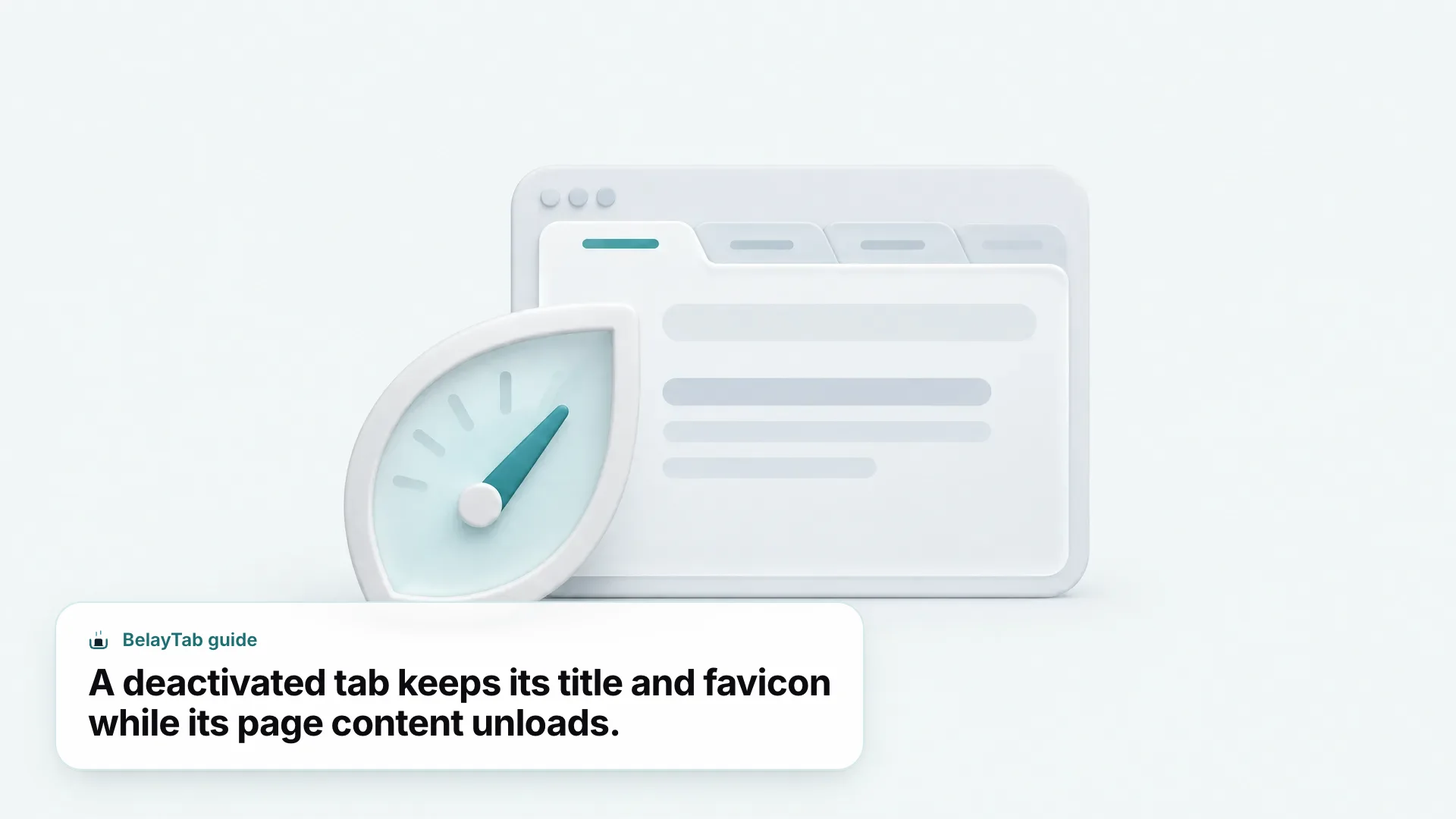
When Chrome deactivates a tab, it unloads the page’s content from memory but keeps the tab’s title and favicon in the tab strip, so it still looks open and where you left it (Chrome Developers blog). Click it, and Chrome reloads the page from scratch, the same way it would if you’d refreshed it manually.
Google’s own figure for how much this saves is notable: a discarded tab can use up to 80% less memory than an active one (Chrome Developers blog). That’s the ceiling, not a guarantee — a static article page won’t free nearly as much as a tab running video or a heavy web app.
This is also the mechanism behind tab overload feeling less painful than it used to. Forty open tabs don’t all sit in RAM at once anymore; most of them are quietly deactivated until you need them.
Urgent Discard is worth trying once just to see the mechanism up close. Pick a tab you don’t mind losing unsaved progress on, click the button next to it in chrome://discards, and watch it grey out immediately instead of waiting for Chrome’s own timing. It’s a manual trigger for the same process that normally happens silently in the background whenever you step away from a tab.
How Is Memory Saver Different From Energy Saver?
Memory Saver frees RAM by deactivating tabs, while Energy Saver stops CPU-intensive background tabs to cut power use. They solve different problems and live as separate toggles on the same page (Chrome Help). One is about how much memory Chrome holds onto; the other is about how much battery it drains.
Energy Saver kicks in specifically around your device’s power state and is available on Windows, Mac, and battery-equipped Chromebooks. It won’t touch a tab that’s playing audio or running a video call. Those are explicitly exempt, so you won’t lose a meeting mid-sentence because your laptop dipped into battery-saving mode.
Two switches, one page. Memory Saver and Energy Saver both live under Settings, then Performance, but they’re independent. You can run one without the other, and most people benefit from leaving both on.
If your fans are spinning and the laptop’s hot, that’s usually an Energy Saver (CPU) problem. If Chrome shows up as a memory hog in your system’s activity monitor while things otherwise feel fine, that’s Memory Saver’s territory. Worth checking both before assuming one setting will fix everything.
On a Chromebook running on battery, Energy Saver is the one worth double-checking first, since it’s specifically built for battery-equipped machines and throttles the tabs burning CPU cycles in the background, like a page quietly rendering something you’ve long since switched away from. Memory Saver, meanwhile, doesn’t care whether you’re plugged in or not; it deactivates idle tabs on the same schedule whether you’re at a desk or on a train.
How Does Chrome’s Memory Saver Compare to Edge, Firefox, and Vivaldi?
Every major desktop browser now has some version of this feature, though the names and numbers differ. Chrome calls it Memory Saver; Edge calls it Sleeping Tabs; Firefox calls it unloading; Vivaldi calls its version Memory Saver too, but adds a manual option.
- Edge. Officially named Sleeping Tabs, it puts background tabs to sleep after two hours of inactivity by default. Microsoft’s Edge team reports sleeping tabs typically cut memory use by about 32% on average and CPU use by about 37%, compared with a non-sleeping tab (Microsoft Edge Dev blog).
- Firefox. Calls this “unload tabs,” available from Firefox 140 onward. It also unloads tabs automatically when system memory runs low, and it skips tabs playing media, in picture-in-picture, or using WebRTC.
- Vivaldi. Also branded Memory Saver, it automatically hibernates tabs that haven’t been used in a while, with a manual right-click Hibernate option for any tab you want to free up immediately.
None of these tools are directly interchangeable if you switch browsers, since settings and defaults don’t carry over. If you’re weighing Chrome against Edge partly on memory grounds, know that Edge publishes a specific savings figure while Chrome’s public number describes the maximum for a single discarded tab rather than a fleet-wide average. They’re not measuring quite the same thing, so treat any head-to-head comparison as a rough one.
Firefox keeps a transparency tool of its own that mirrors what Chrome offers. Opening about:unloads shows open tabs in unload-priority order along with last access time and memory use, working much like chrome://discards under a different name. If you’ve gotten used to peeking at Chrome’s discard list before a big session, that’s the page to bookmark on the Firefox side instead of hunting for it fresh.
What Are the Limits of Chrome’s Memory Saver?
Chrome’s Memory Saver only manages RAM while Chrome is open and running; it does nothing to protect, back up, or restore your tabs. That’s the single most important thing to understand about it, because a lot of people assume “memory management” and “tab safety” are the same feature. They aren’t.
Specifically, Memory Saver can’t help when Chrome crashes or freezes outright, when you accidentally close a window instead of a tab, when your computer restarts for an update, or when you simply want a snapshot of “everything I had open on Tuesday” to come back to later. It also doesn’t organize, group, or search your tabs. That’s a different set of features entirely.
Deactivated is not saved. A deactivated tab still needs Chrome running and that window intact to reload. If the window itself closes or Chrome crashes, Memory Saver has nothing to restore. You’re relying on Chrome’s separate recently closed tabs list or a session manager instead.
If you regularly work across dozens of tabs for research, ongoing projects, or client work, this gap matters more than it sounds. Memory management keeps Chrome fast today; it does nothing for you tomorrow if something goes wrong.
It also has no memory of what it did. Once Chrome closes for the day, there’s no log listing which tabs got deactivated, when, or how much RAM each one gave back. That information exists only in the moment, visible on the discards page, and disappears the next time you relaunch the browser.
Why Did The Great Suspender Get Removed, and Is Memory Saver a Safe Replacement?
The Great Suspender, a once-popular third-party tab suspender, was removed from the Chrome Web Store and force-disabled by Google in February 2021 after a change of ownership added code flagged as malware, reportedly tied to tracking and ad-fraud exploits (9to5Google). That report comes from a reputable tech-news outlet rather than an official Google post, but it’s well corroborated and the extension has stayed disabled since.
Chrome’s built-in Memory Saver is the Google-supported native alternative to that kind of third-party tab suspender, and it’s maintained as part of Chrome itself rather than by an independent developer who could sell or hand off the project.
If you’re still running the old Great Suspender or trying to recover URLs it had suspended, community workarounds exist, though they’re not officially documented by Google; our Great Suspender recovery guide walks through what’s been reported to work.
That episode is part of why sticking with a browser’s own built-in feature is generally the safer default over a third-party equivalent asking for similar-sounding permissions. Chrome’s own team ships Memory Saver as part of Chrome’s regular release process, with no separate ownership that could change hands the way an independent extension project can.
How Do I Check Which Tabs Are Using the Most Memory?
You check tab-by-tab memory use with Chrome’s built-in Task Manager, a separate window from your operating system’s own task manager. It lists every open tab and extension with live numbers you can sort.
- Open Task Manager. Press Shift + Esc on Windows or Linux.
- On Mac, use the menu instead. Click the three-dot menu, then More Tools, then Task Manager.
- Sort by memory. Click the Memory column header to rank tabs from heaviest to lightest.
- Act on what you find. Close the worst offenders, or leave Memory Saver to deactivate them automatically once they’re idle.
This is the fastest way to confirm whether Memory Saver is doing its job, or whether one specific tab, often a web app with a memory leak, is the real cause of your slowdown. If a single tab’s number keeps climbing the longer it stays open rather than settling, that’s usually the page’s own code rather than anything Chrome’s settings can fix; see our guide on Chrome lagging for what else to try.
Task Manager numbers reset each time you close and reopen Chrome, so it’s a snapshot of right now, not a running log. If you want to track memory habits over days rather than one session, you’ll need a separate system monitor outside Chrome.
Don’t be surprised to see entries beyond your open tabs in that list too. Chrome’s own browser process, its GPU process, and every installed extension each get a row with a memory number of their own. A heavy extension can sometimes outweigh any single tab on the list, which is easy to miss if you only scan for names you recognize as websites.
How Do I Stop Losing Tabs When Chrome Restarts or Crashes?
You stop losing tabs by pairing Chrome’s own recovery shortcut with a tool built specifically to save sessions, since Memory Saver was never meant to cover this job. Press Ctrl + Shift + T (Cmd + Shift + T on Mac) to reopen the most recently closed tab, and Chrome’s History menu also lists recently closed tabs and windows if you need to go back further than one step.
Those built-in tools work well for the tab you just closed by accident. They’re less reliable for a full crash, a forced restart, or “what did I have open last Thursday,” because Chrome’s own history depth is limited and isn’t designed as a searchable archive of past sessions.
Even Chrome’s “Continue where you left off” startup setting, found under Settings, then On startup, only helps if Chrome closes cleanly enough to remember what was open in the first place. A hard crash or a forced restart in the middle of an update doesn’t always leave that trail intact, which is exactly the gap a dedicated session manager is built to cover instead.
Combine the two: let Memory Saver keep Chrome light day to day, and let a proper session manager handle the moments Chrome itself can’t recover from. They’re solving different problems, and neither one substitutes for the other.