






You have fifteen tabs open, the one you need is somewhere in the middle, and reaching for the mouse feels like the slow way to get there. A tab switch shortcut solves that in one keystroke, but the exact keys change depending on your browser, your operating system, and whether you want to cycle tab by tab or jump straight to one.
This guide covers the actual shortcut to switch tabs in Chrome, Edge, and Safari, what changes on Mac versus Windows, and where Firefox, Brave, and Vivaldi stand as of September 2026. It also covers what to do when the shortcut you’re pressing stops working, and what happens once you have so many tabs that cycling through them isn’t really the problem anymore — losing them is.
What Is the Keyboard Shortcut to Switch Tabs?
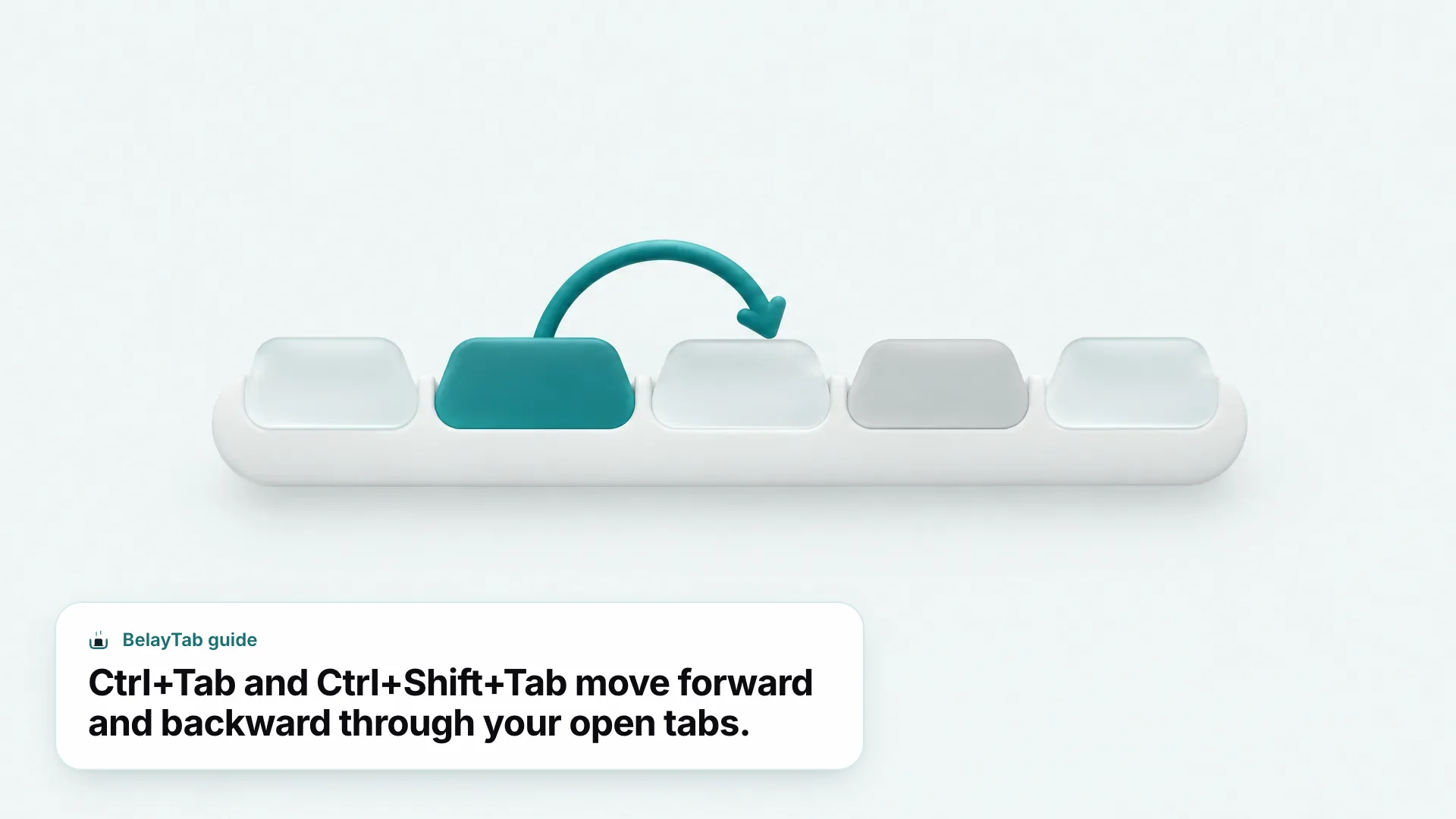
The keyboard shortcut to switch tabs is Ctrl+Tab for the next tab and Ctrl+Shift+Tab for the previous tab on Windows and Linux, or Cmd+Option+Right Arrow and Cmd+Option+Left Arrow on Mac. Safari on Mac uses its own combination instead of following Chrome’s pattern, and macOS reserves Cmd+Tab for switching between whole applications, which is why Chrome on Mac needs a different key combo for tabs.
Here’s the quick reference before we get into browser-specific detail:
| Situation | Shortcut |
|---|---|
| Next tab (Chrome/Edge, Windows/Linux) | Ctrl + Tab or Ctrl + PageDown |
| Previous tab (Chrome/Edge, Windows/Linux) | Ctrl + Shift + Tab or Ctrl + PageUp |
| Next tab (Chrome, Mac) | Cmd + Option + → |
| Previous tab (Chrome, Mac) | Cmd + Option + ← |
| Next tab (Safari, Mac) | Control + Tab or Shift + Cmd + ] |
| Previous tab (Safari, Mac) | Control + Shift + Tab or Shift + Cmd + [ |
| Jump to tab 1–8 (Chrome/Edge/Safari/Firefox) | Ctrl + number or Cmd + number |
| Jump to the last tab | Ctrl + 9 or Cmd + 9 |
| Switch tabs, recently used order (Firefox, Windows/Linux/Mac) | Ctrl + Tab |
Notice the pattern: Chrome and Edge share almost every shortcut on Windows because they’re both built on Chromium, while Safari and Mac-Chrome each go their own way. BelayTab’s own shortcut for saving a window follows the same Ctrl/Cmd+Shift pattern browsers already use, which is worth knowing if you’re setting up shortcuts across several tools — see the full list on the BelayTab keyboard shortcuts page.
How Do You Switch Tabs in Chrome With the Keyboard?
In Chrome on Windows and Linux, press Ctrl+Tab to move one tab to the right and Ctrl+Shift+Tab to move one tab to the left, cycling back to the start once you reach the end. Ctrl+PageDown and Ctrl+PageUp do exactly the same thing, which matters if your keyboard makes Tab awkward to hold alongside Ctrl. On Mac, swap those for Cmd+Option+Right Arrow and Cmd+Option+Left Arrow, since Cmd+Tab already belongs to the macOS app switcher and Chrome can’t take it over.
- Click into the Chrome window you want. The shortcut only affects the window that currently has focus.
- Press Ctrl+Tab (or Ctrl+PageDown). This moves one tab to the right; keep pressing to keep cycling forward.
- Press Ctrl+Shift+Tab (or Ctrl+PageUp). This moves one tab back to the left.
- On Mac, use Cmd+Option+Right Arrow and Cmd+Option+Left Arrow. Same idea, different keys, since Cmd+Tab is off-limits.
Two ways to reach the same shortcut. If your keyboard’s PageUp and PageDown keys sit behind a function-key layer (common on compact laptop keyboards), Ctrl+Tab and Ctrl+Shift+Tab are the more reliable pair to memorize.
These are documented on Chrome’s own keyboard shortcuts page, alongside dozens of other combinations worth knowing if you live in the browser all day. For the complete list, our Chrome shortcuts guide rounds up everything from new tab to hard refresh in one place, and the Chrome browser page covers how BelayTab fits alongside it.
How Do You Jump Straight to a Specific Tab?
Press Ctrl+1 through Ctrl+8 (Cmd+1 through Cmd+8 on Mac) to jump directly to that tab position, counting from the left edge of the tab strip, and Ctrl+9 or Cmd+9 to jump straight to the last tab no matter how many are open. This beats cycling one tab at a time when the tab you want is six or seven positions away — one keystroke gets you there instead of six.
It’s worth being precise about what Ctrl+9 actually does: it always means “last tab,” not “ninth tab.” If you have twelve tabs open, Ctrl+9 takes you to tab twelve, not tab nine. There’s no built-in shortcut for tab ten, eleven, or beyond — past position eight, your options are the last-tab shortcut, cycling with Ctrl+Tab, or using tab search, which we’ll get to shortly.
| Browser & OS | Jump to tab 1–8 | Jump to last tab |
|---|---|---|
| Chrome, Windows/Linux | Ctrl+1 … Ctrl+8 | Ctrl+9 |
| Chrome, Mac | Cmd+1 … Cmd+8 | Cmd+9 |
| Edge, Windows | Ctrl+1 … Ctrl+8 | Ctrl+9 |
| Safari, Mac | Cmd+1 … Cmd+8 | Cmd+9 |
| Firefox, Windows/Linux | Ctrl+1 … Ctrl+8 | Ctrl+9 |
| Firefox, Mac | Cmd+1 … Cmd+8 | Cmd+9 |
This is one of the more underused shortcuts to switch tabs, mostly because people default to cycling out of habit. If you tend to keep a predictable set of tabs open in the same order every day (email in position one, a calendar in position two, a project board in position three) jumping by number becomes almost automatic once it’s muscle memory.
What Is the Tab Switch Shortcut in Microsoft Edge?
The tab switch shortcut in Edge on Windows is Ctrl+Tab for the next tab and Ctrl+Shift+Tab for the previous one, matching Chrome exactly, since both browsers share the same Chromium foundation. Microsoft’s own keyboard shortcuts documentation also lists Ctrl+1 through Ctrl+8 to jump to a specific tab and Ctrl+9 to jump to the last one, again mirroring Chrome’s behavior.
A few related Edge shortcuts worth knowing alongside tab switching: Ctrl+T opens a new tab, Ctrl+W closes the current one, and Ctrl+Shift+T reopens the tab you just closed. One gap in Microsoft’s documentation: there’s no published shortcut for toggling Edge’s Vertical Tabs view, so if you rely on that layout, expect to reach for the mouse to switch it on or off rather than a key combo.
If you’re deciding between the two browsers day to day, our Edge browser page covers where Edge diverges from Chrome beyond shortcuts, including sync and workspace features.
What Is the Tab Switch Shortcut in Safari on Mac?
Safari’s tab switch shortcut on Mac is Control-Tab or Shift-Command-] for the next tab, and Control-Shift-Tab or Shift-Command-[ for the previous one, according to Apple’s own Safari keyboard shortcuts guide. This is different enough from Chrome’s Mac shortcuts that switching between the two browsers on the same machine can trip you up until it becomes automatic.
Safari also supports jumping directly to a tab: Command-1 through Command-8 selects the first through eighth tab, and Command-9 selects the last tab, the same numbering logic as Chrome and Edge even though the base next/previous keys differ. Beyond switching, Command-W closes the current tab and Shift-Command-T reopens the last one you closed — useful to know since it’s easy to fat-finger a tab closed while cycling quickly.
For every other Safari shortcut worth knowing (history, bookmarks, private tabs) see our Safari shortcuts guide. Safari only runs on Mac and iPhone/iPad, and BelayTab’s Safari support on Mac has two known gaps worth knowing up front: no tab groups, and Safari doesn’t let extensions read recently closed windows, both Apple platform limits rather than something any extension can work around.
Do Firefox, Brave, and Vivaldi Use the Same Shortcuts?
Mostly yes for the basics, but each browser adds its own layout options on top, so it’s worth checking each one directly rather than assuming. Firefox, Brave, and Vivaldi aren’t identical twins of Chrome even though two of them share its Chromium engine underneath.
Firefox is the biggest outlier of the three. Instead of a separate next-tab and previous-tab combo, Mozilla’s own keyboard shortcuts guide lists Ctrl + Tab as “Switch tabs (recently used order)” — and, unlike Chrome, that’s the same combo on Windows, Linux, and Mac, since Firefox doesn’t swap it for a Cmd-based shortcut on macOS the way Chrome does. Jumping to a specific tab follows the pattern you’d expect from other browsers: Ctrl + 1 through Ctrl + 8 (Cmd + 1 through Cmd + 8 on Mac) selects that tab position, and Ctrl + 9 (Cmd + 9 on Mac) always jumps to the last open tab.
- Firefox. Cycles tabs in recently-used order with Ctrl + Tab (same on Mac as Windows/Linux), plus Ctrl + 1–8 (Cmd + 1–8 on Mac) to jump to a tab and Ctrl + 9 (Cmd + 9 on Mac) for the last tab; see our Firefox shortcuts guide for the full rundown.
- Brave. Built on Chromium, so basic tab cycling generally follows Chrome’s pattern. Brave also shipped its own Vertical Tabs feature in its 1.52 desktop release, turned on by right-clicking a tab and choosing “use vertical tabs,” which moves your tabs into a scrollable sidebar instead of a horizontal row.
- Vivaldi. Also Chromium-based, with a documented “Tab bar position” setting under Desktop Appearance settings that lets you move the tab bar to the side of the window, and ongoing refinements to vertical tabs shipping in its regular snapshot builds.
Firefox cycles by recency, not by position. Because Ctrl+Tab in Firefox jumps to whichever tab you had open most recently rather than the one physically next to it in the tab strip, the order can feel unpredictable if you’re used to Chrome’s strictly left-to-right cycling. Jumping by number with Ctrl+1 through Ctrl+9 sidesteps that entirely, since those always target a fixed position.
The bigger point across all three: vertical tab layouts change how you scan tabs visually, but they don’t replace a keyboard shortcut to switch tabs. You’re still choosing between cycling with the keyboard or clicking directly on the one you want in the sidebar.
How Do You Find One Tab Among Dozens Instead of Cycling?
Press Ctrl+Shift+A in Chrome to open tab search, then type part of the tab’s title or site name to jump straight to it, which is faster than pressing Ctrl+Tab repeatedly once you’re past ten or so open tabs. Tab search also lives as a small dropdown-arrow icon at the end of the tab strip, in case you’d rather click than remember the shortcut.
- Press Ctrl+Shift+A anywhere in Chrome. A search box appears listing your open tabs.
- Start typing. Match by page title or part of the URL; results narrow as you type.
- Use the arrow keys and press Enter. This jumps directly to the highlighted tab, skipping everything in between.
This matters more the busier your browser gets. Cycling one tab at a time is fine with five tabs open; it stops being fine with thirty, when the tab switch shortcut turns into a dozen keystrokes just to reach the one you want. Our guide to searching open tabs in Chrome covers the feature in more depth, including how it compares to using the address bar to jump to an already-open page.
Why Isn’t My Tab Switch Shortcut Working?
The most common reason a tab switch shortcut stops working is that the browser window doesn’t have keyboard focus, or an extension has claimed the same key combination for something else. It’s worth ruling these out in order rather than assuming the shortcut itself is broken.
Start with focus: if you’re clicked into DevTools, a form field inside a page, or a different application entirely, Ctrl+Tab may not do what you expect until you click back into the browser chrome itself. Next, think about anything you installed recently — some extensions register their own keyboard shortcuts, and depending on what they chose, that can shadow a browser shortcut you were relying on. If the shortcut broke right after installing something new, that’s the first place to look.
Ctrl+9 isn’t a ninth-tab shortcut. It’s easy to assume the number pattern continues past nine. It doesn’t — Ctrl+9 (or Cmd+9) always means “jump to the last tab,” so if you have more than nine tabs open, there’s simply no number shortcut for tab ten and beyond.
If neither of those explains it, try the alternate key combo before assuming something is broken: Ctrl+PageDown and Ctrl+PageUp exist specifically as a backup path to the same result as Ctrl+Tab and Ctrl+Shift+Tab. If one combo doesn’t respond but the other does, the problem is almost certainly with that specific key on your keyboard rather than the browser.
Can You Change or Remap the Tab Switch Shortcut?
No — Chrome, Edge, and Safari don’t include a settings page for reassigning their built-in tab-switching keys. What you can customize are the shortcuts assigned to individual extensions, which is a different thing entirely and only applies to what that extension does, not to the browser’s own next-tab and previous-tab behavior.
If what you want is to fix a conflict between an extension’s shortcut and something else, our Chrome extensions shortcut key guide covers how those work and how to resolve overlaps. That’s a genuinely different problem from wanting to remap Ctrl+Tab itself, and it’s worth being clear on which one you’re trying to solve before you go looking for a settings toggle that doesn’t exist.
Some people work around this with OS-level remapping utilities that sit outside the browser entirely and intercept key presses before Chrome or Safari ever sees them. That’s a legitimate approach if you have a strong preference, but it’s outside what any browser vendor documents or supports directly, so treat it as a personal setup choice rather than a built-in feature.
What Do You Do When Switching Tabs Isn’t Enough?
Keyboard shortcuts only manage tabs that are currently open in front of you. They don’t help once a window closes, the browser crashes, or you’ve simply accumulated more tabs than any shortcut can reasonably keep organized. At that point, the question stops being “how do I switch to the tab I want” and becomes “how do I make sure the tab I want still exists.”
Tab groups are the first real lever here: grouping related tabs by color and name (see tab groups) means you’re navigating between a handful of labeled clusters instead of scanning dozens of individual tabs one Ctrl+Tab at a time. If tab overload is a recurring problem rather than an occasional one, our guides on fixing tab overload and choosing a tab manager go into more detail on organizing before you even get to switching.
But grouping and searching only address tabs you can already see. The scenario a shortcut genuinely can’t touch is the one where a window is simply gone — closed by accident, lost to a crash, or wiped out by a restart. That’s a session-management problem, not a keyboard problem, and it’s where BelayTab is built to help: it saves an entire window as a named session with one click or Ctrl/Cmd+Shift+S, keeps tab groups, pinned tabs, and order intact, and automatically snapshots each open window every five minutes, and again the moment you close a window. Restoring never overwrites. It adds a new version to that session’s history, and BelayTab keeps the last twenty versions plus a 30-day trash for anything deleted. See our session manager comparison for how that stacks up against other tools.
None of this replaces knowing your shortcuts. Ctrl+Tab, Ctrl+1 through Ctrl+9, and tab search will still be the fastest way to move around a window full of open tabs. They just aren’t built to answer a different question (what happens after a window is gone) and that’s a gap worth covering before you need it, not after.