






Setting your homepage on a Chromebook takes about thirty seconds once you know where to look, but it’s easy to mix up with a different setting: Chrome startup pages. One controls what the Home button does. The other controls what loads when Chrome itself opens. This guide walks through both, plus the Chromebook-specific wrinkles (managed devices, guest mode, and what happens to your tabs after a reset) that the settings page doesn’t explain.
We’ll also cover a gap that trips people up: Chrome’s built-in startup options handle a normal, orderly close of the browser. They don’t do much for a crash, a forced sign-out, or a Powerwash. Toward the end, we’ll show where a tool like BelayTab picks up that slack.
How Do I Set My Homepage on a Chromebook?
You set it in Chrome’s Appearance settings, not in the On Startup section people usually check first. Open the Chrome menu (the three dots, top right), go to Settings, then Appearance, and turn on “Show Home button.” From there you pick either the New Tab page or a custom web address as the destination. [support.google.com/chrome/answer/95314]
Once it’s on, a small house icon shows up to the left of the address bar. Click it any time to jump straight to your chosen homepage — handy if you use one dashboard, intranet page, or search engine as a base you return to often.
Here’s a quick reference if you’re not sure which setting you actually need:
| Your situation | What to change | Where |
|---|---|---|
| Want a one-click button to a fixed page | Turn on Show Home button, set a URL | Settings > Appearance |
| Want tabs to reopen exactly as you left them | Set startup to “Continue where you left off” | Settings > On startup |
| Want the same set of tabs every launch, regardless of what was open before | Add specific pages | Settings > On startup > Open a specific page or set of pages |
| On a work or school Chromebook | Setting may be locked | Ask your IT admin |
| Want tabs safe from crashes, sign-outs, or resets | Chrome settings alone won’t cover this | See the BelayTab section below |
- Open the Chrome menu. Click the three dots in the top-right corner, or go to More tools > Settings.
- Select Appearance. It’s in the left sidebar of the Settings page.
- Turn on “Show Home button.” A new field appears underneath it.
- Pick New Tab page or a custom address. Type the URL if you want a specific site as your homepage.
- Click the Home icon to test it. It should appear left of the address bar and take you straight there.
This is the whole procedure for chrome homepage settings on a Chromebook. There’s no separate ChromeOS-level homepage control, since Chrome is the browser layer on both Chromebooks and desktop.
How Do I Turn On the Home Button in Chrome?
Turning on the Home button is the same “Show Home button” toggle described above, under Settings > Appearance. It’s off by default in a fresh Chrome profile, which is why the icon might be missing from your toolbar even though you’ve used Chrome for years. [support.google.com/chrome/answer/95314]
Some people skip the Home button entirely and rely on pinned tabs or bookmarks instead. That’s a reasonable choice if you jump between several regular destinations rather than one. If you want that approach, our guide to pinned tabs covers how to keep specific sites a click away without touching this setting.
What Are Chrome’s Startup Page Options?
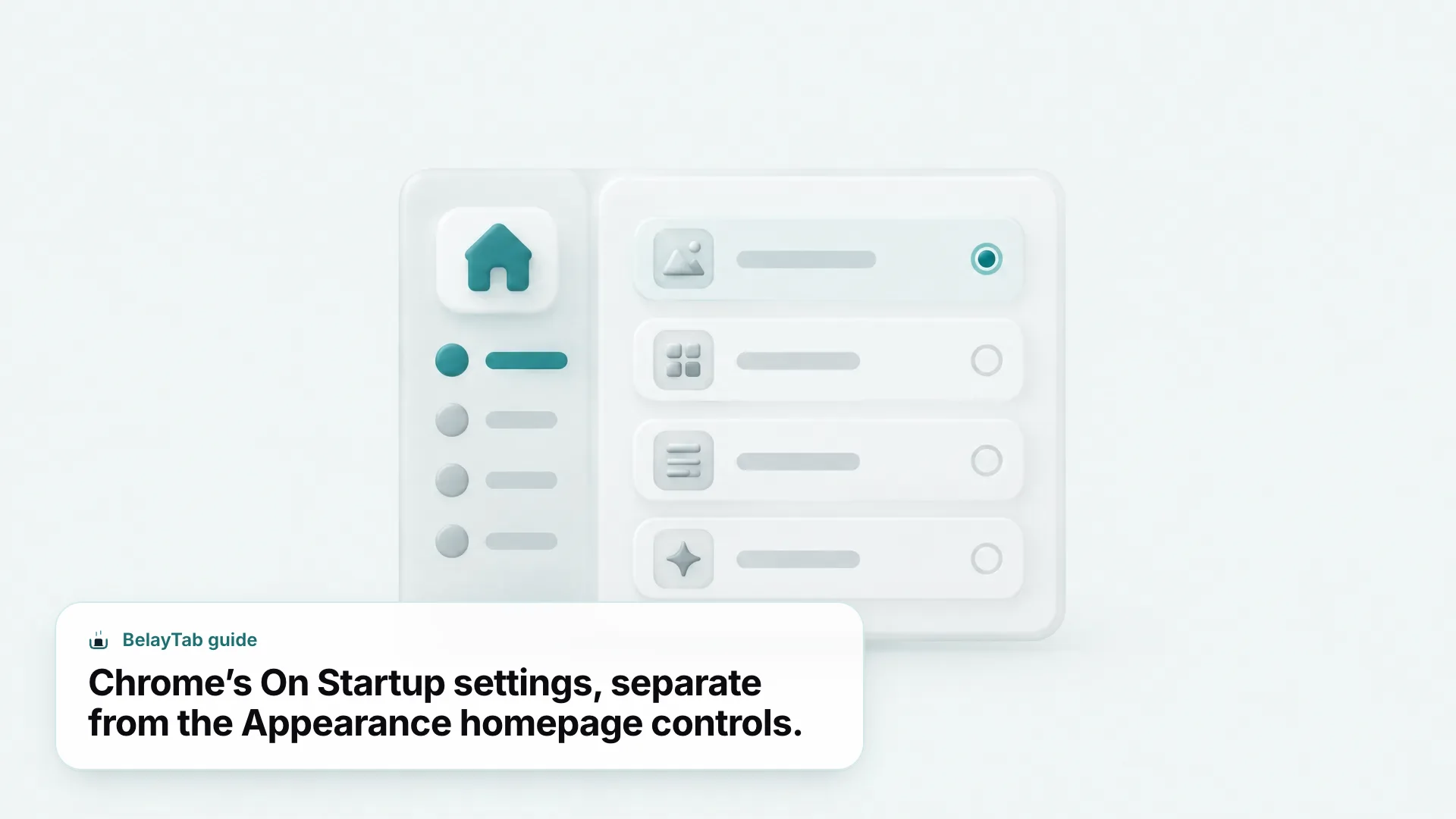
Chrome gives you three choices for what loads when the browser itself opens, set under Settings > On startup, separate from the homepage. [support.google.com/chrome/answer/95314]
- New Tab page. Chrome opens fresh with just the default new-tab screen. Good if you like starting clean.
- Continue where you left off. Chrome reopens every tab and window from your last session, including sign-in state.
- Open a specific page or set of pages. Chrome loads a fixed list you define, no matter what was open before.
“Continue where you left off” is the closest thing to automatic tab recovery that Chrome ships with, and it’s what most people mean when they say they want their tabs “saved.” It works well for a deliberate close-and-reopen. It’s less reliable the moment something abnormal happens to the browser, which we’ll get into a few sections down.
Most people pick one of these three options once and never revisit the section again, which is fine until the day it doesn’t behave the way you expect — after an update, a crash, or a factory reset. It’s worth checking occasionally, especially if Chrome has started asking to restore pages after a crash more often than usual, since that’s typically a sign something upstream is unstable rather than a problem with the startup setting itself.
How Do I Add or Remove Specific Startup Pages?
You add them from the same On Startup screen, one at a time or all at once from your current tabs. Go to Settings > On startup, select “Open a specific page or set of pages,” then choose “Add a new page” to type a URL, or “Use current pages” to capture everything open right now in one step. [support.google.com/chrome/answer/95314]
- Go to Settings > On startup. Select “Open a specific page or set of pages.”
- Click “Add a new page.” Type or paste the URL, then click Add.
- Or click “Use current pages.” This grabs every tab open in the current window as your startup list.
- Edit or remove entries. Hover over a listed page for the edit and remove icons, and adjust as needed.
This is worth using if you always want the same three or four work tools open (email, calendar, a ticketing system) regardless of what you were doing the day before. It doesn’t update itself, though. If you swap one of those tools out, you’ll need to come back and edit the list manually.
If you manage multiple Chromebooks (a family device, a shared laptop, or several school-issued units) this list has to be set individually on each one unless every device is signed into the same synced account. There’s no bulk “push this startup list to five Chromebooks” option in the consumer settings; that level of control belongs to organization-managed policy, not a personal account.
Why Can’t I Change My Homepage on a Managed Chromebook?
Because a network or IT administrator has locked the setting, and there’s no user-side way around that. On a work- or school-managed Chromebook, homepage and startup-page settings can be controlled centrally, and if they are, the toggles either disappear or stay greyed out. [support.google.com/chrome/answer/95314]
Managed device? Check with IT first. If Appearance or On Startup settings won’t budge, it’s almost always policy, not a bug. Your administrator set it that way on purpose, often to keep everyone on a company intranet page or to standardize a set of internal tools at launch.
This is common on school-issued Chromebooks too, where guest browsing might also be turned off for the same reason — see our piece on Chromebook guest mode for what else administrators can restrict. If you genuinely need a personal homepage and the device is managed, your only real path is asking IT to adjust the policy or using a personal, unmanaged device instead.
Does “Continue Where I Left Off” Keep Me Signed In to Sites?
Yes. That startup option restores your previous session state, which includes cookies and login status for the sites you had open, not just the tabs themselves. [support.google.com/chrome/answer/95314]
That’s convenient on a personal device. It’s a real privacy consideration on a shared or borrowed Chromebook, since the next person to open Chrome could land right back in your email or banking session.
On a shared Chromebook, turn this off. If more than one person uses the device, avoid “Continue where you left off” or pair it with automatic site-data clearing. Go to Settings > Privacy and security > Site settings > Additional content settings > On-device site data, and set it to delete data when all windows close.
If you want the convenience of reopened tabs without the shared-login risk, the safer pattern is to close Chrome fully between sessions and rely on saved sessions or bookmarks instead of a persistent “remember everything” startup mode.
What’s the Difference Between the Homepage, New Tab Page, and Startup Pages?
These are three distinct settings that people routinely conflate, and Chrome’s own menus don’t make the distinction obvious. The homepage is only where the Home button icon takes you when clicked. The New Tab page is what appears when you press Ctrl + T or click the plus icon to open a new tab. Startup pages are what loads automatically the moment Chrome itself launches. [support.google.com/chrome/answer/95314]
You can mix and match all three independently:
| Setting | Where it’s controlled | When it triggers |
|---|---|---|
| Homepage | Settings > Appearance | Only when you click the Home icon |
| New Tab page | Not user-configurable as a separate URL in stock Chrome | Every time you open a new tab |
| Startup pages | Settings > On startup | Only when Chrome itself opens |
Knowing this saves a lot of confused troubleshooting. If your “homepage” doesn’t seem to load on launch, it’s probably because homepage and startup pages are different settings. You likely need to change On Startup, not Appearance, or vice versa. For a full rundown of the startup-specific behavior, see our dedicated guide to Chrome startup pages.
Do My Homepage and Startup Settings Sync to Other Devices?
Yes, as long as you’re signed in to Chrome with sync turned on, since settings and preferences are one of the categories Chrome syncs by default, alongside bookmarks, history, open tabs, passwords, and payment and address details. [support.google.com/chrome/answer/165139] That means your Home button toggle and its custom URL, along with your chosen On Startup option, generally follow you from one Chromebook or computer to the next once you sign in with the same account.
There’s a nuance worth separating, though. “Open tabs” syncing is about the list of tabs you currently have open on other signed-in devices, visible through Chrome’s own tab-sync feature. It isn’t the same as your On Startup “specific pages” list, which is a saved preference rather than a live tab feed. Both sync, but they answer different questions: one shows what’s open right now elsewhere, and the other decides what loads when Chrome launches on this device.
Sync is a setting you control, not something forced on every signed-in session. You can review or narrow exactly which categories sync from Settings > “You and Google,” in case you’d rather have passwords sync but not full browsing history, for example. [support.google.com/chrome/answer/165139]
On a managed Chromebook, don’t assume sync overrides an administrator’s policy. If IT has locked the homepage or startup settings, that lock typically applies regardless of what a synced profile is carrying over from another device, since a managed device’s own policies take precedence over an individual’s synced preferences.
Can I Set a Homepage or Keep My Tabs in Guest Mode on a Chromebook?
Not persistently. Guest mode on a Chromebook lets you toggle homepage and startup settings during the session, but ChromeOS deletes your files, cookies, website data, and browsing activity the moment the guest session ends. [support.google.com/chromebook/answer/1057090]
Guest mode also has broader limits worth knowing if you’re using it as your daily setup rather than a one-off loan to a visitor:
- You can’t install apps or use the Play Store.
- First-party Google apps require signing in, so features tied to your account won’t work.
- Saved preferences, including any homepage or startup pages you set, aren’t retained.
- Built-in AI features are disabled for the session. [support.google.com/chromebook/answer/1057090]
Guest mode isn’t for a persistent setup. If you want your homepage, tabs, and settings to stick around between sessions, use a signed-in profile instead of guest browsing. Guest mode is built to leave no trace, which is exactly why none of these settings survive it.
Worth noting: even though Chrome doesn’t retain browsing activity locally in guest mode, the network operator, your ISP, or an employer/school managing the network may still see the sites you visit. [support.google.com/chromebook/answer/1057090] Guest mode isn’t private browsing in the fullest sense. It’s local-history-free, which is a narrower guarantee.
How Do I Make Sure My Startup Tabs Survive a Crash or Sign-Out?
Chrome’s startup settings load your chosen tabs on a normal launch, but they don’t protect you from Chrome crashing, freezing, or being force-closed before it can save session state properly. That gap is where a dedicated tab-saving tool earns its keep.
“Continue where you left off” relies on Chrome writing session data as it closes. A clean quit works fine. A crash, a forced sign-out on a managed device, or the browser getting killed by low memory can all interrupt that write, and you’re left guessing whether your forty research tabs from last night came back or quietly vanished.
BelayTab takes a different approach: it snapshots every open window automatically, on a schedule, independent of how Chrome happens to close. It captures every open window on a repeating interval and again whenever a window closes, so a snapshot usually exists even if the shutdown itself was messy. Every snapshot, plus anything you’ve deliberately saved or deleted, shows up in one place (the Recovery screen) instead of scattered across Chrome’s own history and recently-closed-tabs menus.
Automatic snapshots, not manual saves. BelayTab is free, works with no account required, and doesn’t cap how many sessions or tabs you keep. Saving a window takes one click, or the shortcut Ctrl + Shift + S (Cmd + Shift + S on Mac), and every save keeps tab groups, pinned tabs, and their order intact.
It also keeps the last 20 versions of each saved session, and restoring never overwrites what you had. It adds a new version instead. If a crash cost you a session that Chrome’s startup pages didn’t recover, that version history and the 30-day trash are your safety net. See Restore Tabs for the full picture of what gets recovered and how.
How Do I Restore My Tabs After a Chromebook Update or Powerwash?
A Chromebook Powerwash or a full reset erases local browser data, so your exact open-tab layout from before the reset won’t come back automatically the way it did on a normal restart. Chrome sync can restore bookmarks, history, and saved passwords once you sign back in, but open tabs are a narrower promise. They depend on what state existed and synced before the wipe. [support.google.com/chromebook/answer/6309225]
If you’re troubleshooting a Chromebook that’s crashing, freezing, or behaving oddly before you reach for a reset, work through the lighter steps first: close all apps and browser windows, hard-refresh with Ctrl + Shift + R, and remove any recently installed extensions before you resort to a reset. [support.google.com/chromebook/answer/6309225] Our guides to why a Chromebook keeps freezing and updating a Chromebook go deeper on when a reset is necessary versus overkill.
If you do need to reset, having tabs saved somewhere outside the browser’s own session state is what protects you — not the startup-pages setting, since that only governs behavior within an intact profile. This is where export and sync matter:
- Before a Powerwash, export your sessions. BelayTab can export your sessions to JSON, CSV, a plain URL list, or HTML bookmarks, and it also writes a rolling backup file to Downloads on a schedule you turn on, via auto-export backups.
- After the reset, reinstall from the Chrome Web Store. Grab the extension again from the download page.
- Import the file back, or use Sync. Import your exported file, or if you’ve turned on BelayTab Sync, your sessions and 90 days of cloud version history are already waiting once you sign back in.
Sync is optional and paid ($4/month or $36/year, with a 30-day refund window), and it’s genuinely only worth it if you work across more than one browser or want cloud-side recovery beyond your own machine. For a single Chromebook, exporting before a known reset and reimporting after covers most people. It’s worth reading our guide on importing and exporting tab data if you’re moving between BelayTab, OneTab, or Session Buddy exports.
Whatever you land on for homepage and startup settings, it’s worth separating two problems that feel similar but aren’t: what loads when you open Chrome, and what happens to your tabs when something goes wrong. Chrome’s settings handle the first one well. For the second, pairing them with automatic snapshots closes the gap that On Startup was never designed to cover.