






You open forty tabs for one afternoon of research, and by evening your laptop fan sounds like it’s taking off. Sleeping tabs is Microsoft Edge’s fix for that: a built-in feature that quietly pauses tabs you’re not looking at, so they stop eating memory and CPU until you click them again. Chrome, Firefox, and Vivaldi all do something similar under different names, and this guide covers how each one works and what it actually saves.
Here’s the part sleeping tabs won’t tell you, though: pausing a tab and protecting a tab are two different jobs. A crash, an accidental window close, or a browser update can still wipe out the tabs sleeping tabs was managing a second ago. We’ll get to the fix for that near the end.
What Are Sleeping Tabs?
Sleeping tabs is Microsoft Edge’s name for a feature that pauses tabs you’re not using, so they stop consuming memory and CPU until you click back on them. According to Microsoft’s own description of the feature, sleeping tabs “puts background tabs to sleep after two hours of inactivity to free up resources for active tabs, new tabs, and other applications on your device.”
Visually, a sleeping tab fades in the tab strip, which is Edge’s way of showing it’s released its resources. It’s still there. You haven’t lost your place. Microsoft describes it as simply pausing the page rather than closing anything, which is a meaningful distinction if you’ve ever mistaken it for a crash.
It’s easy to confuse sleeping tabs with Edge Workspaces, but they solve different problems. Workspaces “helps you organize your work, browser tabs, and projects based on activities across multiple contexts” by grouping related tabs together. That’s about organization, not memory. Sleeping tabs runs quietly in the background regardless of whether your tabs sit inside a Workspace or not, since the two features don’t interact with each other at all.
The feature is specific to Edge by that exact name, but the underlying idea (freeing resources from tabs nobody’s looking at) shows up across almost every major desktop browser. It’s just called something different everywhere else.
Which Browsers Have a Sleeping Tabs Feature?
Most major desktop browsers now include some version of this, though the names and defaults vary quite a bit. If you’re used to Edge’s wording, it helps to know what to look for elsewhere before you go hunting through a settings menu that doesn’t say “sleeping tabs” anywhere.
| Browser | Feature Name | How Tabs Go to Sleep | Where to Find It |
|---|---|---|---|
| Edge | Sleeping tabs | Automatically after 2 hours inactive (default, adjustable) | Settings > System and performance > Performance |
| Chrome | Memory Saver | Automatically when the browser needs memory | Settings > Performance |
| Firefox | Unload tabs | Automatically, or manually via about:unloads |
about:unloads in the address bar |
| Vivaldi | Memory Saver (Hibernate) | Automatically, or manually per tab | Right-click a tab > Hibernate |
| Opera GX | GX Control | Manually, via CPU/RAM limiters you set | GX Control panel |
Notice Safari isn’t on this list. Apple doesn’t publish a dedicated sleeping-tabs style feature for Safari; its tab management centers entirely on Tab Groups, which organize tabs by topic rather than pausing them for memory. If you’re comparing browsers on this specific feature, Safari simply isn’t in the running the way Edge, Chrome, Firefox, and Vivaldi are.
The naming inconsistency causes real confusion. Search for “sleeping tabs” inside Chrome’s own settings and you won’t find the phrase anywhere. It’s filed under Memory Saver instead. The same goes for Firefox’s about:unloads, which looks nothing like a toggle you’d stumble into by browsing Settings on its own; you have to know to type it into the address bar first.
Notice that Opera GX works differently from the rest: instead of an automatic timer, it hands you a limiter dial for the browser’s own resource use. We’ll cover that alongside Firefox and Vivaldi further down.
How Do You Turn On Sleeping Tabs in Edge?
You’ll find the control in Edge’s Settings menu, whether you want to confirm the feature is already running or adjust its default two-hour timeout. The path is short, and it’s the same place you’d go to turn it off later.
- Open Edge’s settings. Click the three dots in the top right corner, then choose Settings.
- Go to System and performance. Select System and performance from the menu on the left, then open Performance.
- Turn on sleeping tabs. Switch on Automatically put tabs to sleep.
- Set your timeout. Under Put inactive tabs to sleep after a set time, pick how long Edge should wait — two hours is the default.
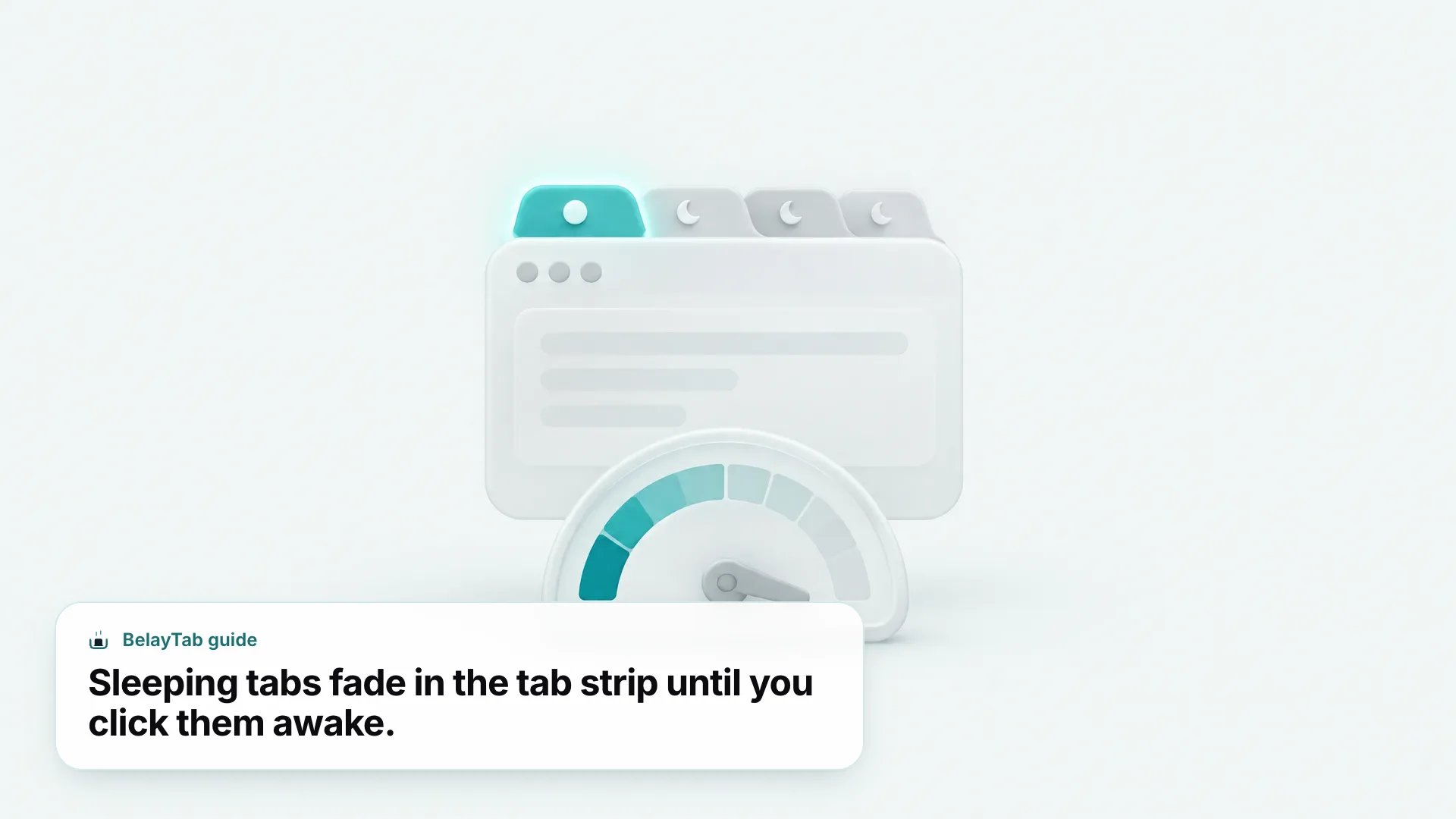
Once it’s on, you don’t have to do anything else. Edge watches which tabs you’ve stopped using and puts them to sleep on its own schedule. Clicking a faded tab wakes it up the same way opening a bookmark would — a brief reload, then you’re back where you left off.
The exact list of timeout choices sits right below the toggle, letting you pick something shorter or longer than the two-hour default depending on how you use your machine. Microsoft doesn’t publish those options as a fixed spec you can look up outside the app, so the safest move is opening the dropdown yourself and picking whatever feels right for your workflow, then adjusting later if it turns out to be too aggressive or not aggressive enough.
How Much Memory and CPU Do Sleeping Tabs Save?
Sleeping tabs save a real, measurable amount of memory and CPU, according to Microsoft’s own figures. Microsoft’s Edge team measured that “using sleeping tabs on Microsoft Edge typically reduces memory usage by 32% on average… a sleeping tab uses 37% less CPU on average than a non-sleeping tab.”
Where that number comes from. The 32% memory and 37% CPU figures come from Microsoft’s Edge developer blog, published in 2020 when sleeping tabs launched in beta. Treat them as a directional average, not a guarantee for every page you open.
Those savings aren’t evenly spread across every tab. A heavy page running video, ads, or scripts in the background has a lot more to give up than a static article you finished reading an hour ago. Edge’s own explanation puts it plainly: a sleeping tab “simply pauses the page,” and that pause is what drives both the memory and battery gains, since an idle page no longer needs to run its scripts at all.
Battery life is the part people notice before memory ever comes up as a topic. Microsoft’s explanation ties the two together directly: sleeping “reduces CPU usage to the bare minimum, which helps reduce battery consumption as well as release some of the memory.” On a laptop unplugged for a full workday, that’s often the more noticeable win — the fan stays quieter and the battery percentage drops slower, even if you never open a task manager to see the raw memory numbers behind it.
What’s the Chrome Equivalent of Sleeping Tabs?
Chrome’s answer to sleeping tabs is called Memory Saver, and it works on the same basic principle even though Chrome never uses the word “sleeping.” Per Chrome’s own Memory Saver support page, “Chrome deactivates tabs that you aren’t currently using. When you access an inactive tab, it automatically reloads.”
People sometimes search for this as Chrome Memory Saver specifically, since that’s the exact label you’ll see inside Chrome’s Settings under Performance. The behavior lines up closely with Edge: inactive tabs get deactivated to free resources, and a click brings them straight back with a quick reload rather than anything you need to manually restore.
If you’re deciding between browsers based on this feature alone, it’s mostly a wash — both do the job, and neither one is meaningfully more aggressive by design. Our full breakdown of Chrome’s Memory Saver goes deeper into its settings and edge cases if Chrome is your daily browser.
One practical difference: if you want to see which tabs are taking up resources at a given moment rather than guessing from a faded tab strip, Chrome’s own Task Manager gives you raw numbers per tab. Our guide to Chrome’s Task Manager shows how to open it and read what each row is telling you, which is a useful habit before you decide a shorter Memory Saver timeout is even necessary.
How Do Firefox, Vivaldi, and Opera Handle Inactive Tabs?
Firefox, Vivaldi, and Opera GX each take a different approach to the same underlying goal of freeing up resources from tabs you’re not using. None of them use Edge’s exact wording, and Opera GX in particular works quite differently from the rest.
- Firefox. Firefox calls it unload tabs: since Firefox 140, it frees memory from tabs you’re not using and, per Mozilla’s support page, it also unloads tabs automatically when system memory runs low, while skipping tabs playing media, in Picture-in-Picture, or on a WebRTC call. Check
about:unloadsto see the priority list. - Vivaldi. Vivaldi’s Memory Saver hibernates tabs that have sat idle, and you can trigger tab hibernation manually on any single tab by right-clicking it and choosing Hibernate.
- Opera GX. Rather than a timer, GX Control lets you set hard CPU and RAM limits for the whole browser, so tabs get squeezed to fit inside your chosen budget instead of being paused one at a time.
That last difference matters if you’re choosing between browsers for this reason alone. Edge, Chrome, Firefox, and Vivaldi all decide per-tab, automatically, based on how long something’s been idle. Opera GX instead asks you to set a ceiling once and lets the browser figure out the rest, which suits gaming setups where you want a hard cap more than a smart one.
Vivaldi ships two separate features that sound similar but aren’t. Tab Stacks group related tabs together (drag one tab onto another, or let Vivaldi auto-stack by domain) while Memory Saver’s hibernation is the part that frees memory. Firefox draws the same line with tab groups, built into the browser for all desktop users: drag a tab onto another, or right-click and choose “Add Tab to New Group,” to organize tabs, and that has nothing to do with unload tabs freeing memory in the background. It’s the same organization-versus-memory split Edge draws with Workspaces, just under a different name in each browser.
Do Sleeping Tabs Close or Delete Your Tabs?
No — sleeping tabs never closes or deletes anything; it only pauses the page until you click it again. That’s an important distinction, because a faded, unresponsive-looking tab can feel like something went wrong even though it’s working exactly as designed.
Closing a tab is a separate, deliberate action, and the keyboard shortcuts make the difference obvious. Pressing Ctrl + Shift + W (Cmd + Shift + W on Mac) closes the entire current window — tabs, sleeping or not, all gone from that window at once. Sleeping tabs never does that on its own; it waits for you to act.
Right-click menus make the distinction even clearer. Chrome’s tab menu includes an option like “Close tabs to the right,” and Firefox has a similar “Close Multiple Tabs” menu with choices for Close Tabs to the Right, Close Tabs to the Left, and Close Other Tabs. Every one of those is a menu item you have to click on purpose. Sleeping tabs never shows up in that menu at all, because it isn’t a closing action. It’s a background process that never asks for your input the way an actual close does.
Sleeping tabs don’t survive a real shutdown. Force-quitting Edge, restarting your computer, or an update that relaunches the browser can still take your tabs down with it. Sleeping tabs manages memory while the browser is running. It isn’t a backup, and it was never meant to be one.
That gap between “paused” and “protected” is exactly where things go wrong for people who assume any tab-saving feature covers them for everything. It doesn’t, and knowing that ahead of time is cheaper than finding out after a crash.
What’s the Best Sleeping Tabs Setting for Your Computer?
The best sleeping tabs setting depends on how much RAM your machine has, not on some universal ideal number. Edge’s default two-hour timeout is a reasonable middle ground for most modern laptops, but it isn’t the only sensible choice.
On a machine with 8GB of RAM or less, memory pressure shows up faster, so a shorter timeout does more real work. Our guide on whether 8GB of RAM is enough for Chrome covers the same math from the Chrome side, and the logic transfers directly to Edge’s sleeping tabs.
Go shorter on older hardware. If your machine has 8GB of RAM or less, try a 30–60 minute timeout instead of the two-hour default. Waking a sleeping tab only takes a second, so there’s little real downside to being more aggressive about it.
Desktops plugged into the wall around the clock have less to gain from an aggressive timeout, since neither battery life nor a fan spinning up in a quiet room tends to bother anyone as much. If your machine has plenty of RAM to spare, the two-hour default (or an even longer custom setting, if your browser lets you pick one) is unlikely to cause any noticeable difference in day-to-day performance. The setting matters most exactly where resources are tightest: an older laptop, a Chromebook doing double duty, or a machine already running other memory-hungry apps alongside the browser.
On the flip side, if you keep a handful of tabs you genuinely want to stay warm (a dashboard you glance at, a form you’re mid-way through) a longer timeout, or excluding that tab if your browser allows it, avoids the small friction of a reload interrupting your flow. If you’re regularly juggling dozens of tabs regardless of the timeout, it’s worth reading our piece on fixing tab overload too, since sleeping tabs treats the symptom, not the habit.
What Sleeping Tabs Can’t Protect You From
Sleeping tabs can’t protect you from a crash, an accidental window close, a wiped profile, or anything else that removes your tabs entirely, because it was built to manage memory, not to back anything up. That’s a fair trade for what it’s designed to do. It just isn’t the whole picture people sometimes assume it is.
Our own guide to what happens when Chrome crashes walks through how fragile “recently closed tabs” history really is once a browser restarts badly. Sleeping tabs doesn’t change that math for Edge at all; it operates entirely separately from whatever recovery Edge attempts after a crash.
This is where BelayTab comes in. It works alongside sleeping tabs rather than replacing it — one manages memory while you work, the other makes sure the tabs themselves survive whatever happens next.
That protection doesn’t come with strings attached, either. BelayTab keeps version history for the last 20 versions of every session, so restoring an old snapshot never overwrites what came after it — each restore just adds another version to the list instead. Deleted a session by mistake? It sits in a 30-day trash rather than vanishing immediately, which matters more than it sounds like until the day you need it back.
- Install BelayTab. Add it from the download page. It’s free, with no account required.
- Save your tabs. Click the BelayTab icon, or press Ctrl + Shift + S (Cmd + Shift + S on Mac), to save the whole window as a named session.
- Let sleeping tabs keep doing its job. Nothing about BelayTab interferes with Edge’s memory management — sleeping tabs still pauses what you’re not using.
- Restore when you need to. Open BelayTab’s Recovery screen any time to bring the exact session back, even after a crash or restart.
BelayTab’s automatic snapshots run on their own schedule too (every 5 minutes, plus whenever a window closes) so you don’t have to remember to save before something goes wrong. That’s the same “set it and forget it” logic sleeping tabs uses for memory, just applied to keeping your tabs alive instead.
How Do You Combine Sleeping Tabs With a Session Manager Like BelayTab?
You use sleeping tabs for day-to-day memory management and a session manager for backup and organization, since they solve different problems and don’t conflict at all. Running both is the normal setup, not a redundant one.
| Tool | Job | Survives a Crash or Restart | Cost |
|---|---|---|---|
| Sleeping tabs (Edge, Chrome, Firefox, Vivaldi) | Pause inactive tabs to save memory and CPU | No | Free |
| Tab groups | Organize open tabs by color and name | No | Free |
| BelayTab sessions (launching soon) | Save and restore whole windows of tabs | Yes, via automatic snapshots | Free (Sync is $4/month) |
If you’ve used other session managers before, it’s worth knowing how BelayTab compares. Our comparison with OneTab covers a tool that’s great for quickly collapsing a messy window but doesn’t snapshot automatically the way BelayTab does; our tab manager overview and session manager explainer are good starting points if you’re not sure which category of tool solves your problem.
BelayTab works across Chrome, Edge, Brave, Opera, Vivaldi, Arc, Firefox, and Safari on Mac, so switching between sleeping tabs’ different names in different browsers doesn’t mean switching your backup strategy too. If you’re coming from another tool, import support covers OneTab, Session Buddy, Tab Session Manager, and Tablerone, plus plain URL lists, so old sessions don’t have to start from zero.
Sleeping tabs will keep doing exactly what it’s good at: quietly freeing up memory while you work, without you having to think about it. Pair it with something that’s watching your tabs themselves, and the two gaps (memory and loss) both get covered instead of just one.