






Open your Chrome bookmarks bar right now and count how many folders actually make sense to you. If it’s a jumble of “New Folder (2)” and forty loose links from three years ago, you’re not alone — bookmarks are the easiest thing in a browser to start and the hardest thing to keep tidy. Figuring out how to organize bookmarks in Chrome isn’t about deleting everything and starting over. It’s about picking a folder structure you’ll keep using, moving what you already have into it once, and building small habits so the mess doesn’t creep back.
This guide covers the actual mechanics: creating folders, saving bookmarks properly, sorting what’s already there, clearing out duplicates and dead links, and backing the whole thing up. Along the way, we’ll point out where Chrome’s bookmark system runs out of room. It was never built to save open tabs, tab groups, or a whole browsing session, which is where a tool like BelayTab picks up the slack.
What’s the Best Way to Organize Bookmarks in Chrome?
The best way to organize bookmarks in Chrome is a shallow structure — five to ten top-level folders by topic, each with a subfolder or two at most, so nothing is more than two clicks away. Deep folder trees feel organized when you build them and become useless within a month, because you stop remembering where things went.
There’s no single right answer for how to organize Chrome bookmarks, but the pattern that holds up over time is topic over chronology. A folder called “October Links” tells you nothing six months later. A folder called “Tax Documents” or “Recipe Ideas” tells you everything, instantly, regardless of when you saved something into it.
Start by deciding on your top-level categories before you touch a single existing bookmark. Think in terms of the areas of your life or work that generate links repeatedly — a work project, a hobby, reference material you look up often, a reading list for later. Five to ten of these is normal; more than fifteen and you’re probably splitting hairs that don’t need splitting.
Here’s a quick reference for common starting points:
| Situation | What to do |
|---|---|
| Messy bookmarks bar, no real folders | Create folders in Bookmark Manager first, then drag existing bookmarks in batches |
| Hundreds of bookmarks, never sorted | Work through them a screen at a time rather than trying to finish in one sitting |
| Need the same folders on another computer | Turn on Chrome sync, or export an HTML file and import it |
| Want folders visible while browsing | Show the bookmarks bar (Ctrl+Shift+B) and keep only your top five or six folders there |
| Sharing links with a team | Export to HTML and share the file, since Chrome doesn’t have shared or collaborative folders |
Once your top-level categories exist, everything else (saving, sorting, cleaning up) gets faster because you’re filing into a system instead of inventing one bookmark by bookmark.
How Do I Create and Nest Bookmark Folders in Chrome?
You create folders inside Bookmark Manager, either from the toolbar there or by right-clicking an existing folder. Open the manager with Ctrl + Shift + O on Windows or Linux, or through the Chrome menu on Mac under Bookmarks and lists, which is where Google documents the feature living.
- Open Bookmark Manager. Press Ctrl + Shift + O, or go to Chrome menu > Bookmarks and lists > Bookmark Manager.
- Add a new folder. Use the folder-creation option in the manager and give it a specific, topic-based name.
- Nest it if needed. Drag the new folder onto an existing one to make it a subfolder, or leave it at the top level.
- Move bookmarks in. Drag individual bookmarks, or a selection of several, onto the folder to file them.
Nesting is where most people overdo it. A folder inside a folder inside a folder feels thorough while you’re building it, but in practice you’ll stop remembering the path and just dump new bookmarks at the top level anyway. Two levels (a topic folder with a couple of subfolders for its biggest subtopics) is usually the most that pays off.
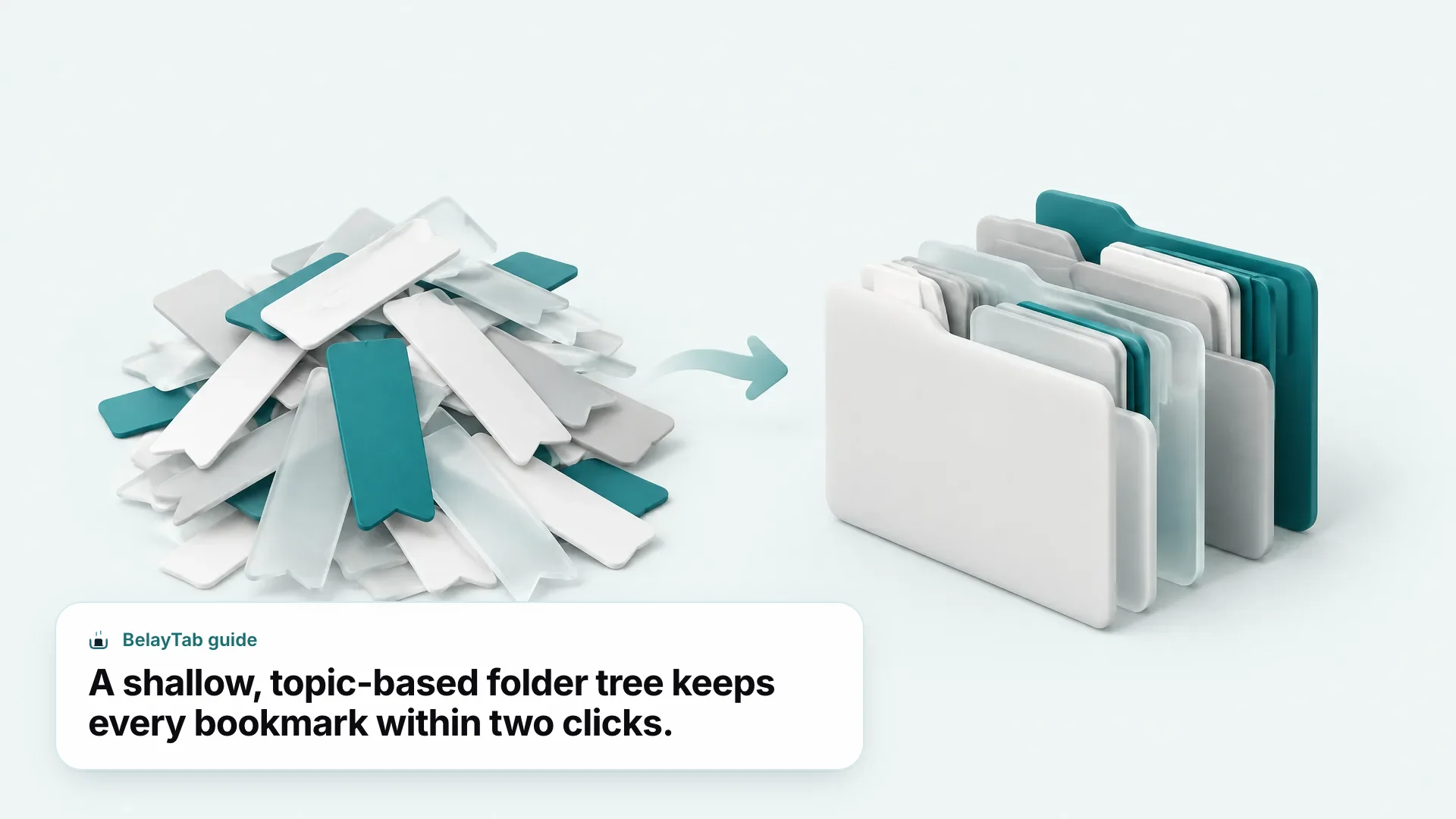
Don’t nest more than two or three levels deep. Every extra level is a decision you have to make correctly at save time, every single time. If you find yourself hunting for the right subfolder, flatten it.
If you’re moving between computers or want the same structure everywhere, it’s worth reading how Chrome bookmarks sync and export, since the folder tree you build here travels with the rest of your data.
How Do I Save New Bookmarks the Right Way?
You save the current page with Ctrl + D (Cmd + D on Mac), which opens a small dialog where you can rename the bookmark and choose its folder before confirming. That folder picker is the step most people skip, which is exactly how bookmarks end up dumped in the default “Other bookmarks” location instead of where they belong.
Take the extra two seconds. Page titles are often junk (“Untitled document,” a product SKU, a URL fragment) and a bookmark with a bad title is one you’ll never search for successfully later. Rename it to something you’d type.
If you want to save every open tab in a window at once, press Ctrl + Shift + D. Chrome creates a new folder and drops every tab into it as a bookmark. It’s a fast way to capture a research session, but it’s a flat dump — tab order, pinned tabs, and tab groups don’t carry over, they just become a list of individual bookmarks in one folder.
Rename before you save, not after. The save dialog that opens on Ctrl+D is the easiest moment to fix a bad title. Doing it later means opening Bookmark Manager and finding it again.
For a full rundown of every bookmark-related key combination across browsers, see the bookmark shortcut key guide. And if what you want is to preserve a whole browsing session (tabs, groups, and order intact) rather than a folder of flattened links, that’s a different job covered later in this guide.
Bookmarks Bar or Bookmark Manager: Which Should You Use?
Use both, for different jobs — the bookmarks bar for the handful of folders and pages you open daily, and Bookmark Manager for everything else. Treating the bar as your whole system is how it turns into an unreadable row of tiny favicons within a few weeks.
Toggle the bar’s visibility with Ctrl + Shift + B. On a smaller laptop screen, it’s reasonable to keep it hidden most of the time and rely on Bookmark Manager or the address bar instead — screen space is worth more than a few visible shortcuts.
| Bookmarks Bar | Bookmark Manager | |
|---|---|---|
| Best for | A handful of daily-use folders and pages | Your full, organized collection |
| Visibility | Always on screen (if shown) | Opened on demand |
| Capacity before it gets messy | Low — a dozen items, tops | High — this is where structure lives |
| How you get there | Ctrl+Shift+B to show/hide | Ctrl+Shift+O (Win/Linux), Chrome menu on Mac |
Bookmark Manager is also where import and export live, under the “…” menu, so it’s worth getting comfortable there even if you rarely open it day to day. For more on the bar specifically (including how to fit more into it without it looking cluttered) see the guide on the bookmarks bar.
How Do I Sort and Rearrange Bookmarks Without Starting Over?
You rearrange bookmarks by dragging them, either within Bookmark Manager’s list or directly on the bookmarks bar, since Chrome doesn’t offer an automated sorting rule that reorders folders for you. It’s manual, which sounds tedious but is manageable in short sessions once your folders already exist.
Select multiple bookmarks with Shift-click for a range or Ctrl-click (Cmd-click on Mac) for individual items scattered through a list, then drag the whole selection into a folder at once. This is far faster than moving items one at a time when you’re doing an initial cleanup of a long, unsorted list.
Folder order matters too, especially on the bookmarks bar where position affects how fast you can find something. Drag folders left or right on the bar to put your most-used ones closest to the edge you naturally look at first.
If you’re rearranging a genuinely large collection, don’t try to finish it in one sitting. Do your top-level folders first, get every bookmark into roughly the right bucket, and only then go back and fine-tune the order within each one. Trying to perfect the order while you’re still sorting into buckets is how these projects get abandoned halfway through.
How Do I Organize Bookmarks by Topic Instead of by Date Added?
You organize by topic by naming folders after what the bookmark is for, not when you saved it, which means retiring any folder currently named after a month or a project deadline that’s already passed. Date-based folders make sense for exactly as long as the date is relevant, and then they become dead weight you have to remember to check.
The practical move is to go through your existing “misc” or dated folders and ask, for each bookmark, what it’s about. A link saved in “September Stuff” might really belong in “Apartment Search” or “Client Onboarding” — folders that will still make sense to you next year.
- Work & Projects. Folders per active project, retired or archived once the project ends.
- Reference & Docs. Manuals, policies, and pages you look up repeatedly rather than read once.
- Reading Later. Articles and long reads you haven’t gotten to, kept separate from reference material.
- Personal. Recipes, travel, home projects — anything outside work that still deserves a home.
Four broad categories like these, each with a couple of subfolders, cover most people’s entire bookmark collection without turning into a maze. Add a category only when an existing one genuinely doesn’t fit, not preemptively.
One habit worth building: when you save a bookmark, ask whether it belongs to an existing folder before creating a new one. New folders multiply fast, and a collection with sixty single-bookmark folders is arguably worse than no folders at all, because you still have to scan through all of them to find anything.
How Do I Find and Remove Duplicate or Dead Bookmarks?
You find duplicates and dead links mostly by eye, since Chrome doesn’t ship a built-in tool that scans your bookmarks for either problem. It’s manual work, but it only takes real effort once — after that, keeping folders small makes duplicates obvious as you add new items.
- Go folder by folder. Open one folder in Bookmark Manager at a time rather than trying to eyeball your entire collection at once.
- Scan for repeats. Look for the same site saved twice under slightly different titles — a common result of bookmarking the same article from different devices.
- Click through old links. Open bookmarks you haven’t touched in a long time and check whether the page still exists.
- Delete what’s gone or duplicated. Remove dead links and keep only one copy of anything saved more than once.
This is also the right moment to question whether a bookmark still deserves to exist at all. A lot of what accumulates in a browser is stuff you meant to read once and never will — being honest about that during cleanup keeps folders lean.
Export before a big cleanup. Before deleting in bulk, export your bookmarks to an HTML file. If you delete something you needed, having a recent backup to reimport from is far less stressful than trying to remember what was there.
For the specifics of deleting individual bookmarks and what your options look like afterward, see the guide on deleting bookmarks in Chrome. If you’ve already deleted something you shouldn’t have, restoring deleted Chrome bookmarks covers what’s recoverable.
How Do I Export or Back Up My Bookmark Organization?
You back up your bookmark structure by exporting it to an HTML file from Bookmark Manager, or by turning on Chrome sync so it carries over automatically to any device signed into the same Google Account. Both are documented, official paths. There’s no need for a third-party tool just to move bookmarks around.
To export, open Bookmark Manager, use the “…” menu, and choose Export Bookmarks. Chrome saves your entire folder tree as a single HTML file you can store anywhere or import into another browser later. Importing works the same way in reverse, through the same menu.
If you’d rather not manage files at all, signing in to Chrome turns on sync by default, and bookmarks are one of the data types included. According to Google, a signed-in account can hold up to 100,000 synced bookmarks — more than enough headroom for even an aggressive organizer.
| Method | Best for | Where it lives |
|---|---|---|
| HTML export | One-off backups, moving to a new browser | A file you choose to save |
| Chrome sync | Ongoing, automatic, multi-device | Your Google Account |
Keep in mind these two methods protect your bookmark organization specifically — the folders, titles, and structure. They don’t touch anything about your open tabs, tab groups, or window layout, which is a separate category of data covered by import and export in BelayTab rather than Chrome’s bookmark system.
For a deeper walkthrough of exporting and importing, including moving bookmarks to a brand-new computer, see how to export and import Chrome bookmarks and moving Chrome bookmarks to a new computer.
How Is Organizing Bookmarks Different From Organizing Open Tabs?
Bookmarks are pages you’ve decided to keep; open tabs are work you haven’t finished deciding about yet, and Chrome treats the two completely differently. Closing a window doesn’t touch a single bookmark — but it can wipe out forty open tabs you never got around to saving, along with whatever order and grouping you’d built for that research session.
This is the gap that trips people up. You can bookmark every open tab with Ctrl+Shift+D, but that flattens everything into a single folder of individual links — pinned tabs, tab groups with their names and colors, and the order you had things in are all lost in the process. It’s a reasonable emergency move, not a real substitute for session management.
If you regularly work with tab groups in Chrome, or you tend to have one browser window per active project, bookmarking tabs one by one every time you want a break isn’t realistic. That’s a different problem from the folder structure this guide has been building, and it needs a different tool — see the broader look at Chrome tabs and what a dedicated session manager does that bookmarks can’t.
Bookmarks answer “what do I want to keep forever.” Session tools answer “what am I in the middle of right now, and how do I get back to exactly that state.” Both matter, and mixing them up (trying to use bookmarks as a tab-recovery system) is usually where people lose the most.
How Does BelayTab Fit Into a Bookmark Organization System?
BelayTab isn’t a bookmark manager. It’s the safety net for the tabs you haven’t bookmarked yet, running alongside the folder structure you’ve just built rather than replacing it. It’s a free browser extension from Pointerflow LLC that saves open windows as named sessions, with no account required and no limit on how many you keep.
Where Chrome’s bookmarks stop at “pages you manually decided to save,” BelayTab covers everything currently open. It takes automatic snapshots of every window every five minutes and again whenever a window closes, keeps the last 20 versions of each session so restoring never overwrites your history, and holds deleted sessions in a 30-day trash. Tab groups (names and colors included) plus pinned tabs and their order all come back exactly as you left them, which is more than a flattened bookmark folder can offer.
Everything lives on one Recovery screen: snapshots, deleted sessions, the browser’s own recently closed windows, and any exported files, all in one place instead of scattered across menus. It works across Chrome, Edge, Brave, Opera, Vivaldi, Arc, Firefox, and Safari on Mac — though Safari doesn’t support tab groups and can’t read recently closed windows, both Apple limitations rather than BelayTab ones. It isn’t available on iPhone, iPad, or Android.
On privacy: BelayTab doesn’t read what’s on your pages, and nothing leaves your computer unless you turn on the optional paid Sync ($4/month or $36/year), which adds cross-browser sync, 90 days of cloud version history, and web access at app.belaytab.com, encrypted in transit and at rest. For most people organizing bookmarks and protecting open tabs, the free tier alone covers it — see the automatic snapshots page and the Recovery screen for exactly what gets saved and where to find it.